BigBlueButton
By
EssingtonITS team
·
BigBlueButton lets you create from within Moodle links to real-time on-line classrooms using BigBlueButton, an open source web conferencing system for distance education. You can specify conference times, which are then added to the calendar, and, if allowed in your installation, the sessions may be recorded for viewing later.
Setup
[embed]https://youtu.be/fHJqq_pjUPc[/embed]
 Administrator Settings
From Site administration > Plugins > BigBlueButton, administrators can set the defaults for BBB sessions and recordings in courses.
https://docs.moodle.org/402/en/BigBlueButton
Administrator Settings
From Site administration > Plugins > BigBlueButton, administrators can set the defaults for BBB sessions and recordings in courses.
https://docs.moodle.org/402/en/BigBlueButton
- In a course, with Edit mode enabled, choose, BigBlueButton from the activity chooser.
- Choose a name and description, and, if desired, a welcome message which will appear in the Chat box when participants join the session.
- If you tick "wait for moderator", students can only join once someone with the moderator role has entered the room.
- From the Participants list you can, if needed, give specific roles to specific people, such as a moderator role.
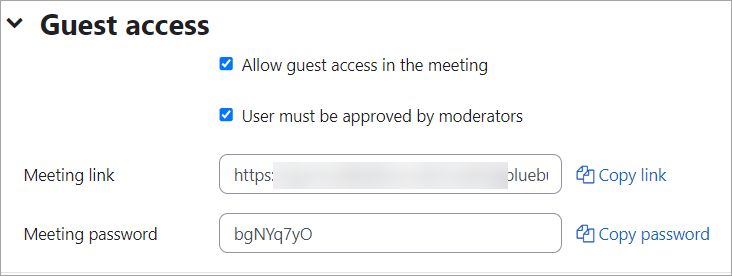
- From Guest access, you can check the box to allow external users without accounts to join the room. When the box is checked, a meeting link and password become available.
- In the Schedule section you can set a start time and also a time after which student will not be able to enter the room.
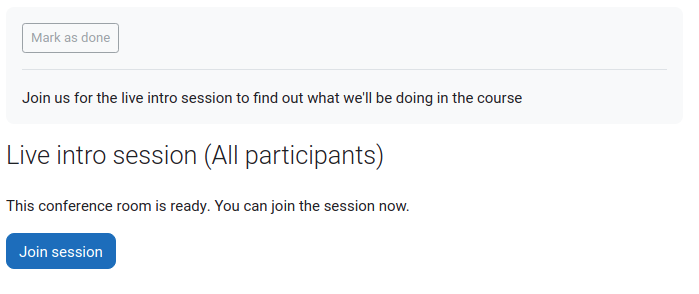
- Once set up, the activity appears with a link to join when the time is correct. (Before then, or if a moderator is required first. a message appears saying the conference has not yet started.)
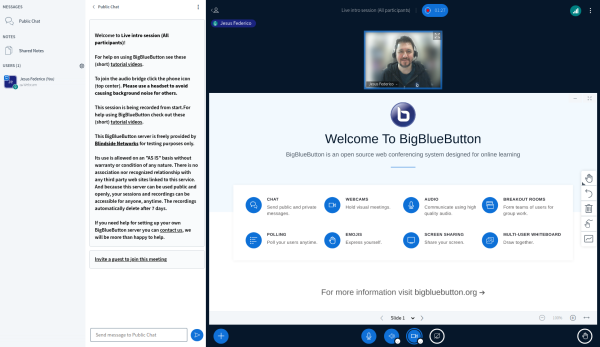
- On entering the room, a message will appear asking if you want to use your microphone or just listen. If you choose microphone you will need to check your settings.
- The moderator can choose whether to allow participants to use webcams and microphones or not.
- The central area can display presentations, polls, screensharing or an interactive whiteboard.
- There is also a chat option with public and private chat.
Administrator Settings
From Site administration > Plugins > BigBlueButton, administrators can set the defaults for BBB sessions and recordings in courses.
- From BigBlueButton > Extended capabilities, admins can control whether or not participant profile photos are shown in sessions.
- From BigBlueButton > Recordings, admins can specify which recording formats (such as presentations) may be viewed by everyone, and which (such as statistics) are restricted to those with the capability mod/bigbluebuttonbn:viewallrecordingformats.
Looking to optimise your Learning Management System? EssingtonITS offers tailored solutions to enhance your e-learning environment. Visit EssingtonITS.co.uk for expert IT services, or explore our dedicated hosting and support for Moodle at myelms.co.uk. Let us help you create a seamless and efficient learning experience.
person people found this useful.