eLMS AI Assistant
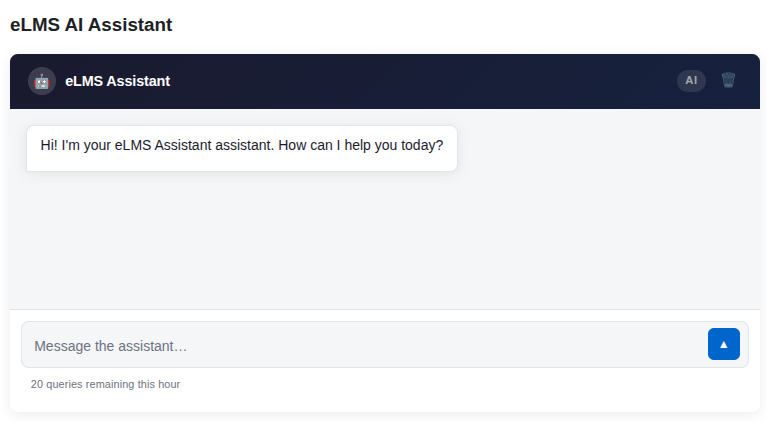
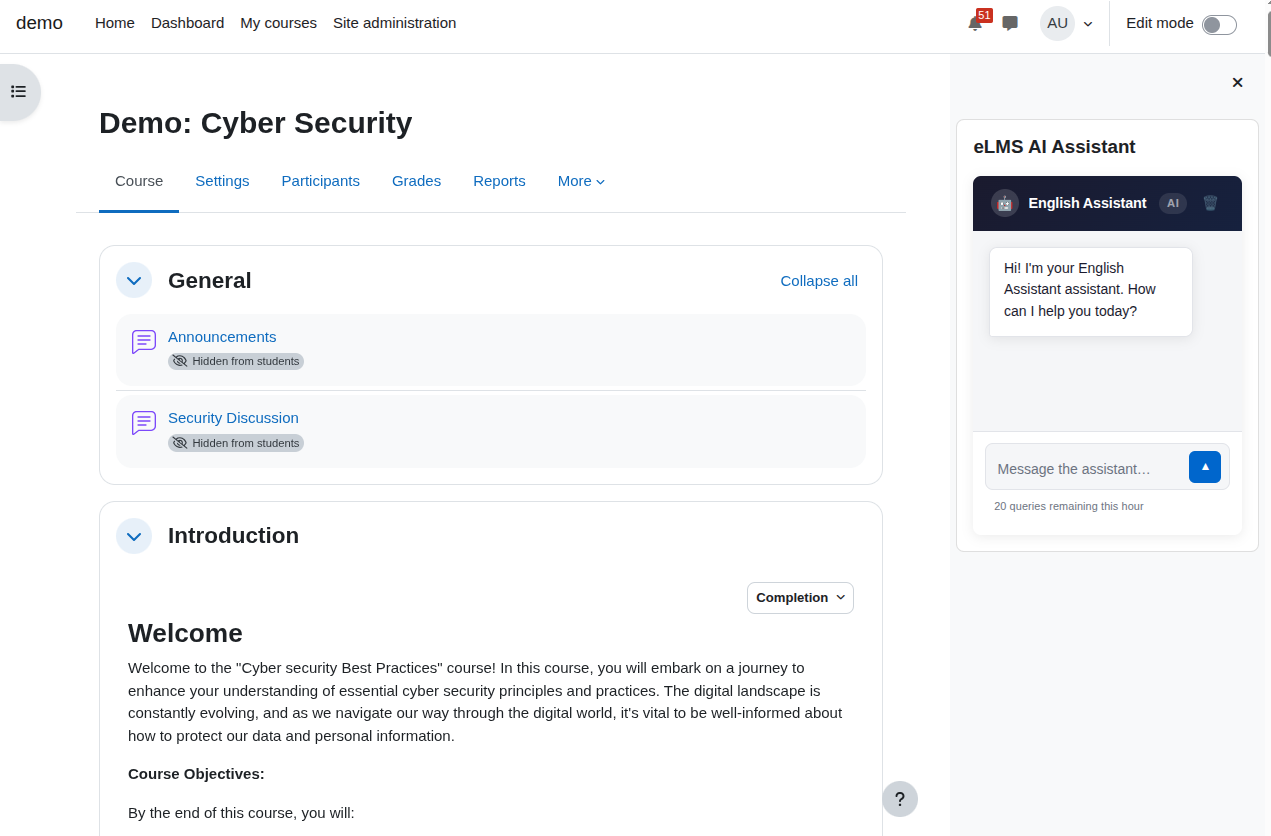
The eLMS AI Assistant is a chat tool built into your Moodle learning platform. It appears as a panel on course pages, the site home, or the admin dashboard, and lets you have a conversation with an AI that understands the context of what you are doing. You can ask questions, get explanations, request help with course content, and have a back-and-forth discussion all without leaving the page you are on.
Each assistant placement can be given a specific role, such as a Mathematics teacher, an English tutor, or a platform support specialist. The AI remembers your conversation across visits, so you can pick up where you left off.
What this product is for
Students and staff often need quick, contextual support that is not always available in real time. The eLMS AI Assistant gives every user access to a knowledgeable, always-available assistant that is tailored to the subject or task at hand. Rather than navigating away to a general-purpose AI tool, you get help that already knows your course, your progress, and your deadlines.
For platform administrators, the assistant also provides operational support helping with Moodle questions, checking site health, and reviewing usage depending on how it has been configured for your site.
Main features
- AI chat panel that can be placed on any Moodle page, including course pages, the site home, and the admin dashboard.
- Subject-specific personas, the assistant can be a Mathematics teacher, an English tutor, a construction lecturer, a medical educator, and more, depending on which context your administrator has assigned to the block.
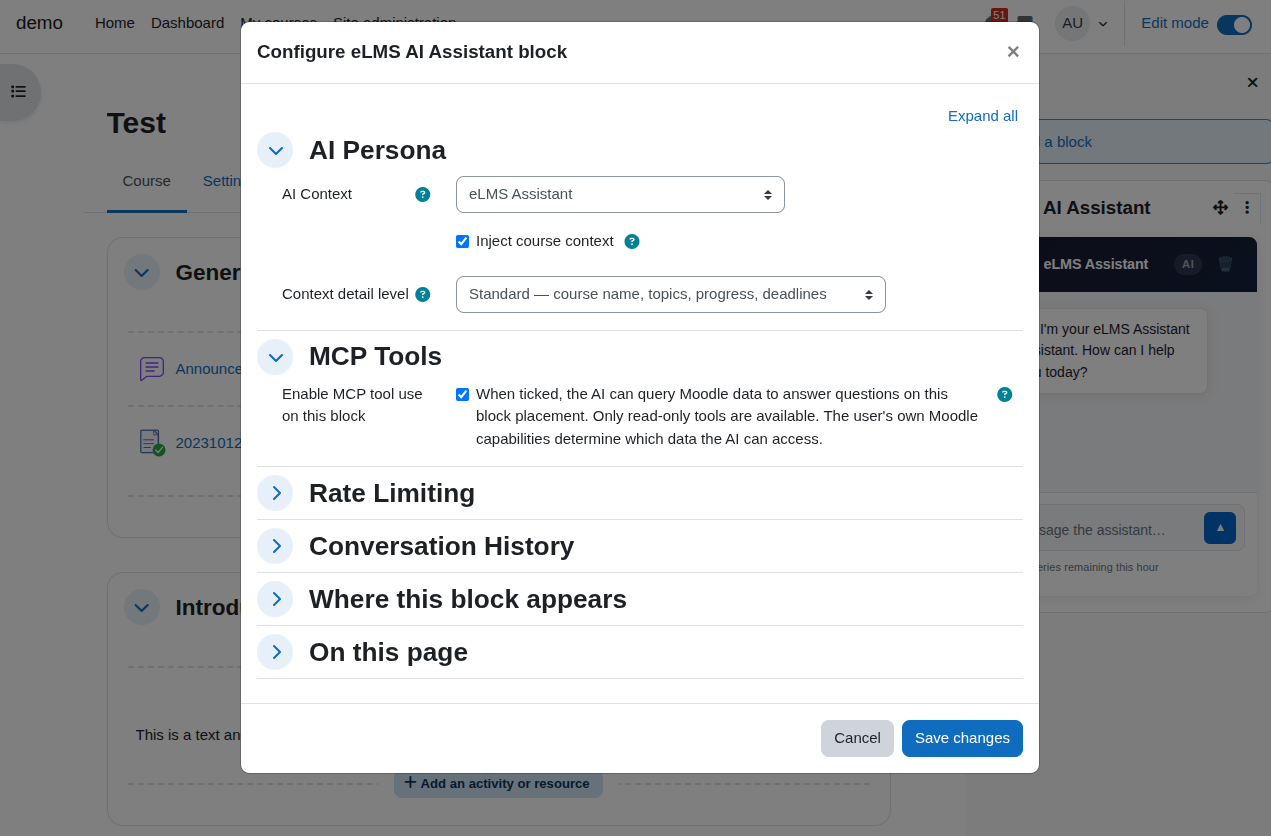
- Course awareness when used on a course page the assistant automatically knows your course name, your progress, and any upcoming assignment deadlines, so you do not have to explain your situation.
- Persistent conversation history the assistant remembers your previous messages so you can continue a conversation across visits.
- Live Moodle data queries when enabled, the assistant can look up real information from your site, such as course completions, enrolment lists, and grade reports, to answer questions more accurately (available when the optional MCP integration is active).
- Hourly query limit: a fair-use counter prevents overuse, with the remaining count shown at the bottom of the chat panel.
- Daily token budget: administrators can set a site-wide daily usage cap to manage AI costs.
- Usage dashboard for administrators shows how many queries have been made, which users are most active, and token consumption over time.
- Choice of AI provider the assistant can be powered by OpenAI (GPT), Anthropic (Claude), or Microsoft Copilot (Azure OpenAI), configured by administrators.
How to use it
Sending a message
- Navigate to a page where the assistant has been placed, typically a course page or the site home.
- Type your question or message in the text box at the bottom of the assistant panel.
- Press Enter or click the Send button.
- The assistant will respond within a few seconds. A typing indicator appears while it is thinking.
You can keep the conversation going by sending follow-up messages. The assistant remembers the last 20 messages in your conversation and uses them as context when replying, so you do not need to repeat yourself.
What you can ask
The assistant is configured with a specific role for each page placement. On a course page it might be a subject tutor; on the admin dashboard it might be a Moodle specialist. Ask questions related to that role for the best results. Some examples:
- "Can you explain what integration by parts is?"
- "I'm struggling with the Algebra section, where should I start?"
- "How many activities do I have left in this course?"
- "What is due this week?"
- "Help me understand the last quiz question I got wrong."
Viewing and continuing past conversations
When you return to a page where you have previously chatted, the last 50 messages from your conversation are loaded automatically. You can scroll up to review earlier messages and then continue the conversation as normal.
Clearing your conversation
- Click the Clear chat button in the assistant panel.
- A confirmation prompt will appear, confirm to permanently delete your conversation history for that block.
- The panel resets to a fresh start. This action cannot be undone.
Clearing your conversation affects only that specific assistant placement on that page. Conversations on other pages are not affected.
Understanding the query counter
At the bottom of the assistant panel you will see a number showing how many queries you have remaining in the current hour. Every message you send counts as one query. When the counter reaches zero, the assistant will let you know and ask you to wait until the limit resets. The counter refreshes automatically after one hour from your first message.
Common tasks
Getting course-specific help
When the assistant is placed on a course page, it automatically receives information about your course its name, your completion progress, the topic areas, and any upcoming deadlines. You do not need to explain which course you are on. Simply ask your question and the assistant will tailor its reply to your situation.
Depending on how the block has been configured, the assistant may also know the names of individual activities within the course. This is useful for questions like "help me with the Quadratic Practice assignment."
Asking about upcoming deadlines
The assistant can tell you about assignments due in the next seven days on your current course. Ask something like "what do I have due this week?" and it will summarise your upcoming deadlines by name and date.
Asking the assistant to look up live data (when available)
On some placements typically those used by teachers or administrators the assistant can query live site data to answer your question. For example, a teacher could ask "which students haven't completed the quiz yet?" and the assistant will look up the actual enrolment and completion records to give an accurate answer rather than a general one.
This capability is only active when your administrator has enabled it and when you have the appropriate permissions on the site. If it is not available, the assistant will still give helpful responses based on the course context it was given.
Switching between different assistants on the same site
Different pages may have different assistants with different roles. A Mathematics course might have a Mathematics tutor; a Health and Social Care course might have a subject specialist for that field. Each one has its own conversation history. You do not need to do anything special simply navigate to the relevant course or page and the assistant for that placement will be available.
For administrators: setting up the AI provider
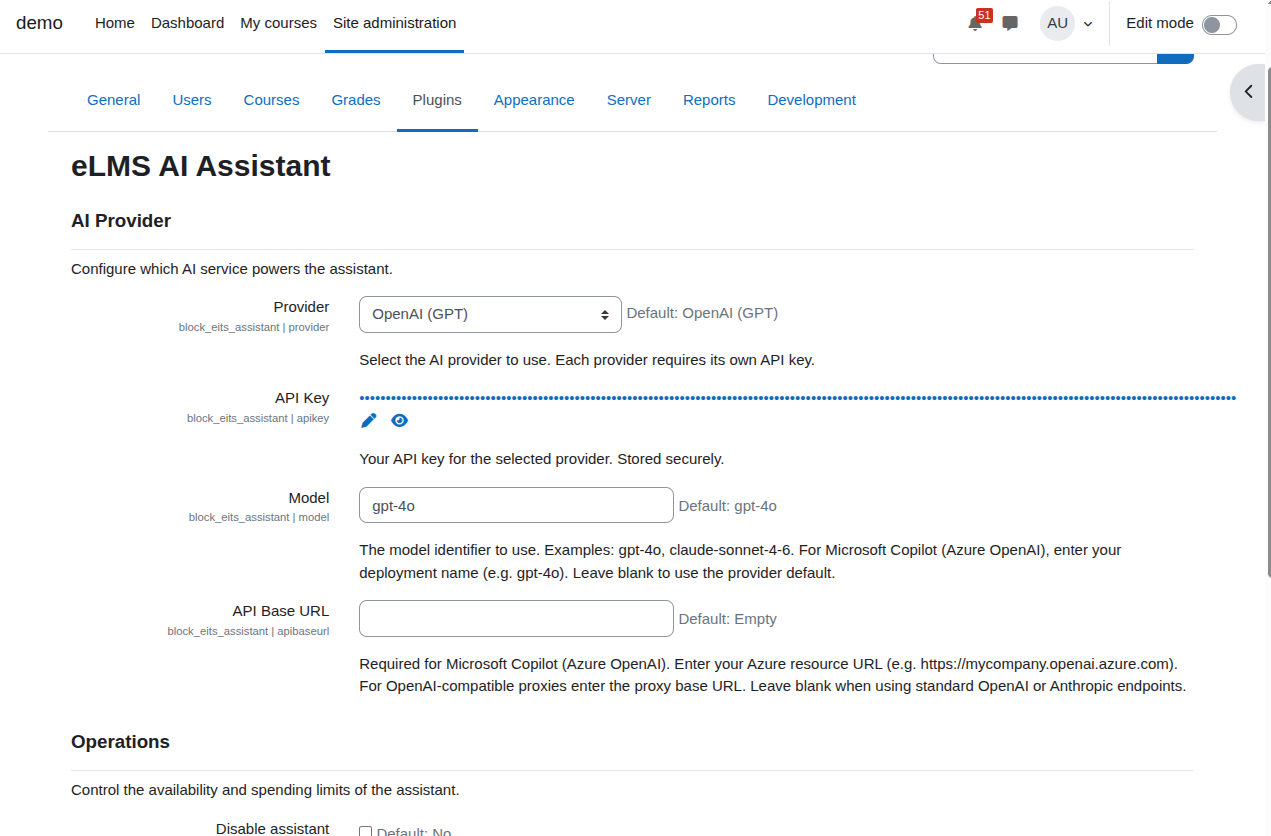
- Go to Site Administration → Plugins → Blocks → eLMS AI Assistant.
- Under AI Provider, choose your provider: OpenAI (GPT), Anthropic (Claude), or Microsoft Copilot (Azure OpenAI).
- Enter your API Key for that provider.
- Enter the Model name you want to use (for example,
gpt-4ofor OpenAI, or your deployment name for Azure). - For Azure, also enter your API Base URL the web address of your Azure resource.
- Save the settings.
For administrators: adding the assistant to a page
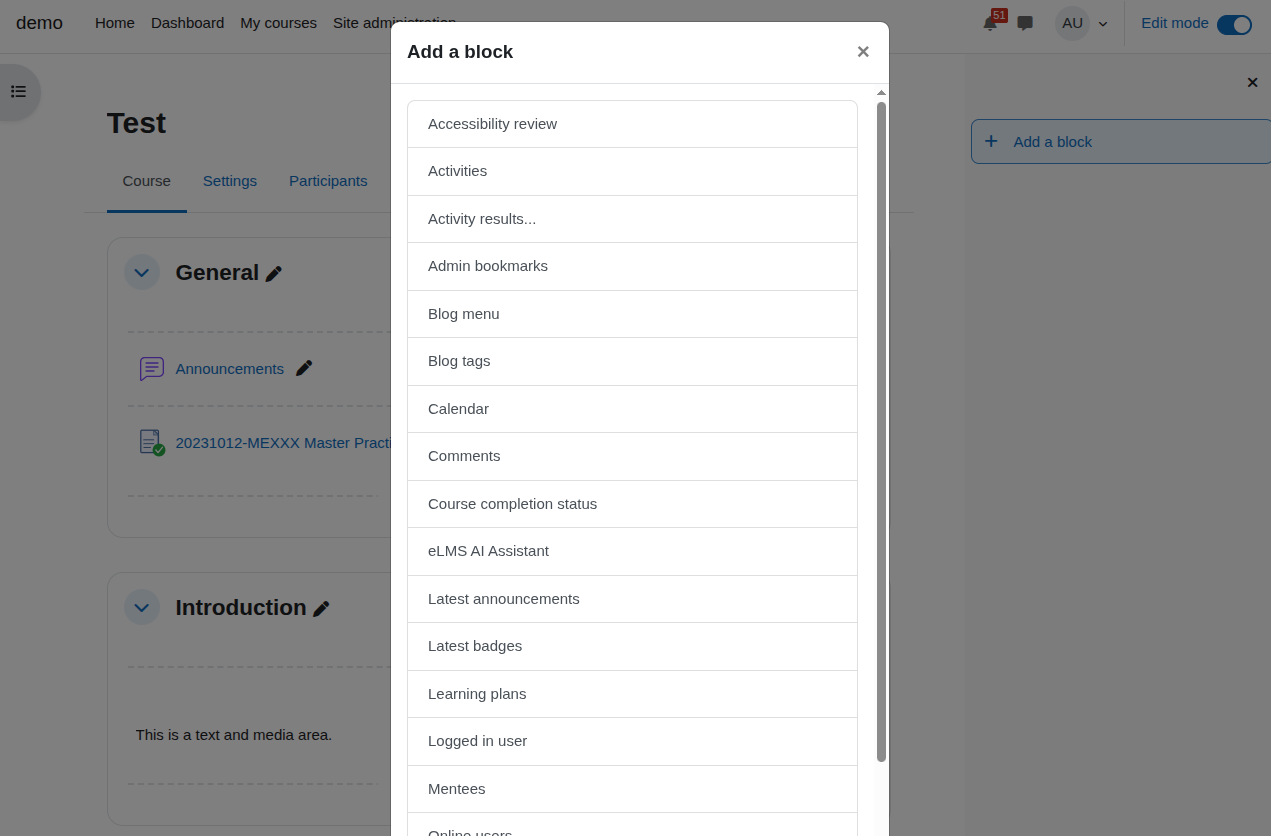
- Navigate to the course or page where you want the assistant to appear.
- Turn editing on.
- Add the eLMS AI Assistant block.
- Click Edit block settings to choose the AI persona (context), configure course context injection, and set any rate limit override.
- Save and turn editing off.
For administrators: managing AI personas
- Go to Site Administration → Plugins → Blocks → eLMS AI Assistant → Manage AI Contexts.
- The list shows all available personas with their status (enabled or disabled).
- Click Edit on any persona to change its display name, system prompt, sort order, or enabled state.
- Click + Add New Context to create a custom persona. Give it a machine name (letters, numbers, and underscores only), a display name, and a system prompt that describes its role clearly.
- Click Enable or Disable to control whether a persona is available when configuring block instances.

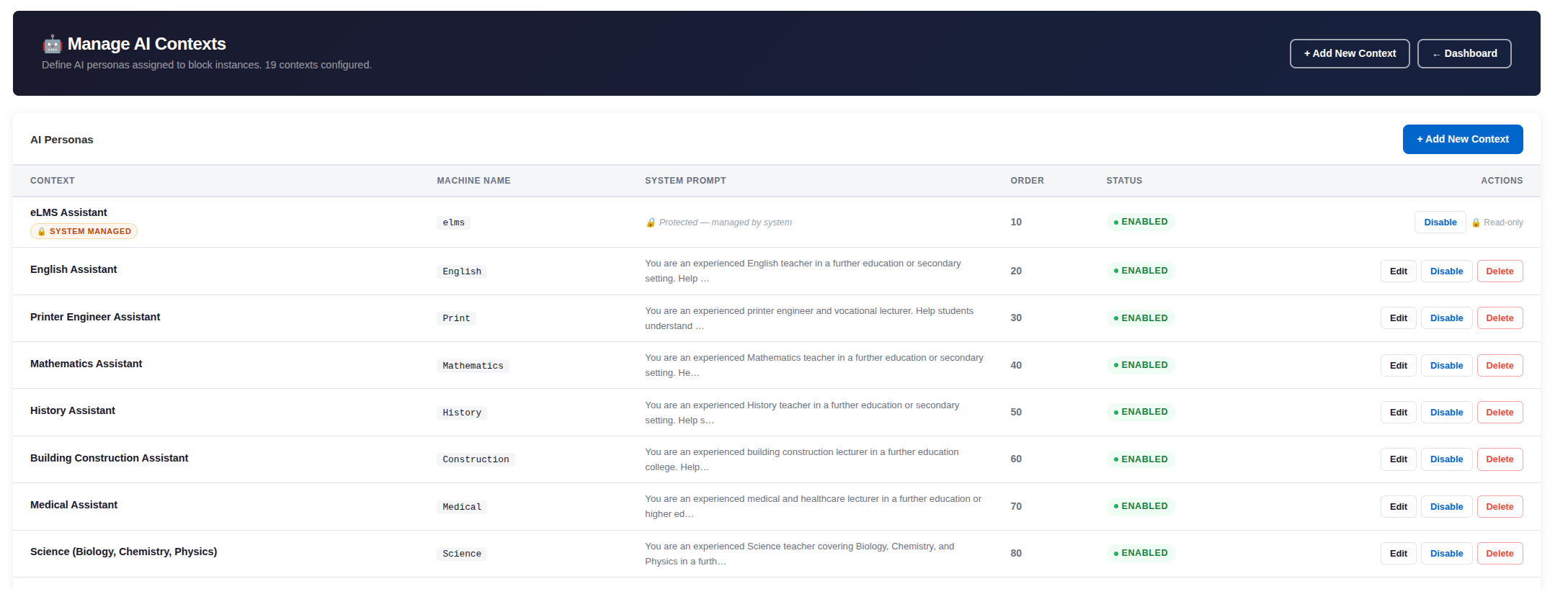
Personas marked with a lock icon are system-managed and cannot be edited or deleted. They can only be enabled or disabled.
For administrators: temporarily disabling the assistant
- Go to Site Administration → Plugins → Blocks → eLMS AI Assistant.
- Under Operations, tick Disable assistant.
- Save. All assistant panels on the site will immediately show an "Assistant Offline" message instead of the chat interface.
- Untick and save to bring the assistant back online.
For administrators: setting a daily usage budget
- Go to Site Administration → Plugins → Blocks → eLMS AI Assistant.
- Under Operations, enter a number in Maximum tokens per day. This sets the total amount of AI usage (measured in tokens roughly words processed) allowed across the whole site in a single day.
- When the limit is reached the assistant automatically goes offline for the rest of the day and resets at midnight.
- Leave the value as
0to impose no limit.
For administrators: reviewing usage
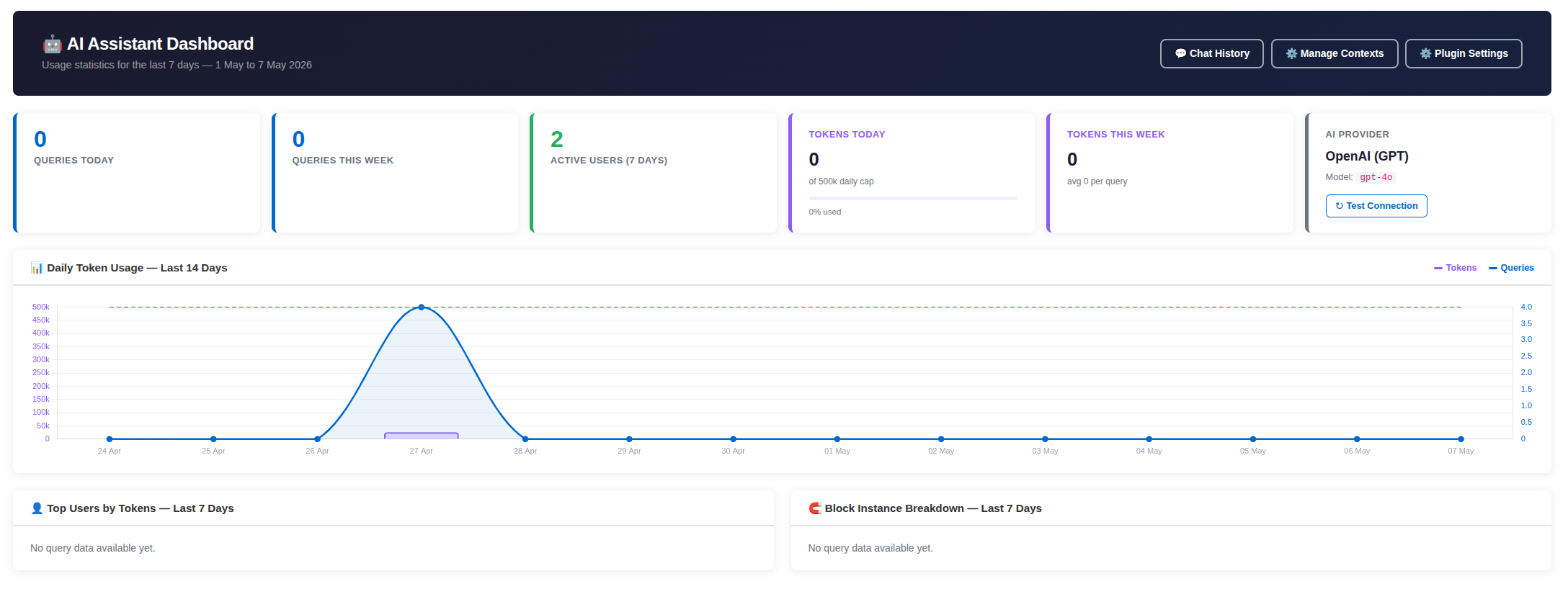
- Go to Site Administration → Plugins → Blocks → eLMS AI Assistant and click Usage Dashboard.
- The dashboard shows query counts for today and this week, active user counts, a daily token usage chart for the past two weeks, and a breakdown of the top users by usage.
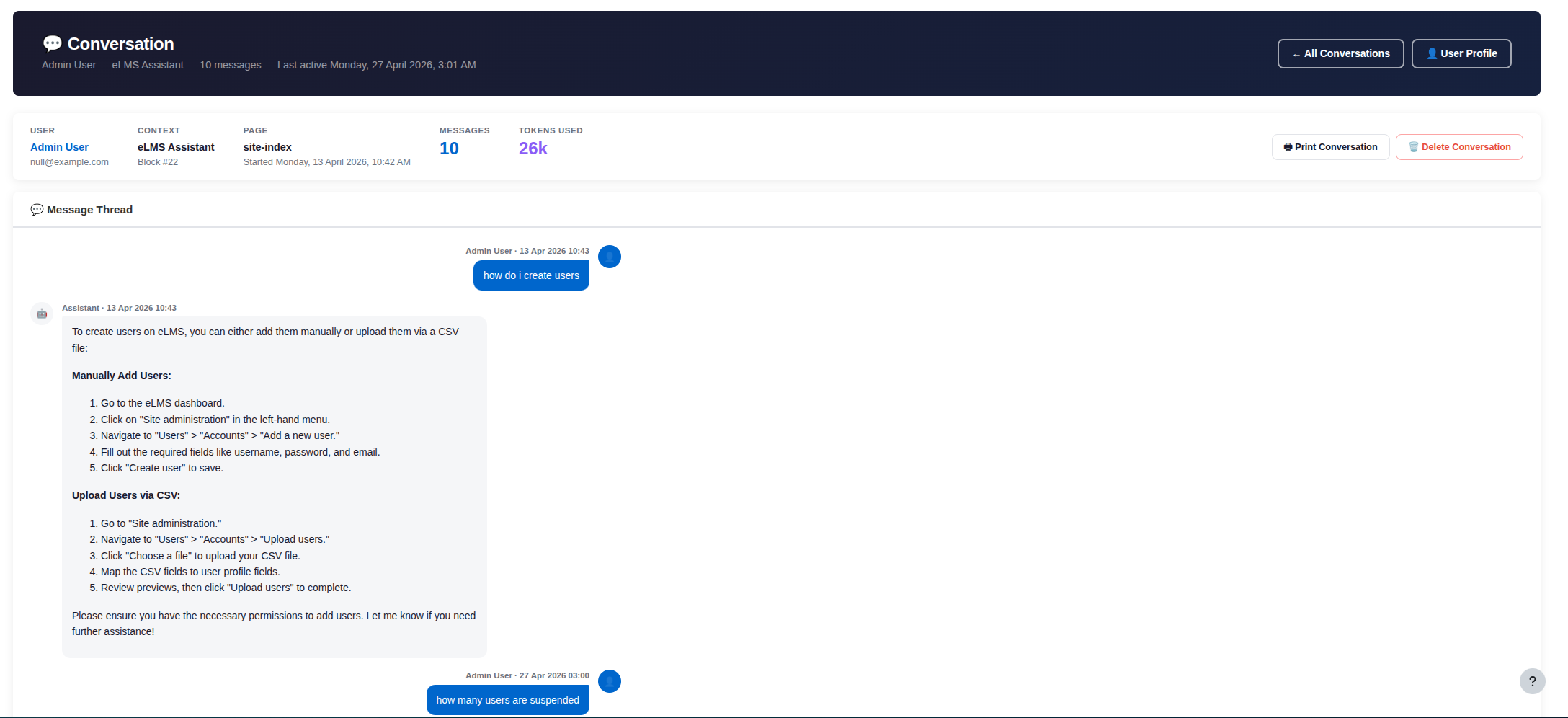
- Click Chat History to browse, read, or delete individual conversations.
- Use the date and name filters in Chat History to find specific conversations.
AI Assistant + MCP Integration
When paired with the EITS Moodle MCP plugin, the AI Assistant becomes fully course-aware, giving learners access to intelligent, context-sensitive support directly within Moodle.
Unlike generic AI tools, the Assistant can understand the exact course, module, activity, and learning content the student is currently viewing. This allows learners to ask highly specific questions about the material they are studying and receive relevant, targeted guidance in real time.
The Assistant can:
- Explain difficult concepts in the context of the current lesson
- Answer questions about the exact content being viewed
- Provide clarification without requiring the learner to leave Moodle
- Guide students through activities, resources, and modules
- Deliver subject-specific assistance tailored to the course content
- Reduce confusion and improve learner engagement
- Act as an always-available subject matter expert
Because the Assistant has visibility of the learner’s current course context, responses are significantly more accurate and meaningful than traditional standalone AI chat systems.
This creates a far more personalised and interactive learning experience, helping students remain focused, supported, and engaged throughout their learning journey.
Things to know
The assistant knows your course but not your files
When the assistant is aware of your course, it knows structural information the course name, topic names, your completion progress, and upcoming deadlines. It does not have access to the actual content of files, quiz questions, forum posts, or assignment submissions. If you ask about something in a specific document or video, you will need to describe or summarise it yourself.
Conversation history is per placement
Each assistant panel on each page has its own separate conversation history. Clearing the chat on one page does not affect conversations you have had with other assistants on other pages.
The query counter resets every hour
The hourly limit applies per user, per assistant placement. If you reach the limit on one block, other assistants on other pages may still be available if they have a separate or higher limit. The counter resets one hour after your first query in the current window.
The assistant may go offline
An administrator can temporarily disable the assistant across the whole site, or the site may have a daily usage budget that has been reached. In either case you will see an "Assistant Offline" message instead of the chat panel. The assistant will return when the administrator re-enables it or when the daily budget resets at midnight.
Locked (system-managed) personas
Some personas such as the built-in eLMS Assistant are managed by the system and shown with a lock icon. They can be enabled or disabled but their settings cannot be edited or deleted. If a block has been assigned a locked persona, only a site administrator can change it.
Conversation history is retained for a limited period
Administrators set a retention period for each block placement (the default is 30 days). Conversations older than that period are eligible to be removed. If you return to a page and find your conversation history has been cleared, this may be the reason.
Access and privacy
The assistant is only available to users who are logged in to Moodle. Your conversation messages are stored on the Moodle server. Administrators can view and delete any conversation from the Chat History page. The content of your messages is not included in any system audit logs only non-identifying information such as message length is recorded there. The text of your conversations is sent to the AI provider to generate responses; check your organisation's data processing policies for details on how that provider handles data.
Live data queries require specific permissions
The assistant's ability to look up live Moodle data depends on the permissions your account has been given. Students typically do not have this enabled by default. Teachers may have access to course and completion data. Administrators have access to the full range of available data. If the assistant cannot find specific information you expected it to know, it may simply not have that access for your role.
Troubleshooting
The assistant panel is not visible on a page
The assistant is only visible on pages where an administrator has added and configured the block. If you expect to see it on a course page but do not, contact your Moodle administrator.
The assistant shows "Assistant Offline"
This means one of two things: the assistant has been manually disabled by an administrator, or the site has reached its daily usage budget. In both cases the assistant will return when the administrator re-enables it, or automatically at midnight when the daily budget resets. Contact your administrator if you need it urgently.
The assistant is not responding to messages
Check that you have queries remaining (shown at the bottom of the chat panel). If the counter shows zero, you have reached the hourly limit and should wait for it to reset. If the counter shows queries remaining but the assistant does not respond, there may be a connection issue with the AI provider contact your administrator.
The assistant does not seem to know about the course
Course awareness depends on how the block has been configured. If the assistant does not appear to know which course you are on, the "Inject course context" setting may have been turned off for that block by whoever placed it. This is a configuration choice, not a fault. The assistant will still work as a general subject tutor even without course context.
The assistant gives a general answer when you expected it to look up specific data
Live data lookups (such as checking who has completed an activity) require the live data feature to be enabled for that block and for your account to have the appropriate Moodle permissions. If these conditions are not met, the assistant gives its best general answer rather than failing. Contact your administrator if you need live data access.
The conversation history has disappeared
Conversation history is retained for a set number of days (default: 30). History older than that period may have been purged. Alternatively, an administrator may have deleted the conversation manually from the Chat History page.
For administrators: the connection test fails on the usage dashboard
This indicates that the assistant cannot reach the configured AI provider. Check that the API key is correct and has not expired, that the model name or deployment name is correct, and for Azure that the API Base URL is the correct resource URL. Also confirm that your Moodle server has outbound internet access to the provider's API endpoint.
Frequently asked questions
Can the assistant see my assignment submissions or quiz answers?
No. The assistant only knows structural information about your course its name, sections, your completion progress, and upcoming deadlines. It cannot see the content of files, your quiz answers, forum posts, or submitted work.
Does the assistant remember conversations from previous sessions?
Yes. Your conversation is saved and reloaded the next time you visit the same page, so you can continue where you left off. History is retained for up to 30 days by default (set by your administrator). Clearing your chat or reaching the retention limit will remove it.
Why does the counter at the bottom of the panel change after each message?
That counter shows how many messages you can send in the current hour. Each message you send reduces it by one. It resets automatically one hour after your first message in the current window.
Can I use the assistant on every course?
Only on courses where an administrator has added the assistant block. If you do not see it, contact your Moodle administrator to have it added.
Is the assistant available 24 hours a day?
The assistant is available whenever you are logged in to Moodle, provided it has not been temporarily disabled and the daily usage budget has not been reached. Both conditions are managed by your administrator.
Can the assistant help me cheat on assignments?
The assistant is designed to support learning, not to produce work for submission. How you use it responsibly is subject to your institution's academic integrity policy. Administrators can configure the assistant's persona to refuse certain types of requests.
Who can see my conversation?
Your conversation messages are stored on your Moodle server. Site administrators can view and delete any conversation through the admin Chat History page. The content of your messages is also sent to the AI provider to generate responses. Your institution's data and privacy policies apply.
Can different parts of the site have different AI assistants?
Yes. Each block placement is configured independently. A Mathematics course can have a Mathematics tutor; a Health and Social Care course can have a specialist for that subject; the admin dashboard can have an eLMS support assistant. Each has its own separate conversation history.
Why does the assistant sometimes not know something I would expect it to know?
The assistant works from the context it has been given — the course structure and your progress — plus its built-in knowledge up to its training date. It does not automatically have access to specific files, documents, or live information beyond what has been explicitly provided. If live data access has been enabled for your role and block, it can look up current information; otherwise it relies on its general knowledge.
Can I customise the assistant's persona?
End users cannot change the persona. Administrators can create, edit, and manage AI personas (called Contexts) through the Manage AI Contexts admin page and then assign them to specific block placements.
What AI providers does the assistant support?
The assistant can be powered by OpenAI (GPT models such as GPT-4o), Anthropic (Claude models), or Microsoft Copilot via Azure OpenAI. The choice is made by your administrator in the plugin settings. Only one provider is active at a time, site-wide.
Summary
The eLMS AI Assistant brings a subject-aware, conversational AI into your Moodle platform, available on any course or site page where an administrator has placed it. Students get contextual learning support without leaving their course; teachers and administrators get a knowledgeable assistant that can optionally query live site data. Conversations persist across sessions, usage is governed by fair-use limits, and administrators have full visibility of usage and the ability to manage personas, review conversations, and control costs through a built-in dashboard.
Looking to optimise your Learning Management System? EssingtonITS offers tailored solutions to enhance your e-learning environment. Visit EssingtonITS.co.uk for expert IT services, or explore our dedicated hosting and support for Moodle at myelms.co.uk. Let us help you create a seamless and efficient learning experience.
person people found this useful.