
MCBA - Moodle Course Backup & Archive
MCBA (Moodle Course Backup & Archive) automates the process of backing up Moodle courses to a long-term archive location typically a network-attached storage (NAS) drive outside of Moodle's own file area.
Unlike Moodle's built-in automated backups, MCBA is designed for archival: creating a permanent, audited record of a course at a point in time that can be browsed, downloaded, or fully restored into a new course at any future date.
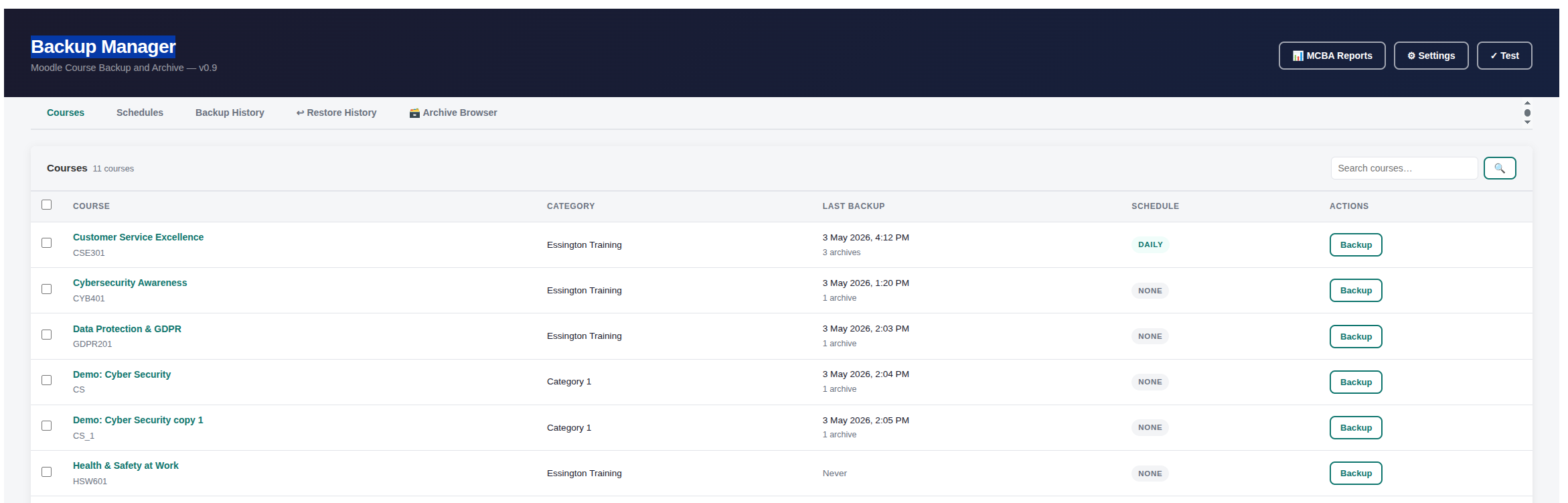
Key capabilities
- Scheduled backups: Once-off, daily, weekly, or monthly, running inside a configurable overnight window.
- Bulk backup: Select multiple courses and queue them all in one action.
- Archive browser: Teachers and admins can browse every historical snapshot of a course, see file sizes and SHA-256 checksums, and trigger a restore.
- One-click restore: Restores an archived .mbz into a new hidden course ready for review, with a full audit trail of who triggered it.
- Retention management: Archives expire automatically based on configurable retention policies.
- Reports: Five report tabs covering disk usage, backup history, schedule health, errors, and an audit log.
- Alerts: Email notifications for backup failures, overdue schedules, and disk usage thresholds.
Typical workflow, pre-reset archiving
- Before resetting or deleting a course, a teacher or admin schedules a backup via the Archive Browser or Courses tab.
- The backup runs automatically overnight (inside the configured window) and is saved to the NAS as a .mbz file.
- The archive appears in the Archive Browser, where it can be browsed, downloaded, or restored at any time.
- When a course needs to be recovered, a restore job is queued and runs immediately. The recovered course appears hidden in the Archive category for admin review.
Who can use it? Roles and permissions
MCBA uses Moodle's standard capability system. Access is granted per role in the system context.
| Capability | What it allows | Default roles |
|---|---|---|
local/mcba:view |
Access the Backup Manager (Courses, Schedules, History, Restores tabs) | Manager, Course creator |
local/mcba:schedulebackup |
Create and manage backup schedules; cancel, retry, and run-now on jobs | Manager, Course creator |
local/mcba:viewarchives |
Browse the Archive Browser and Restore History tab | Manager, Course creator, Editing teacher |
local/mcba:restore |
Trigger a course restore from an archive | Manager, Course creator |
local/mcba:download |
Download .mbz archive files directly | Manager, Course creator |
local/mcba:viewreports |
Access the Reports section | Manager, Course creator |
local/mcba:configure |
Access MCBA Settings and Test Settings pages | Manager |
local/mcba:viewarchives by default, giving them the Archive Browser and Restore History tab. They see only archives for courses they are enrolled in with backup permissions. They cannot schedule new backups that requires local/mcba:schedulebackup.Capabilities can be adjusted per role via Site administration → Users → Permissions → Define roles.
For convenience you can disable editing teachers access to the archieve with the following setting
When enabled, teachers and editing teachers cannot access the Archive Browser, even if the Browse course archive history capability has been granted to their role. Only site managers and course creators retain archive access. Useful for clients who do not want teaching staff to see or restore archived course data.

Settings reference
Settings are at Site administration → Plugins → Local plugins → Moodle Course Backup and Archive, or via the ⚙ Settings button inside the Backup Manager.
General
| Setting | Description | Default |
|---|---|---|
| Enable MCBA | Master on/off switch. When disabled, the dispatch queue halts. All data and schedules are preserved. | Enabled |

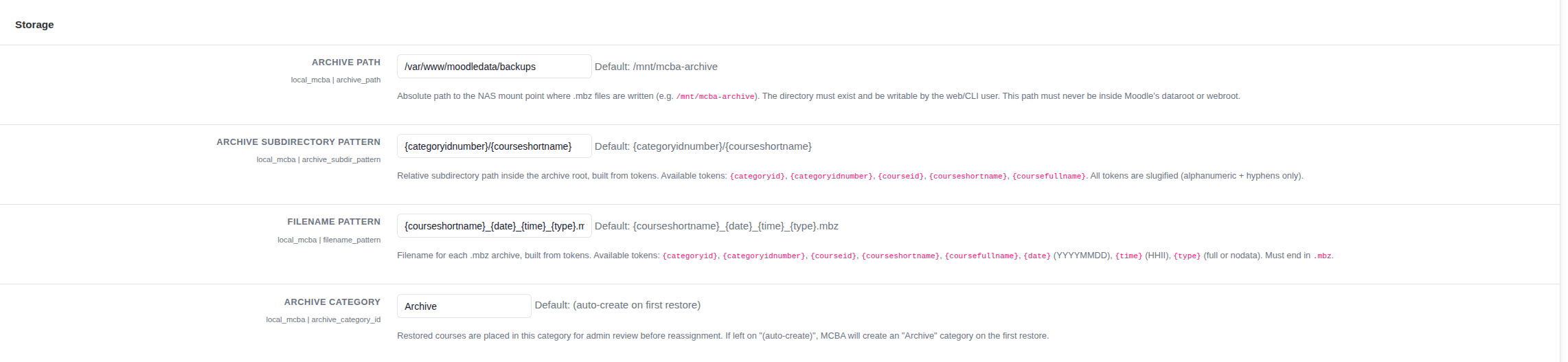
Storage
| Setting | Description | Default |
|---|---|---|
| Archive path | Absolute path to the directory where .mbz files are written. Must exist, be writable by the web/CLI user, and be outside Moodle's webroot and dataroot. | /mnt/mcba-archive |
| Archive subdirectory pattern | Relative path inside the archive root, built from tokens. Controls how archives are organised into subfolders. See Filename tokens below. | {categoryidnumber}/{courseshortname} |
| Filename pattern | Filename for each .mbz archive. Must end in .mbz. See Filename tokens below. |
{courseshortname}_{date}_{time}_{type}.mbz |
| Archive category | Category where restored courses are placed for admin review. Select "(auto-create)" to have MCBA create an "Archive" category on the first restore. | Auto-create |
Backup window
| Setting | Description | Default |
|---|---|---|
| Backup window start | Server time (24-hour HH:MM) when the backup window opens. | 22:00 |
| Backup window end | Server time when the window closes. Can cross midnight — if end is earlier than start the window spans overnight (e.g. 22:00 → 05:00). | 05:00 |
| Max concurrent workers | Maximum parallel CLI backup processes. Keep at 1 unless the server has spare capacity. | 1 |

Schedule defaults
| Setting | Description | Default |
|---|---|---|
| Default retention (days) | Archives older than this are deleted by the nightly retention task. Set to 0 to never auto-delete. Individual schedules can override this. |
90 |
| Default: include users & data | When enabled, "With users & data" is pre-selected in the backup modal for new schedules. | Off |

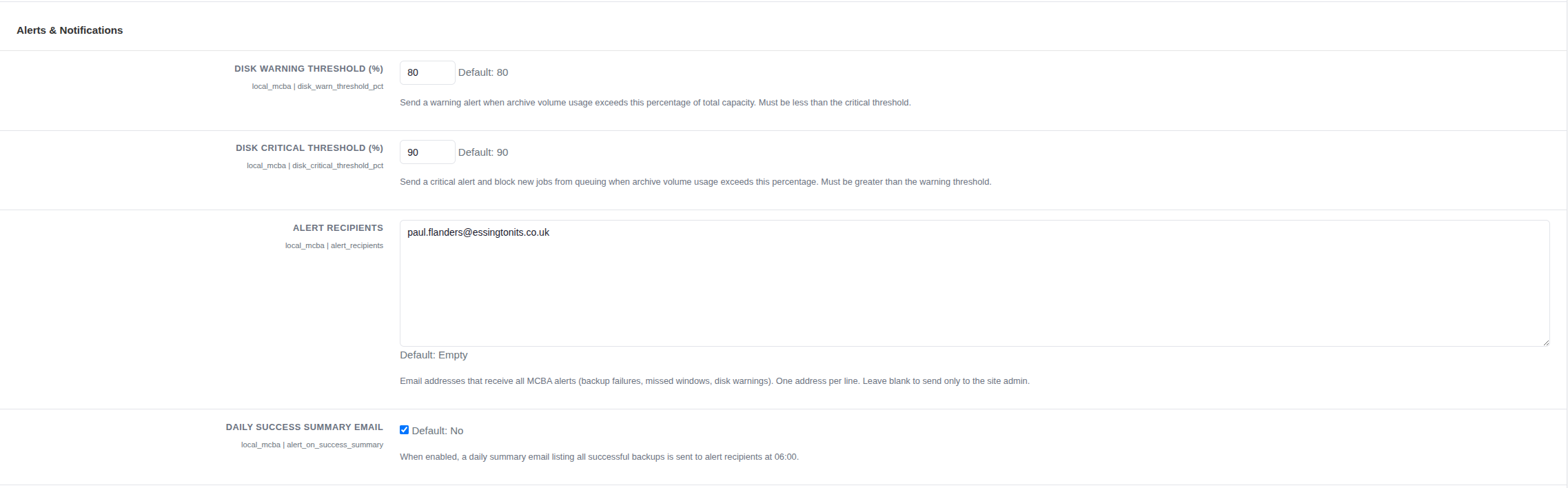
Alerts & notifications
| Setting | Description | Default |
|---|---|---|
| Disk warning threshold (%) | Send a warning email when archive volume usage exceeds this percentage. | 80 |
| Disk critical threshold (%) | Send a critical alert and block new backup jobs when usage exceeds this. Must be higher than the warning threshold. | 90 |
| Alert recipients | Email addresses (one per line) that receive MCBA alerts. Leave blank to send only to the site admin. | Blank |
| Daily success summary email | When enabled, a daily summary of all successful backups is sent to alert recipients. | Off |
Advanced
| Setting | Description | Default |
|---|---|---|
| PHP CLI binary path | Absolute path to the PHP binary used to launch CLI backup workers. Must be executable by the web user. | /usr/bin/php |

Testing your settings
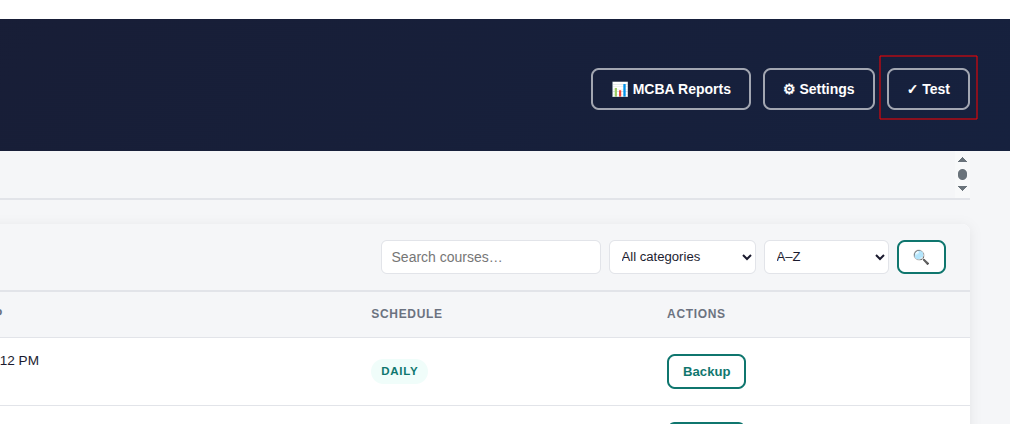
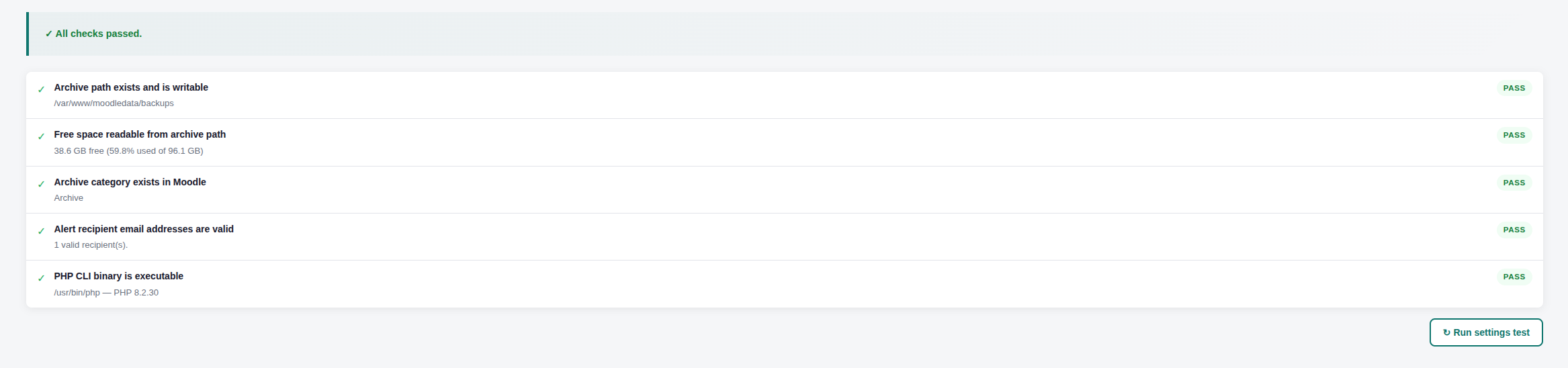
Before relying on MCBA for production backups, run the built-in settings test. Inside the Backup Manager, click the ✓ Test button in the top-right corner.
The test checks:
- Archive path: Exists on disk and is writable by the web/CLI user.
- Disk space: Free space is readable from the archive path.
- Archive category: The configured restore target category exists in Moodle.
- Alert recipients: All email addresses are valid.
- PHP CLI binary: The configured path exists and is executable.
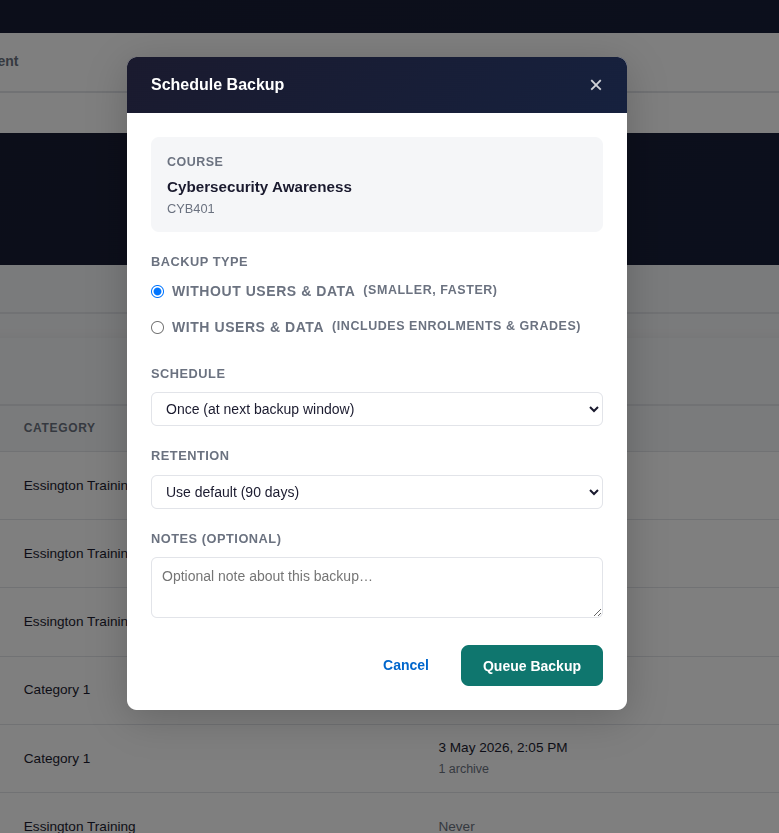
Backing up a course, single (one-off) backup
- Go to EssingtonITS → MCBA Backup and Archive Manager.
- Select the Courses tab and find the course (use the search box if needed).
- Click Backup on the course row.
- In the Schedule Backup modal, choose the backup type and retention, then click Queue Backup.
- The job is queued as Pending and will run at the next cron tick inside the backup window.
Backup types
| Type | Includes | Best for |
|---|---|---|
| Without users & data | Course structure, activities, resources, files. No enrolments, grades, or submissions. | Course templates, structure snapshots, most archival use cases. |
| With users & data | Everything above plus enrolled users, grades, quiz attempts, forum posts, completion data. | Full compliance archives, pre-deletion backups where student data must be preserved. |
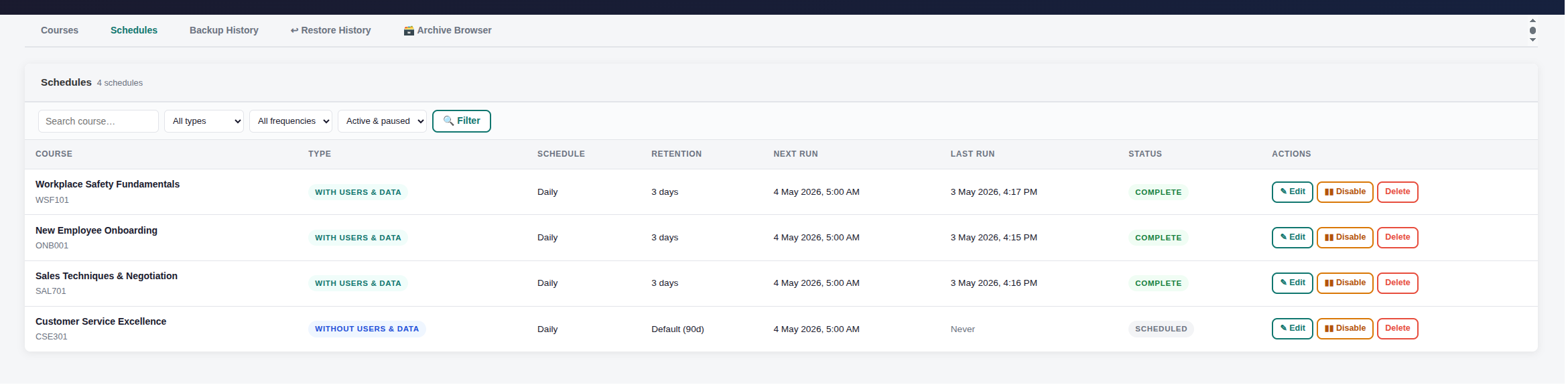
Recurring schedules
Recurring schedules automatically re-queue a backup job at a regular interval, daily, weekly, or monthly.
- Click Backup on the course row in the Courses tab.
- In the Schedule dropdown, choose Daily, Weekly, or Monthly.
- For weekly: select the day of the week. For monthly: enter the day of the month (if the month is shorter, the last day of that month is used).
- Set retention and click Queue Backup.
Active recurring schedules appear on the Schedules tab. You can disable or delete a schedule at any time existing archives are not affected.
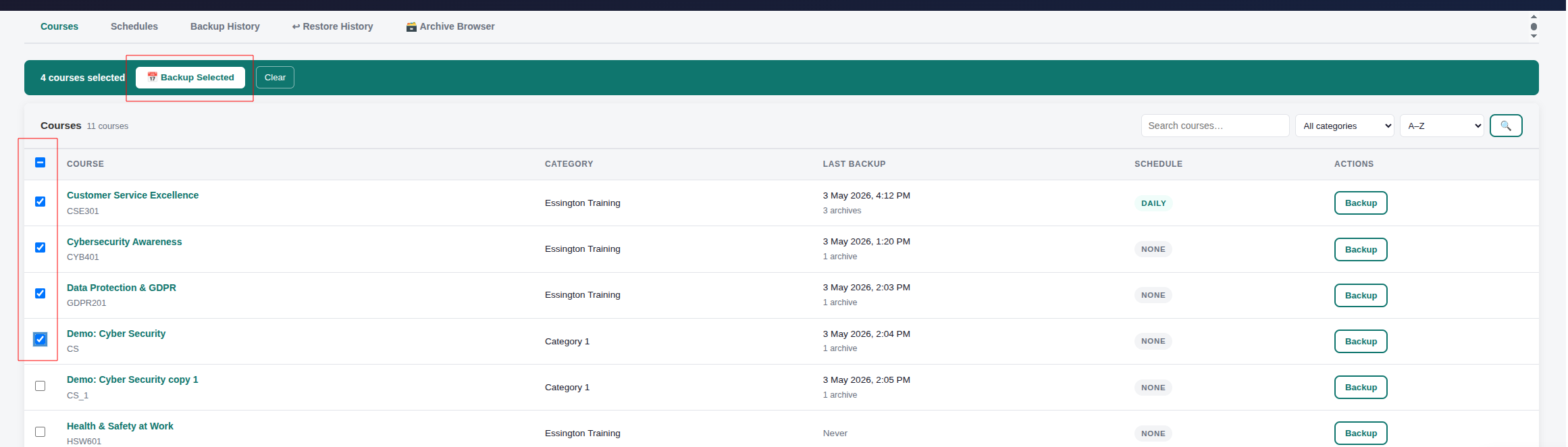
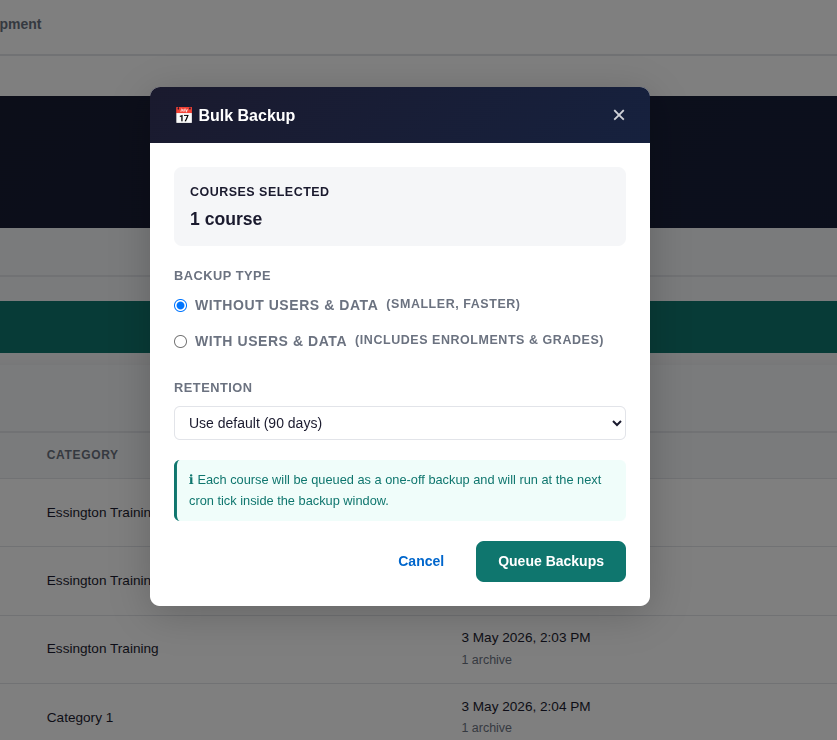
Bulk backup
Bulk backup lets you queue backups for multiple courses in one action, ideal at the end of a semester when many courses need archiving before a reset.
- Go to the Courses tab.
- Tick the checkbox next to each course you want to back up. Use the header checkbox to select all courses on the current page.
- A teal action bar appears showing the selection count. Click Backup Selected.
- In the Bulk Backup modal, choose backup type and retention (one set of settings applies to all selected courses).
- Click Queue Backups. All selected courses are queued as individual one-off backup jobs.
Run Now, bypass the backup window
In urgent situations you can dispatch a pending job immediately, bypassing the backup window.
- Go to the Backup History tab.
- Find the job in the Active Jobs table with status Pending.
- Click ▶ Run Now. The job transitions immediately to Dispatching then Running.
The backup window
The backup window defines the hours during which MCBA is permitted to start new backup jobs, preventing backups from running during peak teaching hours.
- Each cron tick (typically every minute), the dispatch task checks whether the current server time is inside the window.
- If inside the window and slots are available, pending jobs are dispatched.
- Outside the window, jobs remain Pending until the next window opens.
- If the end time is earlier than the start time, the window spans midnight (e.g. 22:00 → 05:00).
Archive Browser
The Archive Browser provides a visual history of all backed-up courses. Navigate to MCBA Backup Manager → Archive Browser tab.
What you see
- A summary bar showing total archives, total stored size, and how many courses have been archived.
- A searchable, paginated list of courses. Each row is an accordion — click any course to expand it and see all historical backups for that course.
Expanding a course shows
- Date & time the backup was created.
- Backup type (with or without user data).
- File size on disk.
- Expiry date (when retention will delete the archive, or "Never").
- SHA-256 checksum for integrity verification.
- Restore and Download buttons (subject to your permissions).
local/mcba:viewarchives capability see only archives for courses they are enrolled in with backup permissions. Use the search box to filter by course name or shortname.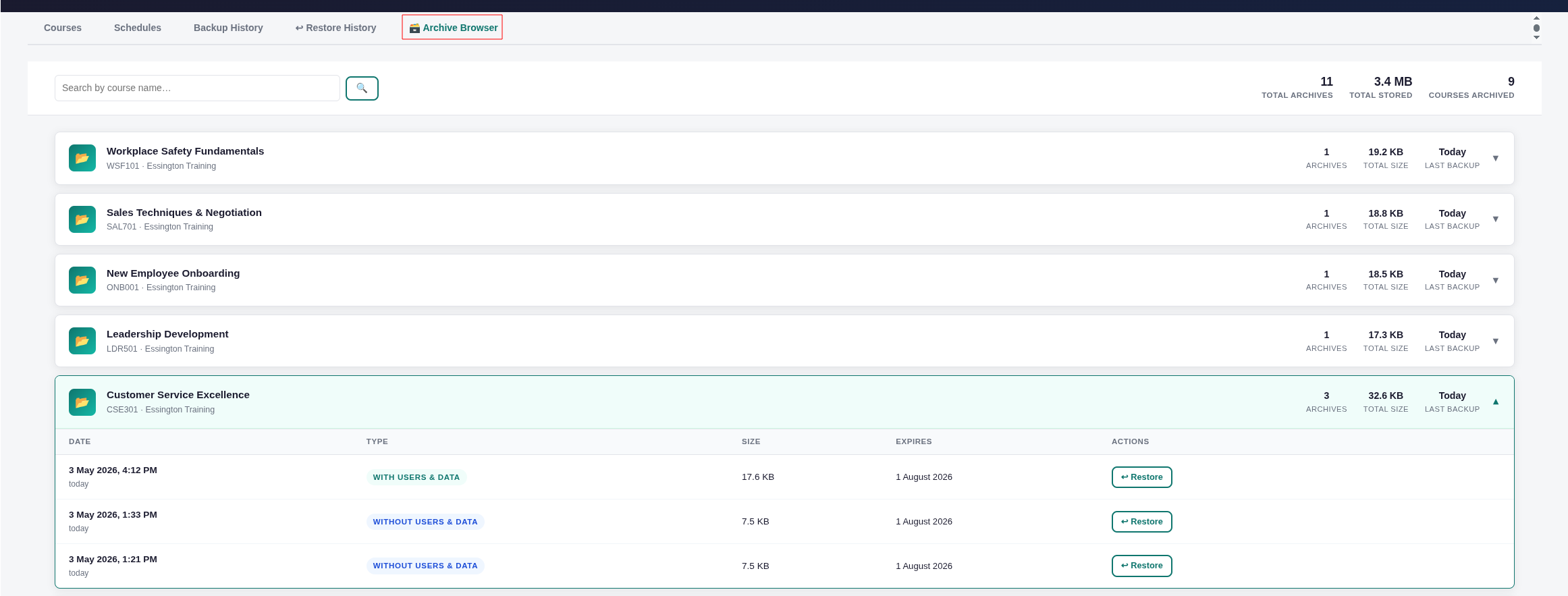
Restoring a course
Restoring creates a new Moodle course from an archived .mbz file. The original course is not modified.
- Open the Archive Browser tab and expand the course you want to restore.
- Find the specific archive (date/version) you need and click ↩ Restore.
- Review the confirmation dialog it shows the archive, original course name, and what shortname the restored course will receive.
- Click Confirm Restore. The restore job is queued immediately.
- The restore runs on the next cron tick (bypasses the backup window). Depending on archive size this may take a few minutes to over an hour.
- When complete, the restored course appears in the Archive category. It is hidden an administrator must review and publish it.
After restoration
- The restored course has a generated shortname like
ORIG_restored_202501151423. - The course is hidden (not visible to students) until an admin sets it to visible.
- An email notification is sent to alert recipients when the restore completes.
- The restore is recorded in the Restore History tab with the name of the person who requested it.

Restore History
The Restore History tab provides a complete audit of all restore operations who triggered the restore, which archive was used, what the restored course was named, and whether it succeeded.
| Column | Description |
|---|---|
| Original course | The course the archive came from (name at time of backup). |
| Archive | The date the archive was created and its type/size. |
| Restored as | The shortname and full name of the new course. Click to go to the course if it still exists. |
| Status | Current status of the restore job. |
| Requested by | The Moodle user who triggered the restore. |
| Requested / Completed | Timestamps for when the job was queued and when it finished. |
| Duration | How long the restore took to run. |
local/mcba:viewarchives can see the Restore History tab, filtered to their own courses only.
Backup History & job status
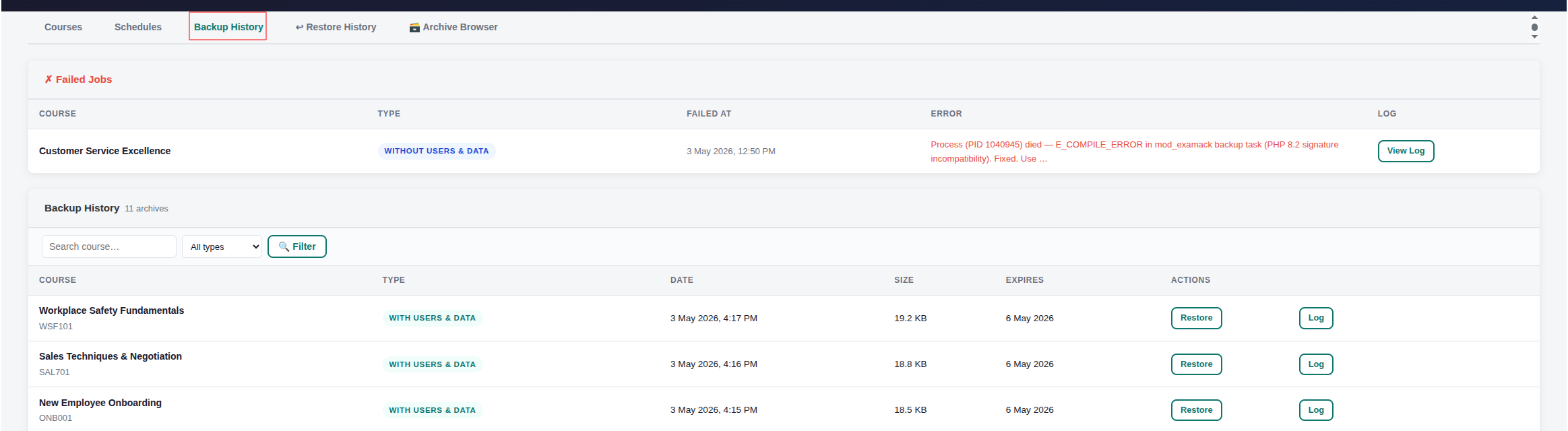
The Backup History tab shows all backup activity, active jobs at the top, a complete archive list, and recent failed jobs at the bottom.
Active jobs panel
Shows all jobs currently in Pending, Dispatching, or Running state. The panel auto-refreshes every 30 seconds while active jobs are present.
- ▶ Run Now: Dispatches a pending job immediately (bypasses backup window).
- Cancel: Cancels a pending job.
- View Log: Opens the live job log for a running or completed job.
Job status reference
| Status | Meaning | What to do |
|---|---|---|
| Pending | Job is queued, waiting for the next cron tick within the backup window. | Normal — wait for the window, or click Run Now to dispatch immediately. |
| Dispatching | The cron task has claimed the job and is spawning the CLI worker process. | Transient — should resolve to Running within seconds. |
| Running | The CLI worker is actively executing the backup. | Normal — larger courses can take 30–90 minutes. Click View Log for progress. |
| Complete | Backup or restore finished successfully. An archive record exists. | No action needed. |
| Failed | The job encountered an error. | Check the error message. View the job log. Fix the issue, then Retry from Reports → Errors. |
Reports
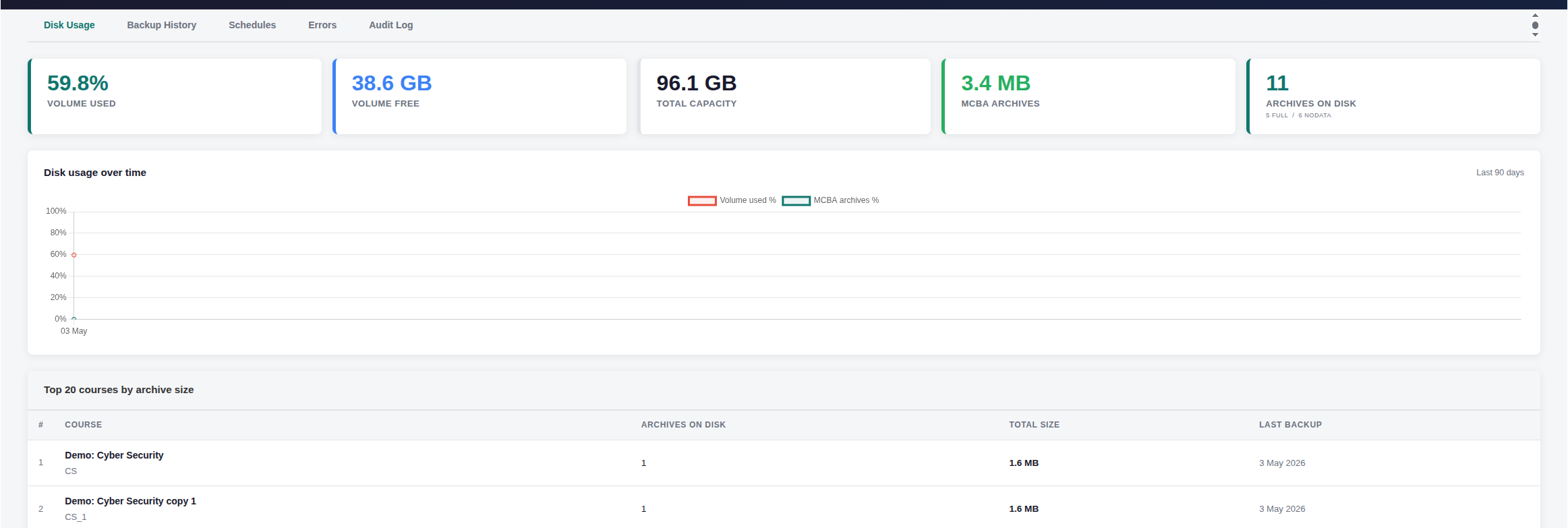
Navigate to Site administration → Reports → MCBA Reports. Five tabs are available to users with the local/mcba:viewreports capability.
Disk Usage
Summary of archive volume capacity, usage, and archive count. Includes a line chart of disk usage over time and a bar chart of the top 20 courses by total archive size.
Backup History
Filterable, paginated list of all backup archives. Filter by course name, backup type, and date range. Includes a CSV export button.
Schedules
Overview of all active recurring schedules, course, frequency, last run status, and next scheduled run. Useful for auditing schedule health across the site.
Errors
List of all failed backup jobs (last 90 days by default). Each row shows the error message. Admins with local/mcba:schedulebackup can click ▶ Retry to re-queue the job immediately.
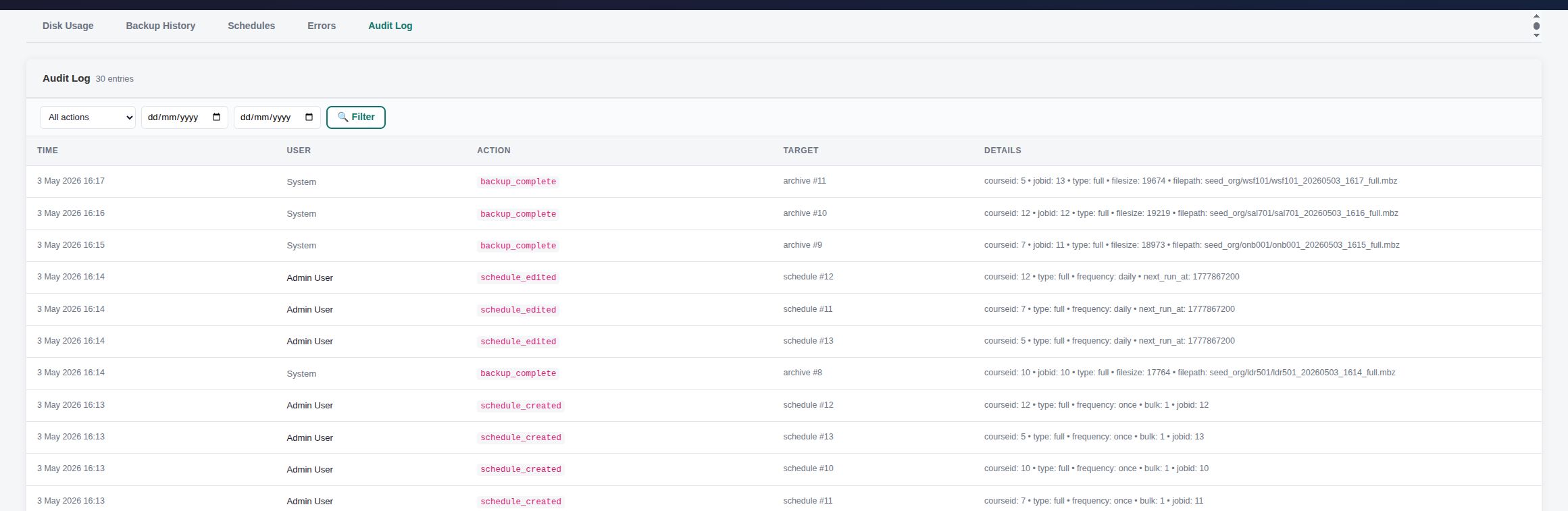
Audit Log
Full chronological record of all MCBA actions, schedules created/deleted, jobs queued/completed/failed, restores, cancellations, and run-now events. Filterable by action type and date.

Alerts & notifications
MCBA sends email alerts to configured recipients (and always the site admin) for the following events:
| Alert | Trigger | Throttle |
|---|---|---|
| Backup failed | A backup job completes with status Failed. | Once per job — never repeats for the same job. |
| Schedule overdue | A recurring schedule's next run is more than 2 hours overdue with no active job. | Once per 24 hours per schedule. |
| Disk warning | Archive volume usage exceeds the warning threshold (default 80%). | Once per 24 hours. |
| Disk critical | Archive volume usage exceeds the critical threshold (default 90%). New backup jobs are blocked. | Once per 6 hours. |
| Restore complete | A restore job finishes successfully. | Every restore (not throttled). |
| Daily summary | Lists all backups completed since the last summary (if enabled in settings). | Once per 22 hours. |
Filename tokens
MCBA uses token substitution to build subdirectory paths and filenames. Tokens are slugified (only alphanumeric characters and hyphens — spaces and special characters are replaced).
| Token | Resolves to | Example |
|---|---|---|
{courseid} |
Moodle course ID (numeric). | 42 |
{courseshortname} |
Course shortname, slugified. | CYB401 |
{coursefullname} |
Course full name, slugified. | Cybersecurity-Fundamentals |
{categoryid} |
Course category ID (numeric). | 7 |
{categoryidnumber} |
Category ID number field. Falls back to category name if blank. | IT-DEPT |
{date} |
Date in YYYYMMDD format (server time at backup start). | 20250115 |
{time} |
Time in HHMM format (server time at backup start). | 2215 |
{type} |
full or nodata depending on the backup type. |
nodata |
With default settings, a backup of course CYB401 in category IT-DEPT produces:
/mnt/mcba-archive/IT-DEPT/CYB401/CYB401_20250115_2215_nodata.mbz
Scheduled tasks
MCBA registers four scheduled tasks visible at Site administration → Server → Scheduled tasks.
| Task | Default schedule | Purpose |
|---|---|---|
| MCBA: Dispatch backup queue | Every minute | Main dispatch loop — checks the window, concurrency limit, disk threshold, enqueues due recurring schedules, spawns CLI workers, and detects zombie processes. |
| MCBA: Enforce archive retention | Daily at 06:00 | Deletes archive files and records whose expiry date has passed. |
| MCBA: Sample disk usage statistics | Daily at 06:30 | Records a snapshot of archive volume usage for the disk usage chart in Reports. |
| MCBA: Check alerts and notifications | Every 15 minutes | Checks disk thresholds, failed jobs, overdue schedules, and sends the daily summary if configured. |
* * * * * www-data php /path/to/moodle/admin/cli/cron.phpTroubleshooting
Jobs are stuck in Pending and never run
- Check whether the current server time is inside the configured backup window (Settings → Backup Window).
- Verify Moodle cron is running: Site administration → Server → Cron should show a recent last-run time.
- Check that the master switch (Settings → General → Enable MCBA) is on.
- Check the disk critical threshold, if the archive volume is over the critical percentage, new jobs are blocked. Check Reports → Disk Usage.
- Run Test Settings to confirm the archive path and PHP CLI are accessible.
A backup job failed with no error message
- Click View Log on the failed job (History tab or Reports → Errors). The log has detailed PHP output.
- If the log is empty or missing, the CLI worker failed to start. Check that the PHP CLI binary path is correct and executable.
- Check PHP error logs at the server level, a PHP compile-time fatal will not appear in the job log.
Backup runs but the archive file is missing
- Check that the archive path is still mounted and writable. NAS mounts can disconnect silently.
- Run Test Settings → Archive path to verify writability right now.
- Check the job log for a copy/move error after the backup completed.
A restore failed, how do I clean up?
- MCBA attempts to delete the partially-created course automatically on failure. If it could not (noted in the job log), delete the course manually from Site administration → Courses.
- The original archive is not affected by a failed restore you can retry.
The disk usage chart shows no data
The chart requires at least one sample from the sample_diskstats task. Run it once manually from Site administration → Server → Scheduled tasks → MCBA: Sample disk usage statistics → Run now.
Alert emails are not being received
- Verify Moodle's outgoing email is configured: Site administration → Server → Email → Outgoing mail configuration.
- Check that alert recipients are valid email addresses (run Test Settings).
- Alerts are throttled — a disk warning fires at most once per 24 hours. Check Reports → Audit Log for recent alert activity.
- The alert check task runs every 15 minutes. If cron is not running, alerts will not fire.
Frequently asked questions
Does MCBA replace Moodle's built-in automated course backups?
No, they serve different purposes. Moodle's built-in backups are short-term safety nets stored within Moodle's file area. MCBA is for long-term archival to external storage with a user-facing browser and restore workflow. Both can run independently on the same site.
Can a teacher trigger a backup themselves?
Not by default. Teachers have the local/mcba:viewarchives capability (archive browser and restore history only). Scheduling a backup requires local/mcba:schedulebackup, which is a manager/course-creator function. You can grant this to editing teachers if your policy allows.
What happens if the NAS is offline when a backup is scheduled?
The backup fails when it tries to write to the archive path. The job is marked Failed with an appropriate error, and an alert email is sent. Once the NAS is remounted, retry the job from the History tab or Reports → Errors.
Can I change the archive path after backups have already been taken?
Yes, but you must physically move the existing archive files to the new path before changing the setting. The database stores paths relative to the archive root, changing the root without moving files will break existing archive links (restores and downloads for old archives will fail).
How large are the backup files?
It depends on the course. A structure-only backup might be 5–50 MB. A full backup with users, grades, and forum posts for a large cohort can be 500 MB–5 GB or more. Use the Top 20 Courses chart in Reports → Disk Usage to identify your largest archives.
How do I verify a backup file has not been corrupted?
Each archive record stores a SHA-256 checksum computed when the file was written. View it in the Archive Browser (expand a course, see the SHA-256 column). Compare against the file on disk:
sha256sum /mnt/mcba-archive/path/to/file.mbz
Can I restore an archive to the same course (overwrite it)?
No, MCBA always restores into a new course. Overwriting an existing course is not supported, to prevent accidental data loss. After restoration you can manually copy content back to the original if needed.
What is the Archive category and can I change it?
Restored courses are placed in a designated Moodle category for admin review. Select any existing category in Settings → Storage → Archive category. If left on auto-create, MCBA creates a hidden "Archive" category on the first restore. You can rename or move this category in Moodle's course management — update the setting afterwards.
Looking to optimise your Learning Management System? EssingtonITS offers tailored solutions to enhance your e-learning environment. Visit EssingtonITS.co.uk for expert IT services, or explore our dedicated hosting and support for Moodle at myelms.co.uk. Let us help you create a seamless and efficient learning experience.
person people found this useful.




