Microleaning Nudge
Micro-learning Nudges is a plugin for Moodle that sends learners a short, friendly email each day pointing them to their next activity. Instead of asking a learner to remember to log in and find their place, the plugin does that work for them, putting a single direct link in their inbox at a time that suits them, one step at a time, until they finish the course.
What this product is for
Online courses have a well-known problem: learners enrol with good intentions, life gets busy, and gradually they drift away without ever formally deciding to stop. They do not forget the course matters to them, they simply lose the habit of returning to it. Micro-learning Nudges is designed to interrupt that drift before it becomes permanent. By delivering a timely, low-friction prompt at the right moment pointing to a single specific next step rather than the whole course it makes it easier for learners to re-engage and keep moving forward. The plugin is aimed at teachers, course administrators, and team leaders who want to improve completion rates without adding pressure or overwhelming learners with reminders.
Main features
- Sends a daily email to each enrolled learner in a nudge-enabled course, linking directly to their next incomplete activity.
- Works through the course activities in order, moving on to the next activity once the previous one is marked complete.
- Stops automatically when a learner has completed everything in the course — no manual housekeeping required.
- Sends at the right time of day for each learner, based on their individual timezone setting in Moodle.
- Built-in anti-spam rules prevent learners from being emailed too often or while they are already actively using the course.
- Fully customisable email subject and body, with placeholders for the learner's name, the course name, and a direct link to their next activity.
- One-click unsubscribe in every email — no login required — giving learners control over whether they receive nudges.
- A built-in report showing every nudge sent and every learner who has unsubscribed, filterable by course.
- Fires events that can trigger external automation, such as notifying a manager when a learner completes a course or updating a CRM when someone unsubscribes.
How to use it
Requirements before you start
Before enabling nudges, confirm these things are in place on your Moodle site:
- Completion tracking is switched on site-wide: Site Administration → Advanced features → Enable completion tracking.
- Each activity you want learners to be nudged toward has its own completion tracking enabled. Activities without completion tracking are invisible to the plugin.
- Outbound email is working: Site Administration → Server → Email → Outgoing mail configuration.
Enabling nudges on a course
- Go to the course and click Edit settings.
- Scroll down to the Micro-learning Nudges section.
- Tick Enable micro-learning nudges.
- Click Save and display.
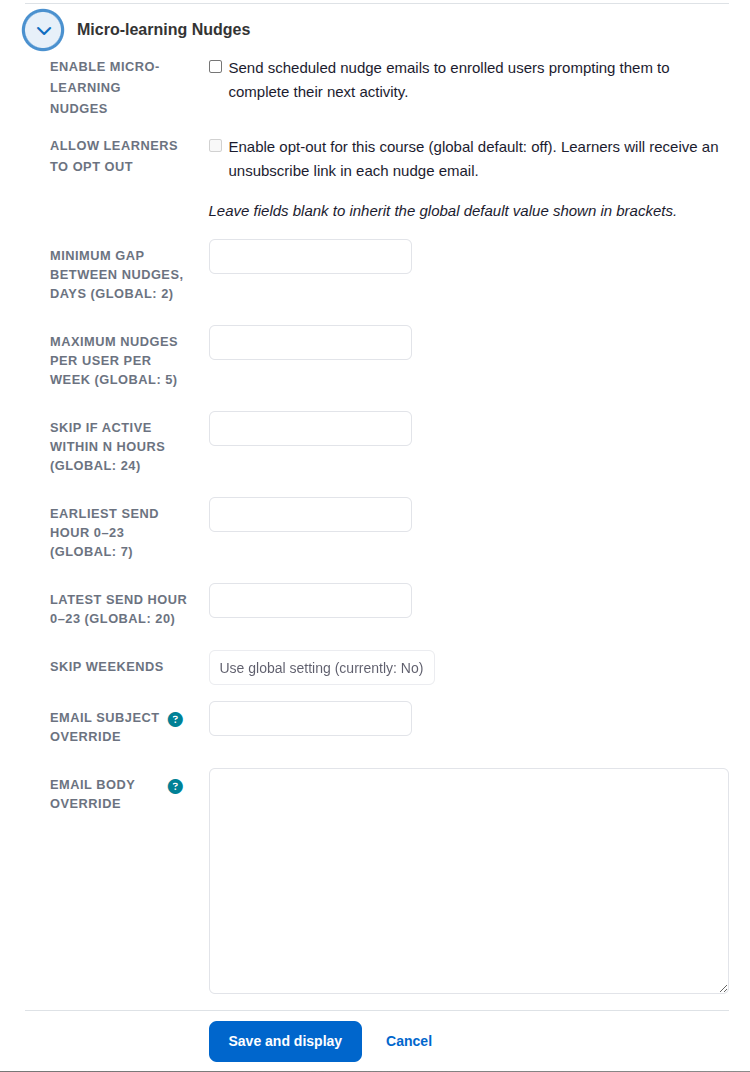
Only courses with this setting enabled will generate nudge emails. Enabling it on a course does not immediately send any emails the next email goes out when the scheduled task runs (by default, 09:00 the following morning).
Configuring the plugin settings
All plugin-level settings are at Site Administration → General → EssingtonITS → Micro-learning Nudges.
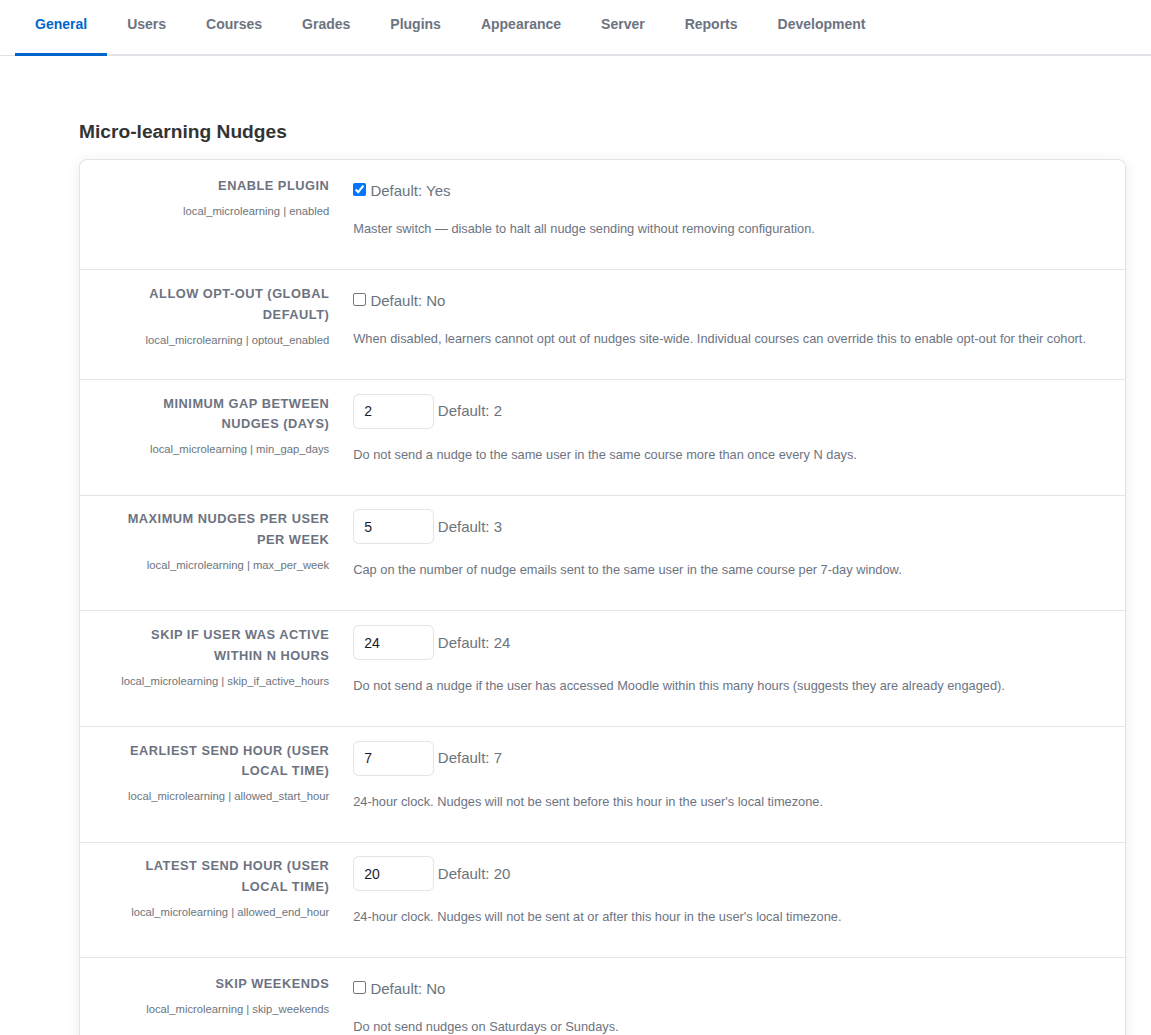
General
| Setting Default What it does | |
| Enable plugin | Master switch. Turn this off to pause all nudge emails across every course without losing any of your other settings. |
Anti-spam rules
| Setting Default What it does | |
| Minimum gap between nudges (days) | The plugin will not send a learner more than one nudge in the same course within this many days. |
| Maximum nudges per user per week | The maximum number of nudge emails a learner can receive in any 7-day window, per course. |
| Skip if user was active within N hours | If a learner has logged into Moodle within this many hours, the nudge is skipped — they are already engaged and do not need a reminder. |
Send window
| Setting Default What it does | |
| Earliest send hour | Nudges will not be sent before this hour in the learner's local time (24-hour clock). |
| Latest send hour | Nudges will not be sent at or after this hour in the learner's local time. |
| Skip weekends | When enabled, nudges are not sent on Saturdays or Sundays. |
Email templates
Both the subject line and the body of the nudge email can be customised freely. The following placeholders can be used in either field and will be filled in automatically when each email is sent:
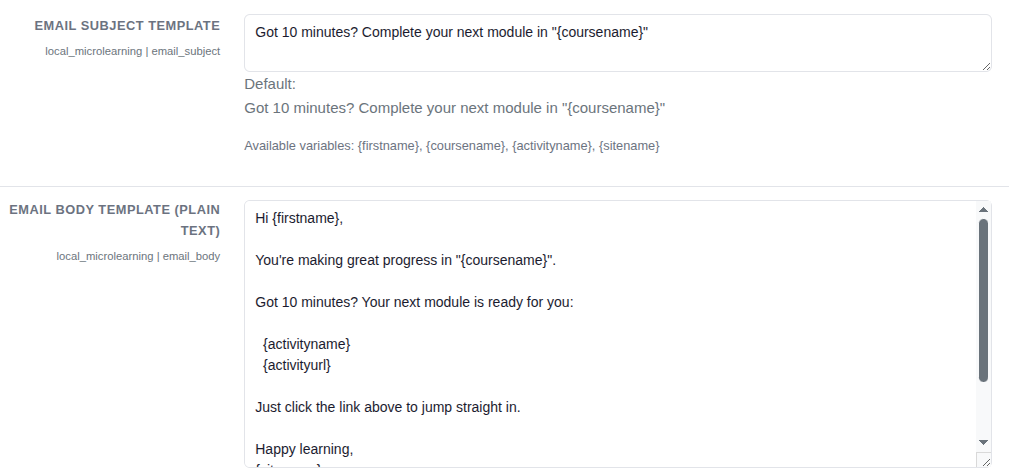
| Placeholder Replaced with | |
{firstname} |
The learner's first name |
{coursename} |
The full name of the course |
{activityname} |
The name of the learner's next incomplete activity |
{activityurl} |
A direct link to that activity |
{sitename} |
The name of your Moodle site |
{optouturl} |
A one-click unsubscribe link (include this in the body to give learners the option to stop receiving nudges) |
Viewing the nudge report
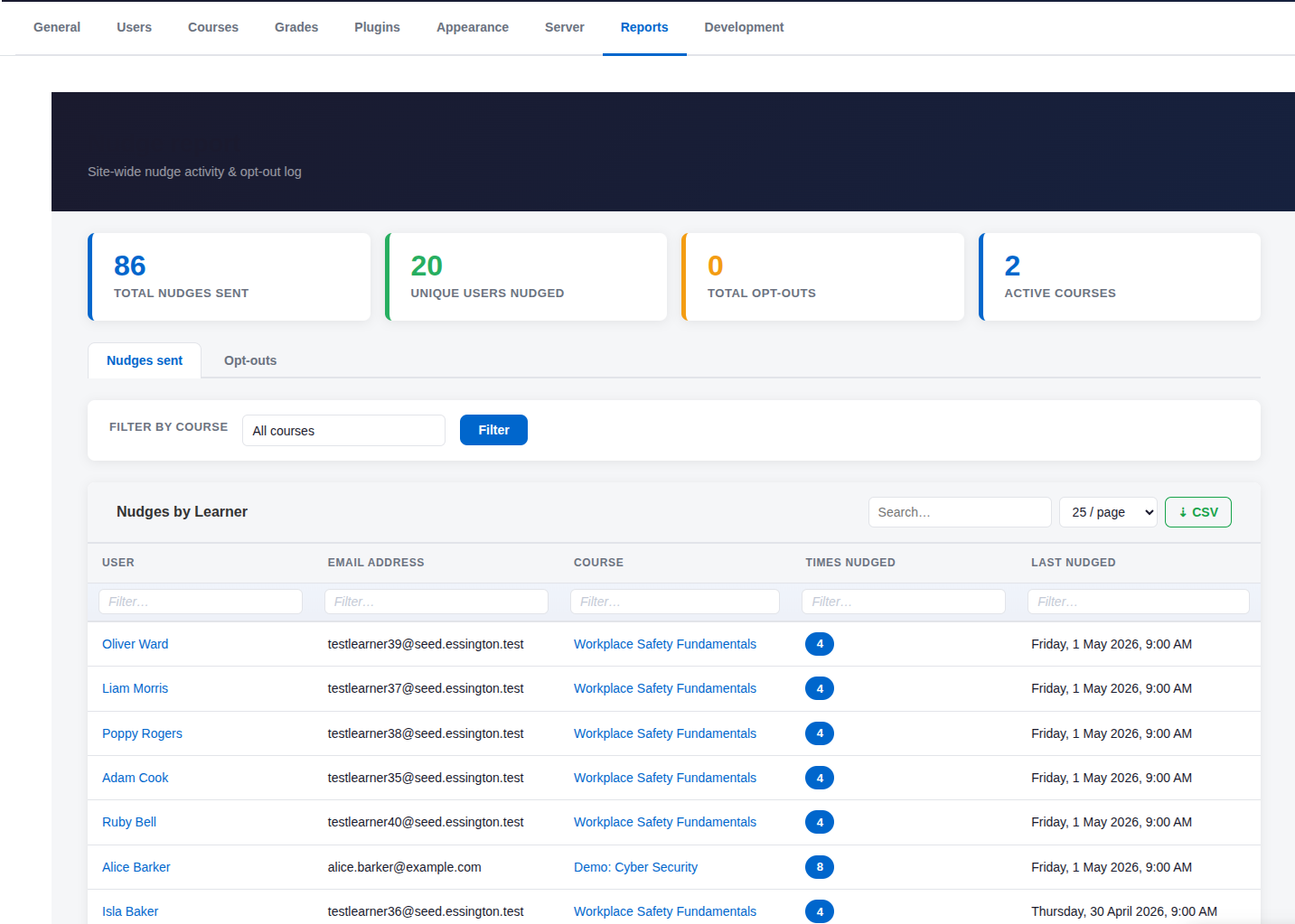
Go to Site Administration → Reports → Nudge report. The report has two tabs:
- Nudges sent: Full log of every nudge email dispatched, showing who it was sent to, which course and activity it linked to, when it was sent, and which email address was used. You can filter this by course.
- Opt-outs: List of learners who have unsubscribed, with the course they unsubscribed from and when. Also filterable by course.
Both tables are paginated and sortable by column.
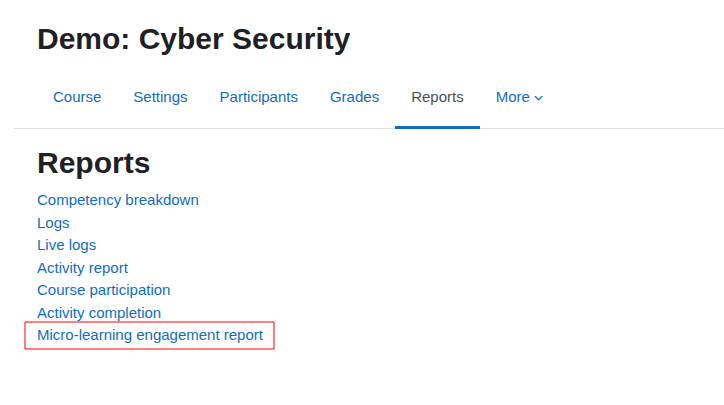
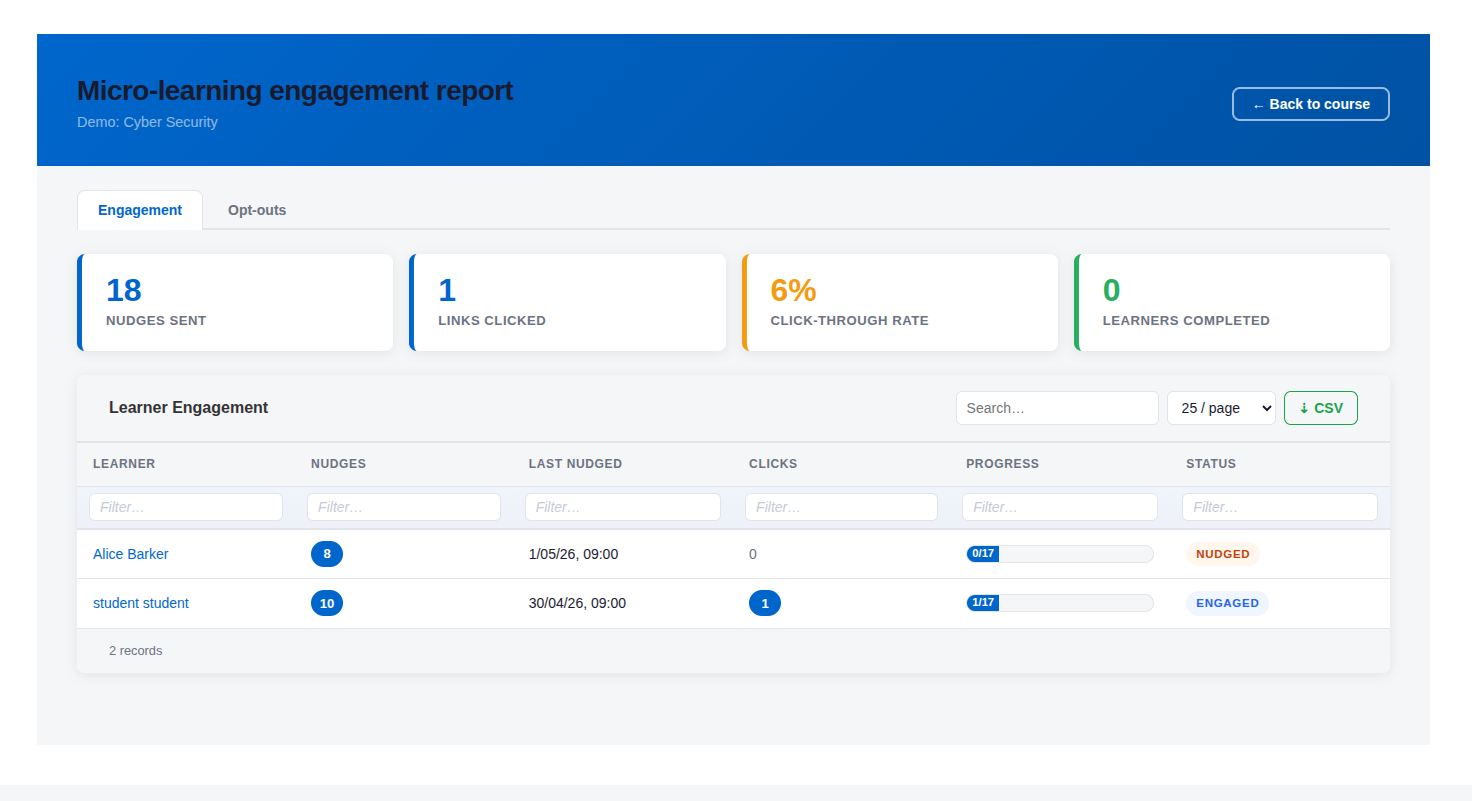
Per course reports are also available from the course reports
Common tasks
Temporarily pause all nudges
Go to Site Administration → EssingtonITS → Micro-learning Nudges and turn off the Enable plugin switch. No emails will be sent until you switch it back on. All your settings and course configurations are preserved.
Customise the email for a more personal tone
Go to the plugin settings and edit the Email subject template and Email body template fields. Use the placeholders listed above to include the learner's name and a direct link to their activity. A subject line that sounds like it came from a person rather than a system tends to result in more learners clicking through.
Check whether a learner has opted out
Open the Nudge report and go to the Opt-outs tab. Filter by the relevant course to see who has unsubscribed and when.
Check whether nudges are reaching learners
Open the Nudge report and go to the Nudges sent tab. Filter by the course and look for the learner in question. If their name does not appear, or appears less often than expected, the most common reasons are covered in the Troubleshooting section below.
Reduce how often learners receive nudges
Increase the Minimum gap between nudges setting, or reduce the Maximum nudges per user per week setting, in the plugin settings. The right frequency depends on your course and your learners — an intensive two-week onboarding course may suit daily nudges, while a longer professional development course may work better with nudges every three or four days.
Things to know
Activities must have completion tracking enabled
The plugin determines each learner's progress using Moodle's built-in completion tracking. If an activity does not have completion tracking switched on, the plugin cannot see it. It will not nudge learners toward that activity, and it will not count it when deciding whether a learner has finished the course. Before enabling nudges on a course, check that all the activities you want included have their completion settings configured.
Activities are worked through in course order
The plugin always points a learner to their earliest incomplete tracked activity, working through the course section by section from top to bottom. If a learner completes activities out of order (for example, by accessing them directly), the plugin will automatically move its pointer to whatever comes next in the sequence.
Hidden activities and sections are skipped
Activities or sections that are hidden from learners are ignored. The plugin only considers content that is visible to the learner.
Nudges stop automatically at course completion
Once the plugin finds no more incomplete tracked activities for a learner, it stops sending nudges for that course. No manual action is needed.
Assignments: set completion to "student must submit"
Assignment activities in Moodle can be set to mark as complete either when a student submits, or when a student receives a grade. If you use the grade-based option, the assignment will remain marked as incomplete and the learner will continue to receive nudges pointing at it even after they have submitted, because no grade has been given yet. This can feel frustrating and confusing to learners. For assignments in nudge-enabled courses, it is strongly recommended to set the completion condition to student must submit. This closes the loop immediately when the learner submits, without waiting for grading. If you need to track grading separately, the gradebook is the right place for that rather than the activity completion system.
Emails come from your site's no-reply address
Nudge emails are sent using Moodle's standard email system. The From address is whatever is configured at Site Administration → Server → Email → Outgoing mail configuration → No-reply address.
Opt-out is per course
When a learner clicks the unsubscribe link in a nudge email, they are opting out of nudges for that specific course only. They will still receive nudges from other courses where they are enrolled and nudges are enabled.
Opt-outs take effect immediately
Once a learner unsubscribes, the system respects that on the very next task run. They will not receive another nudge for that course.
Troubleshooting
Learners are not receiving any nudge emails
Work through these checks in order:
- Confirm the master switch is on: Site Administration → EssingtonITS → Micro-learning Nudges → Enable plugin.
- Confirm the course has nudges enabled: go to the course, click Edit settings, and check the Micro-learning Nudges section.
- Confirm the activities in the course have completion tracking enabled. The plugin has nothing to work with if no activities are tracked.
- Confirm outbound email is working on your Moodle site. If other Moodle emails (such as forum notifications) are not being delivered either, the issue is with your mail configuration rather than the plugin.
- Check whether the scheduled task has run recently: Site Administration → Server → Scheduled tasks → Send micro-learning nudge emails. If it has never run or is showing an error, Moodle's cron process may not be running correctly.
A specific learner is not receiving nudges
- They opted out. Check the Opt-outs tab in the Nudge report.
- They are already active. If they have logged into Moodle within the "skip if recently active" window, the nudge will be skipped. This is expected behaviour.
- They hit the weekly cap. If they have already received the maximum number of nudges in the current 7-day window, no more will be sent until the window resets.
- The course is complete for them. If the learner has no remaining incomplete tracked activities, nudges will have stopped automatically. Check their completion status in the course.
- The send window was missed. The task runs once daily. If the learner's timezone means their allowed hours had already passed when the task ran, the nudge will be skipped until the following day.
A learner is being nudged toward an activity they already completed
The most likely cause is that the activity's completion tracking is set to require a grade (rather than a submission), and the activity has not yet been graded. From the system's perspective, the activity is still incomplete. Change the activity's completion condition to student must submit, or grade the submission so that completion can be recorded.
Nudges are arriving outside working hours
Check the Earliest send hour and Latest send hour settings in the plugin configuration. Also confirm that the learner's timezone is correctly set in their Moodle profile the send window is applied in the learner's local time, not the server's time.
Summary
Micro-learning Nudges takes the guesswork out of re-engagement by sending each learner a single, well-timed email that links directly to their next activity no hunting around, no trying to remember where they left off. With built-in controls for frequency, timing, and learner choice, it is designed to support completion without adding pressure. Enable it on any course with completion tracking, customise the email to match your voice, and let the report tell you how learners are responding.
Looking to optimise your Learning Management System? EssingtonITS offers tailored solutions to enhance your e-learning environment. Visit EssingtonITS.co.uk for expert IT services, or explore our dedicated hosting and support for Moodle at myelms.co.uk. Let us help you create a seamless and efficient learning experience.
person people found this useful.