Plugin Auto-Updater
Plugin Auto-Updater is a Moodle add-on for site administrators that provides a central, controlled way to check for and install updates to third-party Moodle plugins. It replaces the update experience that is typically disabled on managed Moodle sites, giving authorised administrators a clear dashboard, flexible scheduling, and reliable update tools including support for systems with no internet connection and for privately-developed plugins that are not listed in the public Moodle directory.
What this product is for
Many Moodle deployments are configured to disable the standard plugin update notifications, so site administrators have no built-in way to see or apply plugin updates. Plugin Auto-Updater fills that gap. It is visible only to authorised administrators, operates independently of Moodle's native update screen, and leaves everything else unchanged for all other users.
It is designed for three common situations:
- Standard online sites: Check and apply updates from the public Moodle plugins directory, manually or on a schedule.
- Airgapped or high-security servers: No internet connection is required; updates are read from a local folder of plugin ZIP files instead.
- Sites with privately-developed plugins: Plugins that are not listed publicly can be managed through a private GitLab project, using the same dashboard and update workflow as public plugins.
Main features
- A clear dashboard showing every third-party plugin installed, its current version, any available update, and its update status at a glance.
- Manual update checks with a single button click either from the Moodle plugins directory or from a local folder.
- Apply an update to a single plugin, or apply all available updates in one action.
- Scheduled automatic checks and updates set a timetable and the plugin handles everything without manual intervention.
- Email notifications when updates are found, and a results email after scheduled updates run.
- Hold any plugin at its current version to exclude it from automatic and bulk updates.
- Automatic backup before every update, with a one-click revert button if something goes wrong.
- Detection and reinstallation of plugins that are registered in Moodle but missing from disk.
- Local repository mode for airgapped servers point the plugin at a folder of ZIP files and it works without any internet access.
- An upgrade compatibility checker that shows, before you upgrade Moodle itself, which of your plugins already have a release for the target Moodle version.
- Private GitLab registry support for plugins developed in-house, keeping them updated through the same interface as public plugins.
How to use it
Opening the dashboard
Go to Site Administration → Plugins → Plugin Auto-Updater.
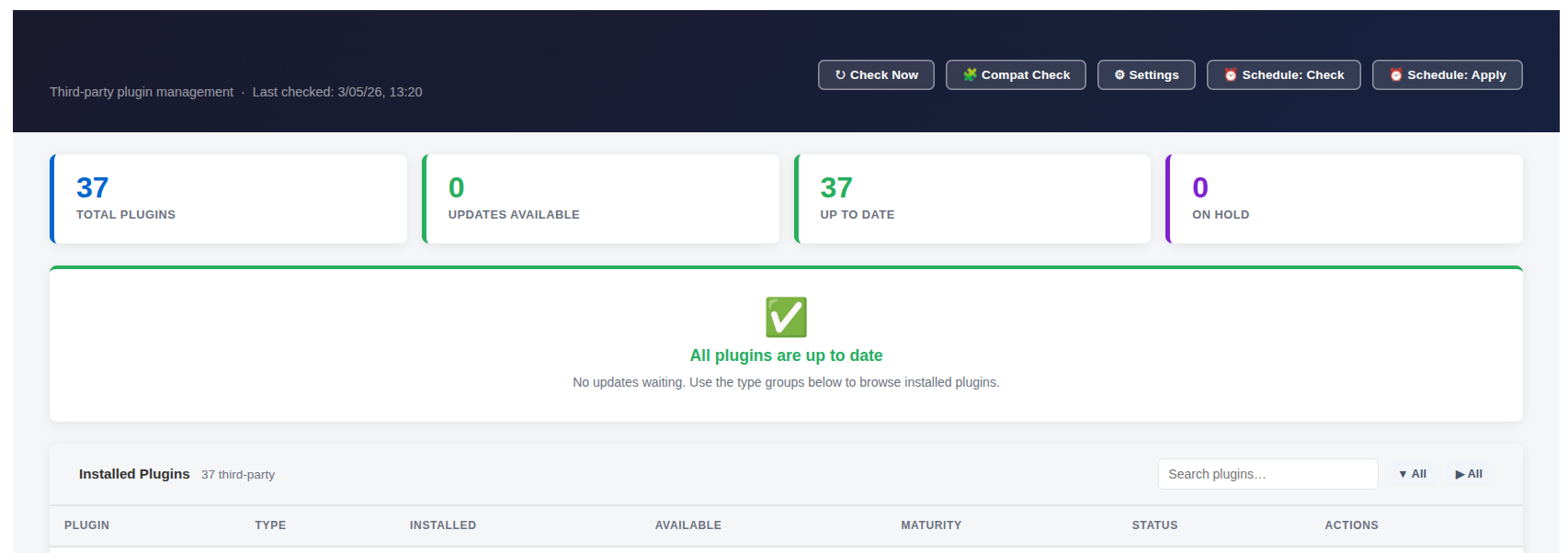
The dashboard shows a summary row at the top with counts of total plugins, those that are up to date, those with updates available, any that are on hold, any missing from disk, and the time of the last check. Below that is a table listing every third-party plugin with its current version, available version, maturity level, and status.
Checking for updates
Online mode: Click Check Now. The plugin contacts the Moodle plugins directory, retrieves the latest version information for all your installed plugins, and refreshes the dashboard. No files are changed during a check.
Local repository mode: Click Scan Repository. The plugin reads every ZIP file in your configured local folder, identifies the plugin and version inside each one, and updates the dashboard to show which plugins have a newer version available in that folder.
Applying a single update
- Find the plugin in the table with an update shown in the Available column.
- Click the Update button on that row.
- A confirmation prompt appears before any files are touched.
- Confirm to proceed. The new version is installed and any necessary database changes are applied automatically.
- A results message appears at the top of the page confirming success or explaining any problem.
Applying all updates at once
- Click Apply All Updates in the dashboard header.
- All plugins with available updates are processed in sequence. Any plugin currently on hold is skipped.
- A results summary is shown when complete.
Holding a plugin
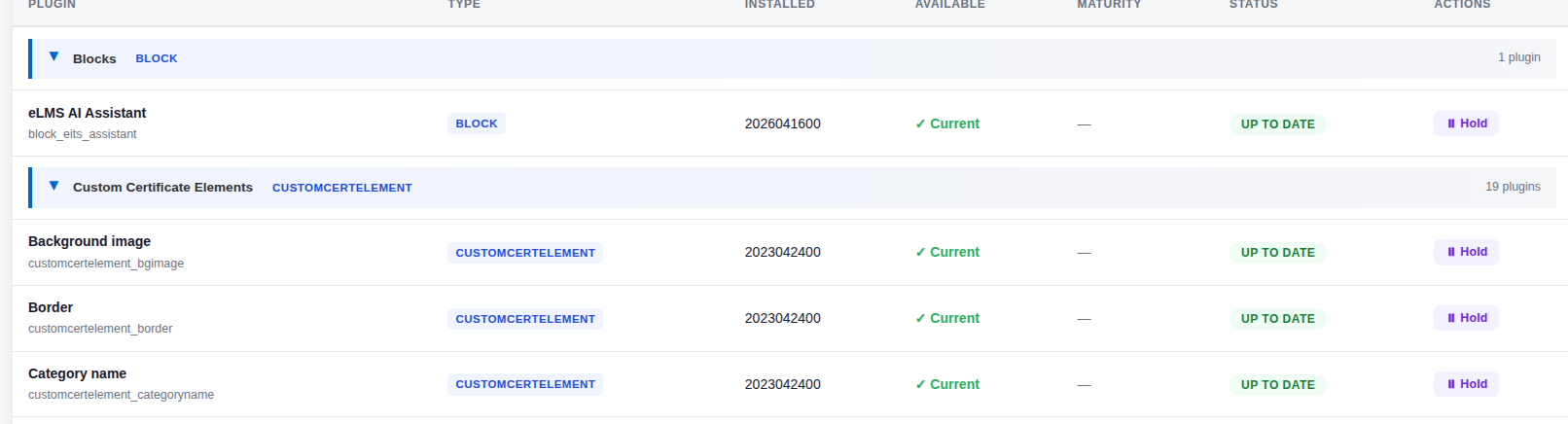
Holding a plugin pins it at its current version so it is never touched by bulk updates or scheduled updates.
- Find the plugin in the table.
- Click Hold. The plugin status changes to show it is on hold.
- To allow it to be updated again, click Release Hold.
Reverting an update
If the Backup before update setting is turned on (it is on by default), a copy of the previous plugin version is saved automatically before any update is applied. If the update causes a problem, you can restore the previous version:
- Find the plugin in the table after an update a Revert button is shown.
- Click Revert. The previous files are restored, Moodle's version record is corrected, and the dashboard returns to showing the newer version as available so you can try again later.
Scheduled automatic updates
Plugin Auto-Updater registers two scheduled tasks in Moodle's built-in task scheduler:
- Check for plugin updates: Runs every day at midnight by default. It checks for new versions and sends a notification email if any are found (when notifications are enabled).
- Apply scheduled plugin updates: Runs every Sunday at midnight by default. It installs all available updates for plugins that are not on hold.
The apply task only runs if you have turned on Enable automatic updates in Settings. If that setting is off, the task runs but exits immediately without making any changes.
To change the schedule for either task, click Schedule: Check or Schedule: Apply on the dashboard. This opens Moodle's standard task scheduler page for that task, where you can set any cron schedule you like. Save there the new schedule takes effect on the next cron run.
Running the upgrade compatibility checker
Before upgrading Moodle to a new version, you can check whether your installed plugins already have a release confirmed compatible with that version. This gives you a picture of readiness without having to actually upgrade.
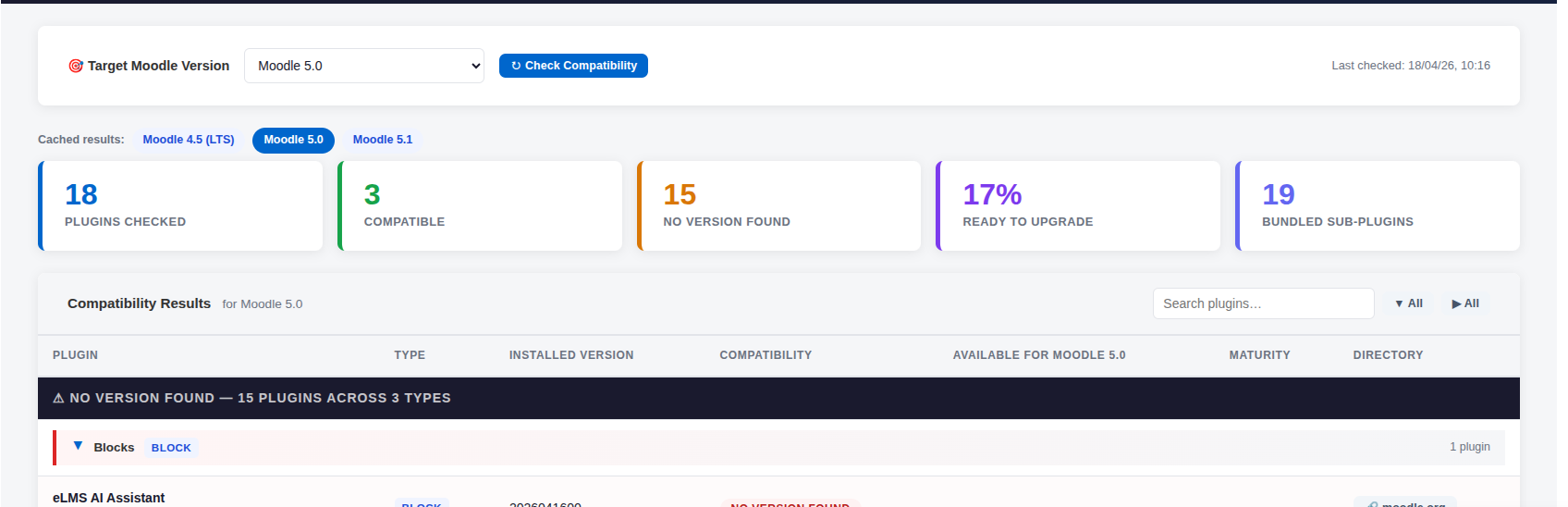
- Click Compat Check in the dashboard header, or go to /local/pluginupdater/compatibility.php.
- Select the target Moodle version from the drop-down. The selector defaults to the next version above the one you have installed.
- Click Check Compatibility. The tool queries the Moodle plugins directory and displays results grouped by plugin type.
Each plugin is shown with one of the following statuses:
| Status | Meaning |
|---|---|
| Compatible | A release confirmed compatible with the target Moodle version has been published in the plugins directory. |
| No Version Found | No compatible release was found for that target version. This may mean the developer has not published one yet, or the plugin is private and not listed publicly. |
| Bundled Sub-plugin | This plugin is shipped inside another plugin's package rather than separately. Check the parent plugin's compatibility instead. |
Results are grouped by plugin type in collapsible sections. Groups showing No Version Found start expanded; groups that are fully compatible start collapsed. Use the All expand and collapse buttons, or the search box, to navigate.
Results are cached per target version, so reopening the page does not make another network request. Click Check Now to force a fresh query.
Important: A result of No Version Found does not mean the plugin is definitely incompatible the developer may simply not have published a release yet. Always verify on moodle.org/plugins before performing an upgrade. Do not use this tool as the only basis for an upgrade decision.
Common tasks
Setting up the plugin for first use
- After installation, go to Site Administration → Plugins → Plugin Auto-Updater Settings.
- Review the maturity filter by default only Stable updates are shown. Change this if you want to see release candidates or beta releases.
- Enter notification email addresses if you want alerts sent somewhere other than the primary site admin address.
- If you want updates to apply automatically on a schedule, turn on Enable automatic updates.
- Return to the dashboard and click Check Now to do an initial check.
Setting up local repository (airgapped) mode
- On a computer with internet access, download the plugin ZIP files you want from moodle.org/plugins. Standard ZIP files from the directory work without any changes.
- Copy the ZIP files to a folder on your Moodle server that the web server can read for example
/srv/moodle-plugins/. File names do not matter; the plugin identity is read from inside each ZIP. - In Settings, turn on Use local repository and enter the folder path in Local repository path.
- If your server also has no outbound email, turn on Disable email notifications.
- On the dashboard, click Scan Repository. The plugin reads every ZIP and shows available updates.
- Apply updates the same way as in online mode.
Setting up the private GitLab registry
If your organisation develops its own Moodle plugins and wants to manage updates for them through this tool, you can connect Plugin Auto-Updater to a private GitLab project that acts as a package store.
- Create a dedicated registry project on GitLab (for example
mygroup/moodle-plugin-registry). It can be empty to start with. - In that project, go to Settings → Repository → Deploy tokens and create a token with the
read_package_registryscope only. Note the username and token value. - In Moodle, go to Plugin Auto-Updater Settings and scroll to the Private GitLab registry section. Turn on Enable GitLab registry, enter your GitLab URL, the registry project path, and the deploy token from step 2.
- To publish a plugin to the registry, use the provided
release.shscript or the included CI/CD template these handle packaging and uploading automatically. (A separate write-capable token is needed for publishing; this is different from the read-only token Moodle uses.)
Once set up, private plugins appear in the dashboard alongside public ones. Clicking Update downloads and installs them the same way. The Moodle server uses a read-only token and cannot push code or access your source repositories.
Holding a plugin before a Moodle upgrade
If you are about to upgrade Moodle and a particular plugin has not yet been confirmed compatible with the new version, hold it first to prevent the scheduled task from automatically updating it to a version that may not work with the new Moodle.
- Find the plugin in the dashboard table.
- Click Hold.
- After the Moodle upgrade and any plugin testing is complete, click Release Hold to allow updates again.
Reinstalling a plugin that is missing from disk
If a plugin appears in Moodle's database but its files are missing from the server, the dashboard shows it in a Missing from Disk section at the top, with a red count in the summary row. Moodle will show upgrade prompts on every page until the plugin is either reinstalled or uninstalled.
- Find the plugin in the Missing from Disk section.
- Click Reinstall. The plugin attempts to restore the files from a local backup, from the local repository (if configured), or by downloading from the Moodle plugins directory.
- If none of those sources work, the plugin must be reinstalled manually by placing the files on the server.
When Auto-reinstall missing plugins is turned on in Settings, the scheduled apply task also checks for missing plugins and reinstalls them automatically.
Things to know
Access and permissions
The dashboard and all update actions are only available to users with the local/pluginupdater:manage capability. In practice this means site administrators only. No other users see any part of this plugin, and Moodle's native update notification screen remains disabled as normal.
File write access
To install or update plugin files, the web server process must have permission to write to Moodle's plugin type directories. In most managed Moodle setups this is already the case. If permissions are insufficient, the plugin reports a clear error before making any changes nothing is partially applied.
Automatic database upgrades
After installing new plugin files, the plugin automatically runs Moodle's upgrade process to apply any database schema changes the new version requires. This happens without any extra steps on your part.
Backups
When Backup before update is on (the default), the existing plugin files are saved before the new version is installed. This is what enables the Revert button. If you turn this setting off, reverting is not possible.
Maturity filter
The Minimum update maturity setting controls which releases are shown and applied. The options are Stable, Release Candidate (RC), Beta, and Alpha. The default is Stable, which means only fully released versions are shown. Plugins in the GitLab registry also respect this filter, so make sure any privately-developed plugins declare the correct maturity level.
Orphaned files after update
When a plugin update is installed, new files overwrite the old ones. Files that were removed in the new version are not automatically deleted from disk. This is the same behaviour as Moodle's own web installer. In most cases this has no practical effect.
The apply task does nothing if automatic updates are not enabled
The scheduled apply task will run on schedule regardless of whether you have turned on Enable automatic updates. However, if that setting is off, the task exits immediately without changing anything. You must explicitly enable automatic updates in Settings for the task to apply updates.
Email notifications
The check task can send a notification when updates are found. The apply task always sends a results summary after it runs, regardless of other notification settings. Both can be suppressed entirely by turning on Disable email notifications intended for servers without outbound email.
Upgrade compatibility results are informational only
The compatibility checker shows whether a plugin has a published release for a target Moodle version. A result of No Version Found does not confirm incompatibility it may simply mean the developer has not yet published a release for that version. Always check manually on moodle.org/plugins before upgrading Moodle.
This plugin only manages third-party plugins
Moodle core itself and all standard bundled plugins are not managed by this tool. Only plugins that were separately installed from the Moodle plugins directory or from a private source are shown in the dashboard.
Troubleshooting
The scheduled apply task ran but nothing was updated and no email was sent
Check that Enable automatic updates is turned on in Settings. The apply task exits immediately if this setting is off. Also confirm that the Disable email notifications setting is not turned on unexpectedly.
Clicking Update shows "already up to date" even though an update is shown on the dashboard
Try clicking Check Now (or Scan Repository in local repo mode) to refresh the update cache, then try the Update button again. This can happen if the cached check results become stale.
An update was applied but the dashboard still shows the update as available
This can happen if the update check runs again very shortly after the installation, before the new version is fully recognised. Click Check Now to force a fresh check. The dashboard should then show the plugin as up to date.
A plugin is shown as Missing from Disk
Click Reinstall on the dashboard. If reinstall fails because no source is available, the plugin will need to be manually reinstalled by placing the files on the server. Until it is reinstalled or fully removed through Moodle's plugin manager, Moodle may show upgrade prompts on every page.
Update failed with a permissions error
The web server process does not have write access to the relevant plugin directory. A system administrator will need to adjust directory permissions so the web server can write to the Moodle plugin type directories (such as /var/www/html/mod or /var/www/html/local). Once permissions are corrected, try the update again.
The Compatibility Checker shows many plugins as "No Version Found"
This is expected for plugins that have not yet published a release confirmed for the target Moodle version. It does not mean those plugins will break. Check the individual plugin pages on moodle.org/plugins to see the latest developer announcements. Sub-plugins (bundled inside parent plugins) are shown in a separate section and do not count towards the incompatible total.
A GitLab update shows on the dashboard but Update returns "already up to date"
Click Check Now to refresh the GitLab index cache, then try again. If the problem continues, verify that the maturity level declared in the plugin's registry.json matches or exceeds the minimum maturity filter set in Settings.
Frequently asked questions
Does this plugin update Moodle itself?
No. Plugin Auto-Updater only manages third-party plugins that were separately installed. Moodle core and standard bundled plugins are not affected.
Will running an update disrupt users on the site?
A brief interruption is possible if the plugin being updated is actively in use at the moment files are overwritten. The default schedule runs in the early hours of Sunday morning to minimise any impact. For critical updates during business hours, consider using a maintenance window.
What happens if an update fails halfway through?
The plugin reports the failure clearly on the dashboard and in the results email. If a backup was saved before the update started (the default), you can click Revert to restore the previous version. If no backup was available, you may need to reinstall the plugin manually.
Can I update plugins on a server with no internet connection?
Yes. Enable Use local repository in Settings and point it at a folder containing plugin ZIP files. The plugin reads entirely from that folder no network connection is needed.
What does "Hold" do exactly?
Holding a plugin prevents it from being updated by the Apply All Updates button, the scheduled apply task, or any automatic process. The plugin's files and version are not changed. You can still update a held plugin manually if needed, by releasing the hold first. A held plugin remains held until you explicitly release it.
What is the maturity filter?
Plugin updates are published with a maturity level: Stable, Release Candidate (RC), Beta, or Alpha. The maturity filter controls the minimum level you are willing to install. With the default setting of Stable, only fully released versions are shown and applied. You can lower the filter in Settings to see pre-release updates if needed.
Do I still need to take a full site backup before applying updates?
The built-in backup captures a copy of the plugin's files, which enables the Revert button. It is not a substitute for a full Moodle site backup. Before applying significant updates or enabling automatic updates on a production site, you should ensure you have a full backup of both the Moodle files and database through your normal backup process.
Why do I need a separate read-only token for the GitLab registry?
The token stored in Moodle's settings is used only to download plugin packages. It has read-only access to the package registry and cannot push code, access source repositories, or make any changes. The write-capable token used to publish new versions is kept separately and never stored in Moodle.
Can I disable email notifications if my server cannot send email?
Yes. Turn on Disable email notifications in Settings. This suppresses all outbound emails from this plugin, including both the check-task notifications and the apply-task results summary.
Where can I see a history of updates that have been applied?
All update events checks, successful updates, and failures are recorded in Moodle's standard event log. Go to Site Administration → Reports → Logs and filter by the component local_pluginupdater to see the full history.
Summary
Plugin Auto-Updater gives Moodle site administrators a clear, controlled way to keep third-party plugins current whether the server is connected to the internet or not, and whether plugins come from the public Moodle directory or from private internal development. Updates can be applied manually on demand, in bulk, or automatically on a schedule, with backups and rollback built in at every step. The upgrade compatibility checker provides a practical readiness view before a Moodle upgrade, and the full history of all update activity is available in Moodle's standard event log.
Looking to optimise your Learning Management System? EssingtonITS offers tailored solutions to enhance your e-learning environment. Visit EssingtonITS.co.uk for expert IT services, or explore our dedicated hosting and support for Moodle at myelms.co.uk. Let us help you create a seamless and efficient learning experience.
person people found this useful.