
Accessibility Toolbar
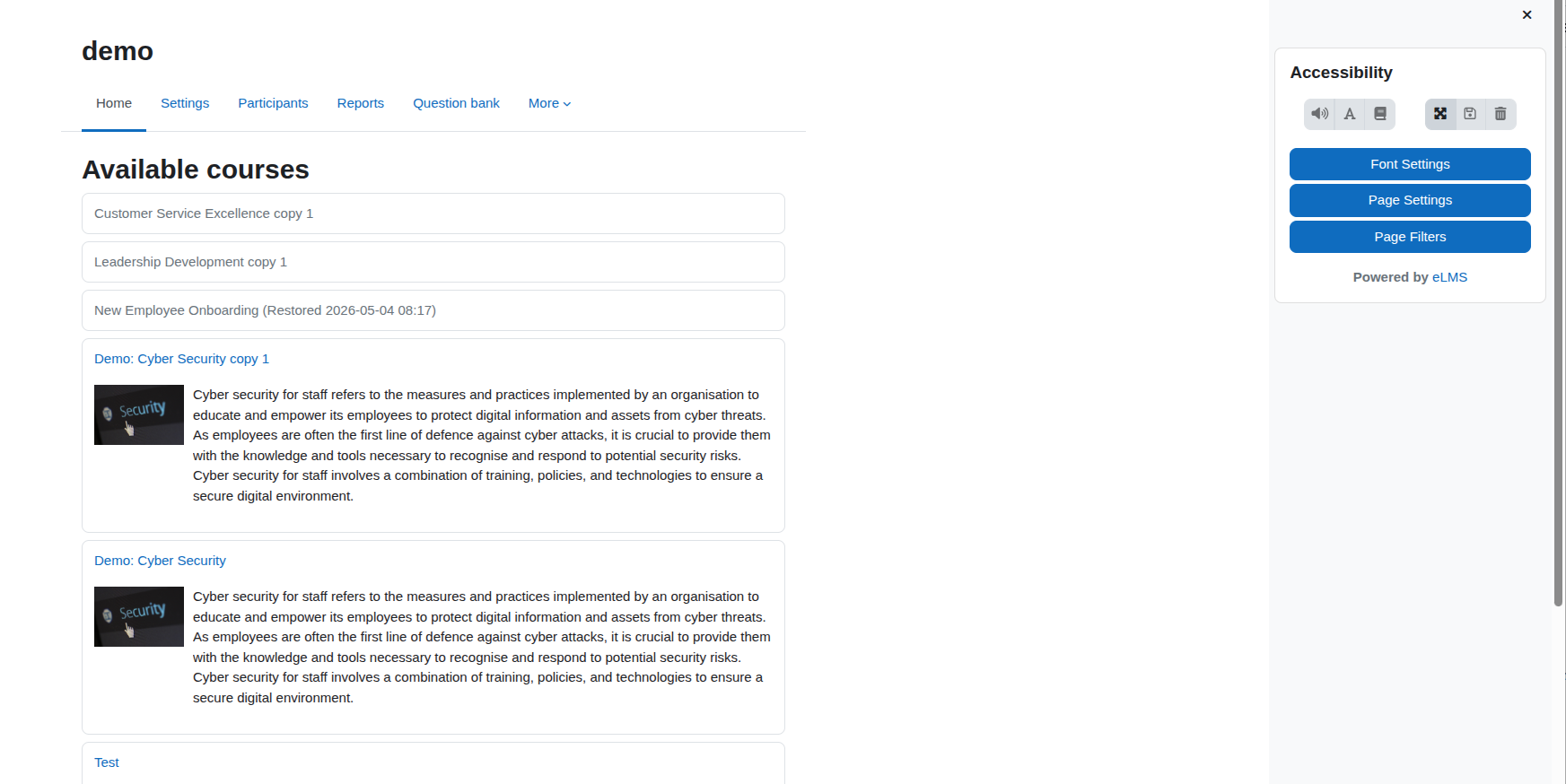
The Accessibility Toolbar allows users to customise their learning platform's appearance and functionality, offering features like font adjustments, colour overlays, and text-to-speech. Settings are saved to your account for a personalised experience.
What this is for
Reading on a screen can be uncomfortable for many reasons. Text may be too small, colours too harsh, or the layout too dense. Some people find certain font styles easier to read. Others benefit from hearing text read aloud rather than reading it silently.
The Accessibility Toolbar puts you in control of these things without changing anything for anyone else. Your adjustments are private to your account.
Main features
- Font family: Choose from a range of typefaces, including options designed to be easier to read
- Font size: Make text larger or smaller to suit your comfort
- Line height: Spread lines further apart or bring them closer together
- Zoom: Scale the whole page up or down
- Colour overlay: Place a tinted layer over the screen to reduce glare or visual stress
- Colour contrast: Switch to a high-contrast colour scheme to make text stand out more clearly
- Page filters: Fine-tune brightness, grayscale, colour saturation, and more using sliders
- Full page mode: Apply your visual settings across the full browser window rather than just the main content area
- Text-to-speech: Have selected text read aloud to you
- Spell checker: Check the spelling of a selected word and get correction suggestions
- Dictionary: Look up the definition, pronunciation, and examples for a selected word
- Save and reset: Save all your settings to your account, or reset everything back to the platform defaults
How to use it
Opening the toolbar
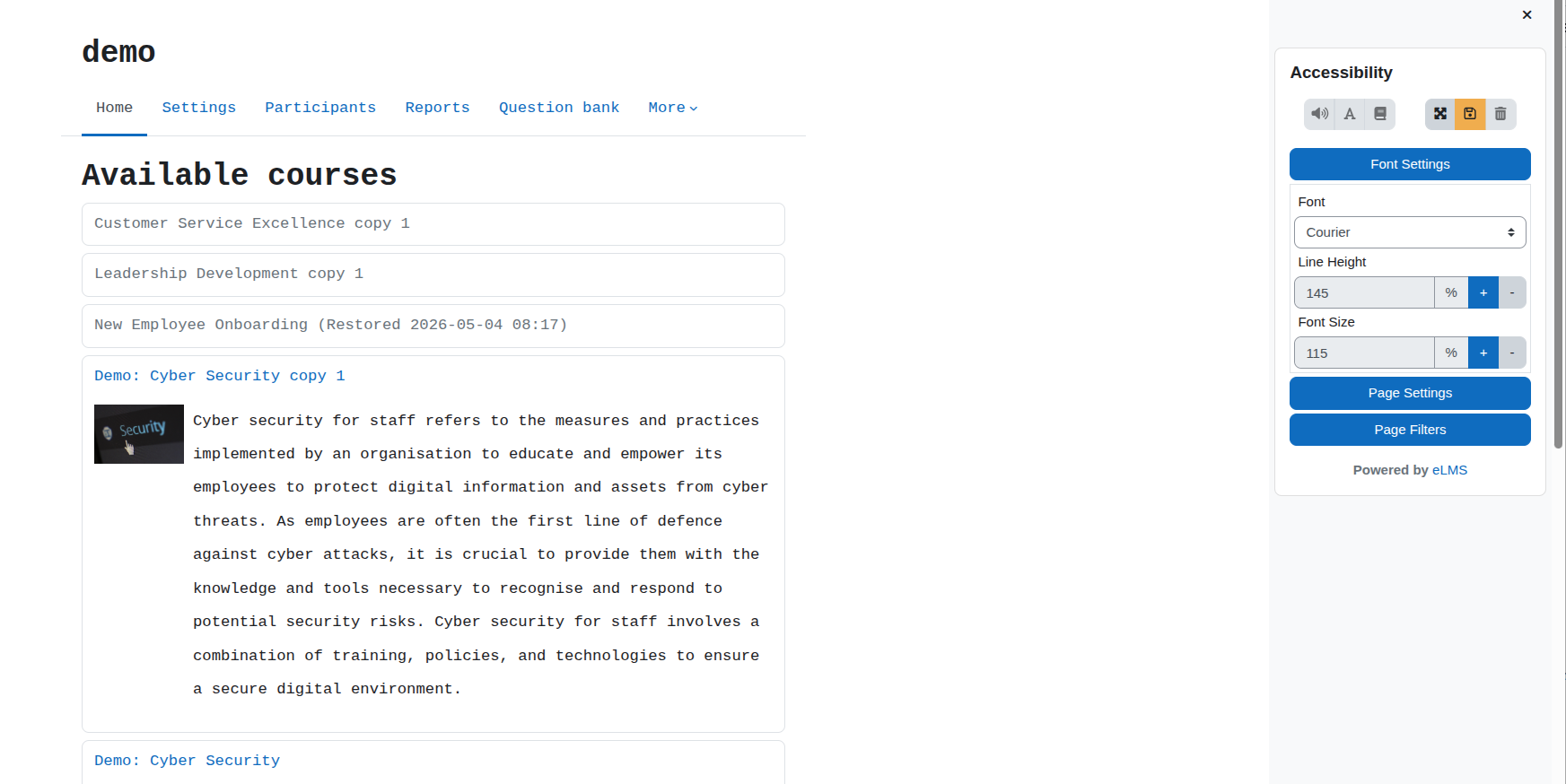
The toolbar appears as a block on the page, usually in a sidebar. All controls are visible directly within it no menus to navigate. The toolbar is organised into three collapsible sections: Font Settings, Page Settings, and Page Filters. Click any section heading to expand or collapse it.
Changing fonts
- Open the Font Settings section.
- Use the Font dropdown to choose a typeface. The list includes common system fonts. If your site has additional fonts available, they will appear in the list too.
- Use the Font Size controls to increase or decrease the size of text in steps.
- Use the Line Height controls to adjust the space between lines of text.
Adjusting zoom
- Open the Page Settings section.
- Use the Zoom controls to scale the page up or down.
Applying a colour overlay
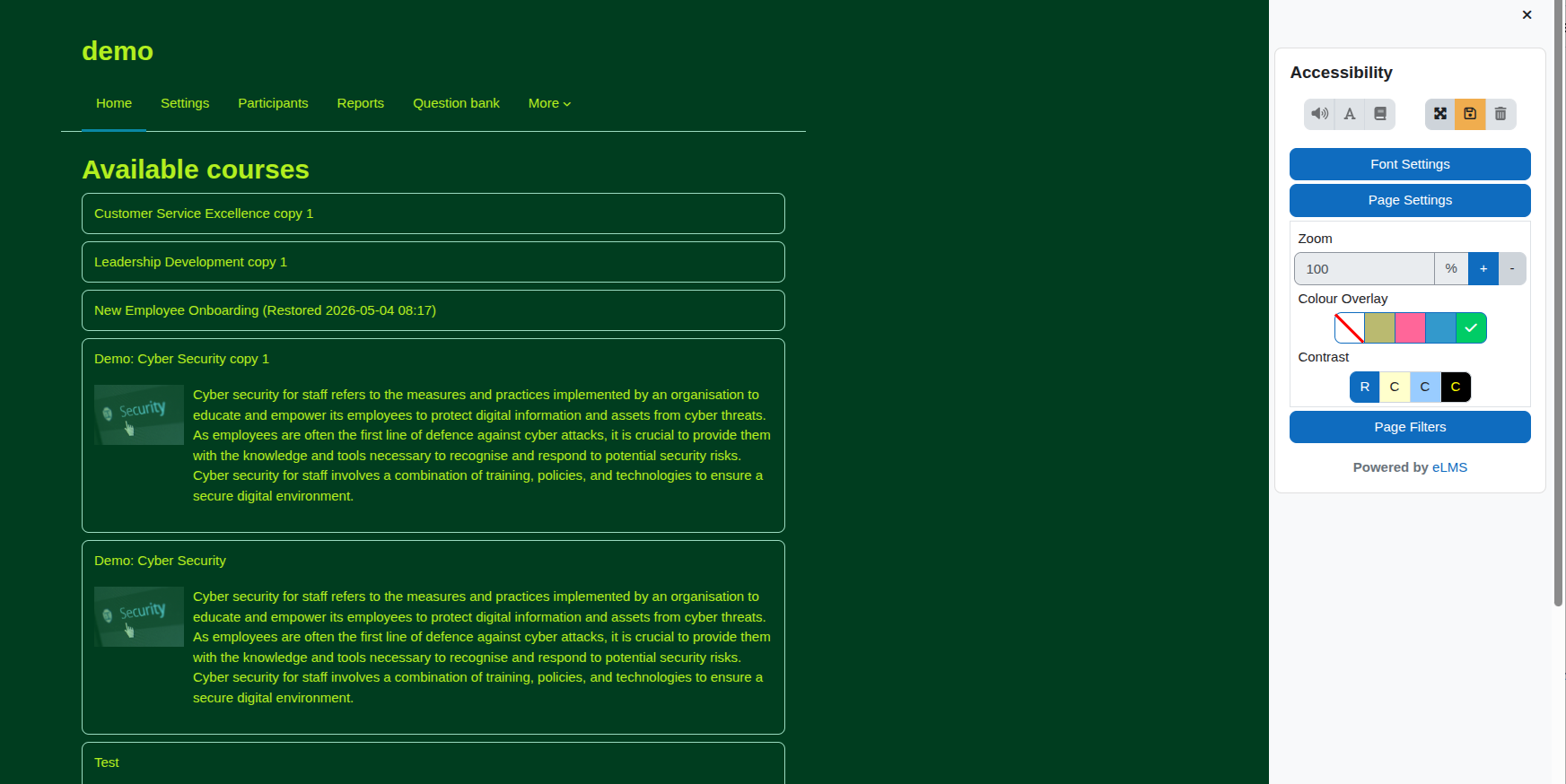
A colour overlay places a semi-transparent tint over the screen. This can reduce visual stress, particularly for people sensitive to bright white backgrounds.
- Open the Page Settings section.
- Under Colour Overlay, click one of the colour buttons — Yellow, Red, Blue, or Green.
- To remove the overlay, click the button with the diagonal line (the clear button).
Using a colour contrast scheme
Colour contrast schemes change the background and text colours across the page to improve readability. Three styles are available, and your site administrator can customise what each one looks like.
- Open the Page Settings section.
- Under Contrast, click Style 1, Style 2, or Style 3.
- To return to the standard colours, click the Reset button next to the contrast options.
Using page filters
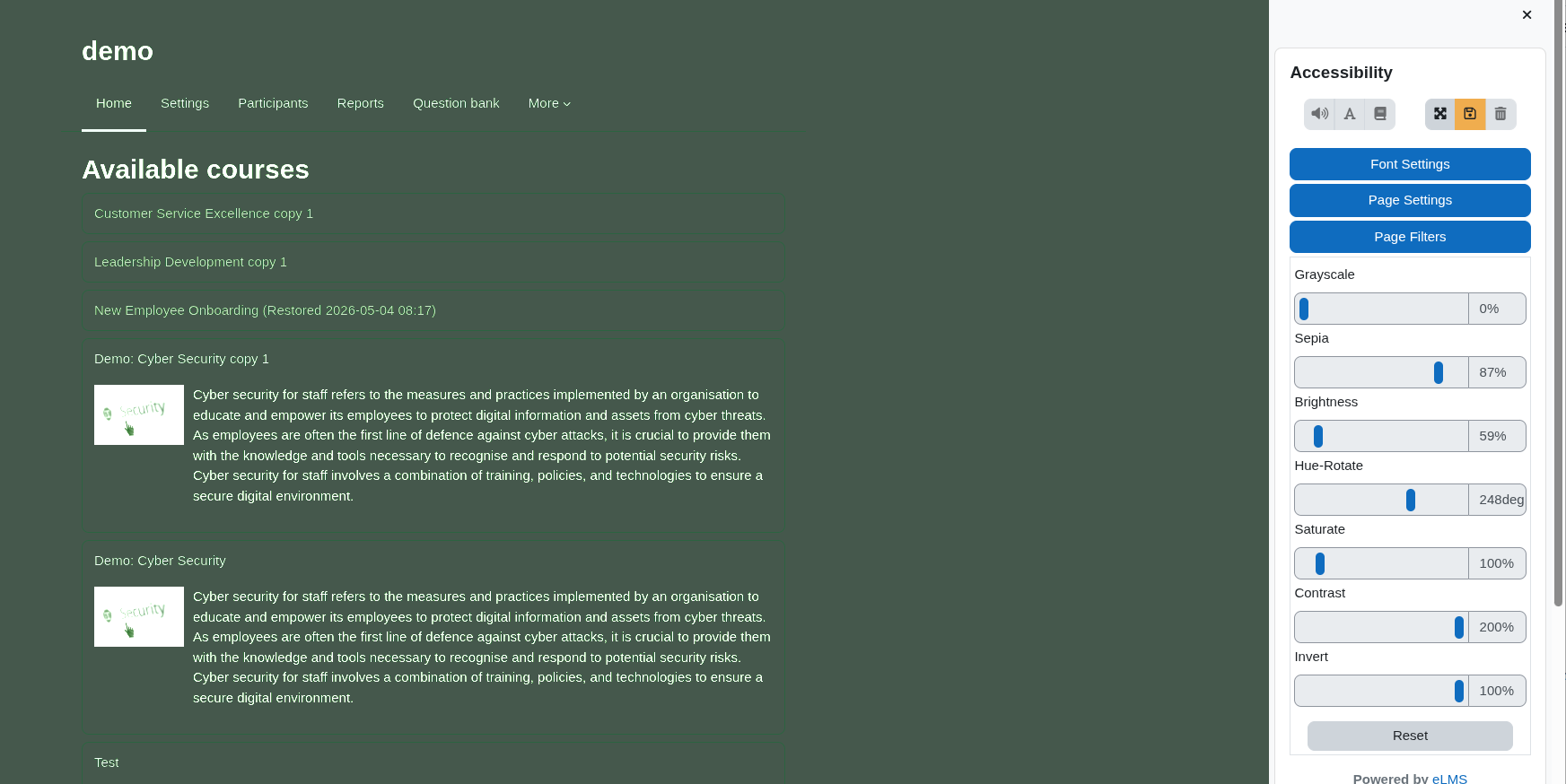
Page filters let you make fine visual adjustments using sliders. You can reduce colours to grayscale, add a warm sepia tone, reduce brightness, adjust contrast, invert colours, and more.
- Open the Page Filters section.
- Drag any slider left or right to adjust the effect.
- Click the Reset button at the bottom of the filters section to return all sliders to their default positions.
Switching to full page mode
By default, your visual settings apply to the main content area of the page. Full page mode extends them to cover the entire browser window, including sidebars and headers.
- Click the Full Page button at the top of the toolbar to toggle this on or off.
Using text-to-speech
Text-to-speech reads selected text aloud using your browser's voice capabilities.
- Select the text on the page you want to hear highlight it with your mouse or keyboard.
- Click the Text to Speech button in the toolbar.
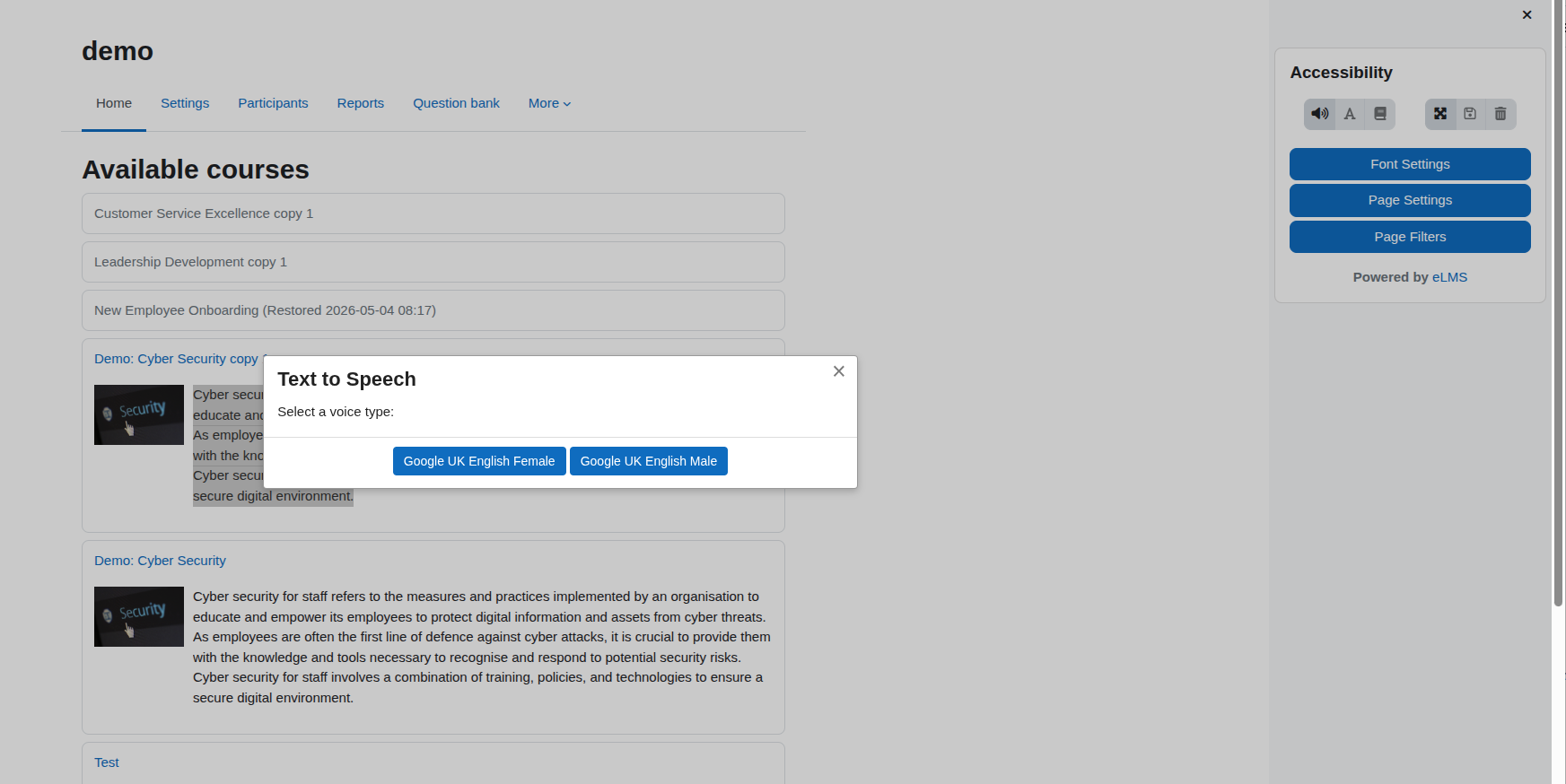
- If your browser offers more than one voice, a selection dialog will appear so you can choose the voice you prefer.
- The selected text will be read aloud.
Checking the spelling of a word
- Select a single word on the page by double-clicking it or highlighting it.
- Click the Spelling button in the toolbar.
- If the word is misspelled, a list of suggestions will appear.
- Click any suggestion to replace the selected word with the corrected spelling.
Looking up a word in the dictionary
- Select a single word on the page by double-clicking it or highlighting it.
- Click the Dictionary button in the toolbar.
- A dialog will show the word's pronunciation, part of speech, definitions, and example sentences.
Saving your settings
- Make any adjustments you want using the toolbar controls.
- Click the Save button at the top of the toolbar.
- Your settings are now saved to your account and will be applied automatically each time you log in.
Resetting all settings
- Click the Reset Accessibility Settings button at the top of the toolbar.
- A confirmation prompt will appear confirm that you want to reset.
- All settings will return to the platform defaults and your saved preferences will be cleared.
Common tasks
Making text easier to read
Open Font Settings and try increasing the font size and line height. If you find the default typeface difficult, try switching to a different font from the dropdown. Some fonts are designed specifically to be easier to read for people with dyslexia or visual impairments.
Reducing screen glare
Open Page Settings and apply a yellow or blue colour overlay many people find these reduce eye strain from bright screens. Alternatively, open Page Filters and reduce the brightness slider slightly.
Switching to a high-contrast view
Open Page Settings, find the Contrast buttons, and try each style. Style 3 is typically the highest contrast option, with a dark background and bright text. Click the reset button next to the contrast options to go back to normal at any time.
Hearing a passage read aloud
Highlight the passage you want to hear, then click Text to Speech. For best results, highlight shorter sections rather than entire pages.
Quickly checking an unfamiliar word
Double-click the word to select it, then click Dictionary to see its definition, pronunciation, and usage examples without leaving the page.
Things to know
- Text-to-speech requires a text selection. The Text to Speech button only becomes active when you have text highlighted on the page. It will appear faded or inactive otherwise.
- Spelling and Dictionary work on one word at a time. These buttons only activate when a single word is selected. Selecting a phrase or multiple words will keep them inactive.
- Your settings are tied to your account, not your device. When you save your preferences, they are stored on the server. You will see the same settings on any device you use to log in.
- Settings do not affect other users. Everything you adjust is personal. Your changes have no effect on how the platform looks for anyone else.
- The Save button must be clicked to keep your changes. Adjustments you make are applied immediately on screen, but they will not be remembered after you leave the page unless you click Save.
- Text-to-speech uses your browser's voices. The voices available depend on your browser and operating system. Different devices may offer different voice options. If no voices are available in your browser, a fallback voice will be used automatically.
- The Dictionary looks up words using an internet service. A connection to the internet is required for the Dictionary feature to work. If the service is temporarily unavailable, the Dictionary may not return results.
- Colour contrast styles are set by your site administrator. The exact colours used in Styles 1, 2, and 3 are chosen by whoever manages your learning platform. If a style does not look right, contact your site administrator.
- The toolbar appears once per page. Only one instance of the toolbar is shown at a time. If you cannot see it, check with your site administrator to confirm it has been added to the page you are viewing.
Troubleshooting
The Text to Speech, Spelling, or Dictionary buttons are greyed out
These buttons only activate when you have selected text on the page. Highlight the word or passage you want to use, then try again. Remember that Spelling and Dictionary require a single word to be selected they will not activate for phrases or multiple words.
Text-to-speech does not make any sound
Check that your device's volume is turned up and not muted. If sound still does not play, your browser may not support the built-in speech feature. Try using a different browser such as Chrome, Edge, or Firefox. The toolbar will attempt to use a server-based fallback voice automatically, but this also requires an internet connection.
The Dictionary returns no results
The Dictionary feature requires an active internet connection and uses an external service. If no results appear, check your connection and try again. The service may occasionally be unavailable. Proper nouns, abbreviations, and very technical terms may also not be found.
My settings were not saved after I logged back in
Make sure you clicked the Save button after making your changes. Adjustments are applied to the current session immediately but are only stored permanently when you save them.
The colour contrast or overlay is making the page hard to read
To remove a colour overlay, click the clear button (the one with the diagonal line) in the Colour Overlay section. To remove a contrast scheme, click the Reset button in the Contrast section. If you want to clear everything at once, click Reset Accessibility Settings and confirm.
Custom fonts are not appearing in the font list
Custom fonts are managed by your site administrator. If you expect to see additional fonts but they are not listed, contact your administrator to check that custom fonts have been configured for the platform.
My changes disappeared when I navigated to a different page
If you did not click Save before leaving the page, unsaved changes will not carry over. Return to the toolbar and reapply your settings, then click Save before navigating away.
Frequently asked questions
Will my settings be remembered the next time I log in?
Yes, as long as you clicked Save. Your preferences are stored on the server against your account, so they will be applied whenever you log in, on any device.
Can I undo all my changes and start fresh?
Yes. Click the Reset Accessibility Settings button at the top of the toolbar. You will be asked to confirm, and then all settings will return to the platform defaults.
Do my settings affect anyone else?
No. All adjustments are personal to your account and are completely invisible to other users.
Can I use the spell checker on a sentence or paragraph?
No. The spell checker works on one word at a time. Select a single word, then click Spelling to check it and see suggestions.
Can I look up the meaning of a phrase?
No. The Dictionary looks up single words only. Select one word, then click Dictionary to see its definition.
Why are different voices available on different devices?
Text-to-speech uses the voices that are installed in your browser and operating system. Windows, Mac, iOS, and Android each include different built-in voices, and some browsers install their own. The toolbar will show you whichever voices are available on the device you are using.
Does text-to-speech work if I am not connected to the internet?
It depends on your browser. Some browsers have voices built in and work offline. Others need an internet connection. If your browser's built-in voices are not available, the toolbar uses a server-based fallback, which does require an internet connection.
Can I change the colours used in the contrast styles?
Not directly. The colours for each contrast style are set by your site administrator in the platform settings. If a particular style does not meet your needs, contact your administrator and ask them to adjust it.
Will the toolbar affect how the page prints?
Visual settings applied by the toolbar, such as colour overlays and filters, are browser-level effects and may or may not appear when you print a page, depending on your browser's print settings. If you need a clean printout, reset your settings before printing or use your browser's print preview to check first.
I cannot see the toolbar on a particular page. Why?
The toolbar is placed on pages by your site administrator. It may not be available on every page of the platform. If you need it on a page where it does not appear, contact your administrator.
Summary
The Accessibility Toolbar gives you personal control over how your learning platform looks and sounds. You can change fonts, adjust colours, apply overlays, tune visual filters, hear text read aloud, check spellings, and look up definitions all without affecting anyone else's experience. Your preferences are saved to your account and applied automatically each time you return. If you ever want a clean start, the reset option clears everything in one step.
Looking to optimise your Learning Management System? EssingtonITS offers tailored solutions to enhance your e-learning environment. Visit EssingtonITS.co.uk for expert IT services, or explore our dedicated hosting and support for Moodle at myelms.co.uk. Let us help you create a seamless and efficient learning experience.
person people found this useful.




