
SEB Server
SEB Server: Troubleshooting and FAQ
This is a reference for the most common issues you may meet while setting up or running an exam in SEB Server, with short, practical answers.

SEB Server: Reviewing and Archiving After an Exam
When an exam has finished, your work in SEB Server is not quite done. You can still review what happened, search the logs sent by connected Safe Exam Browsers, and decide whether to archive the exam so it stays available for the future. Exam Administrators and Exam Supporters who were on duty during the exam normally handle this tidy-up.

SEB Server: Monitoring a Live Exam
When an exam is running, SEB Server gives Exam Supporters a live view of every connected Safe Exam Browser, the indicators measured for each one, and the actions you can take if something looks wrong. The monitoring view is the place where Exam Supporters and Exam Administrators on duty during a live exam spend their time.
SEB Server: Screen Proctoring
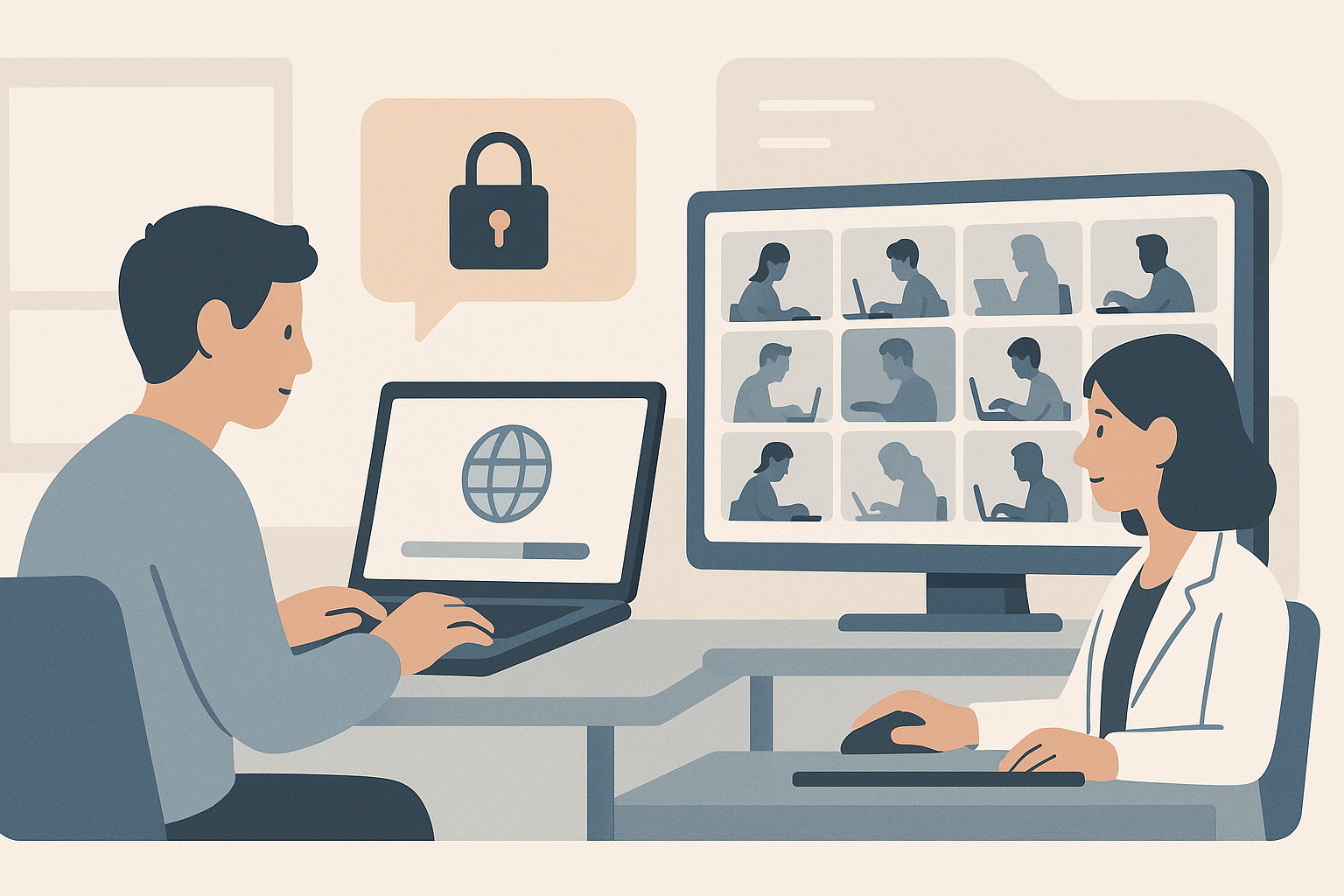
Screen proctoring lets your invigilators see what is on each student's screen during an online exam, by capturing screenshots from Safe Exam Browser and showing them in a gallery view. It is a separate, optional layer on top of the lockdown and indicator features. Exam Administrators set it up; Exam Supporters use it on the day.
SEB Server: Indicators, Restrictions and Client Checks
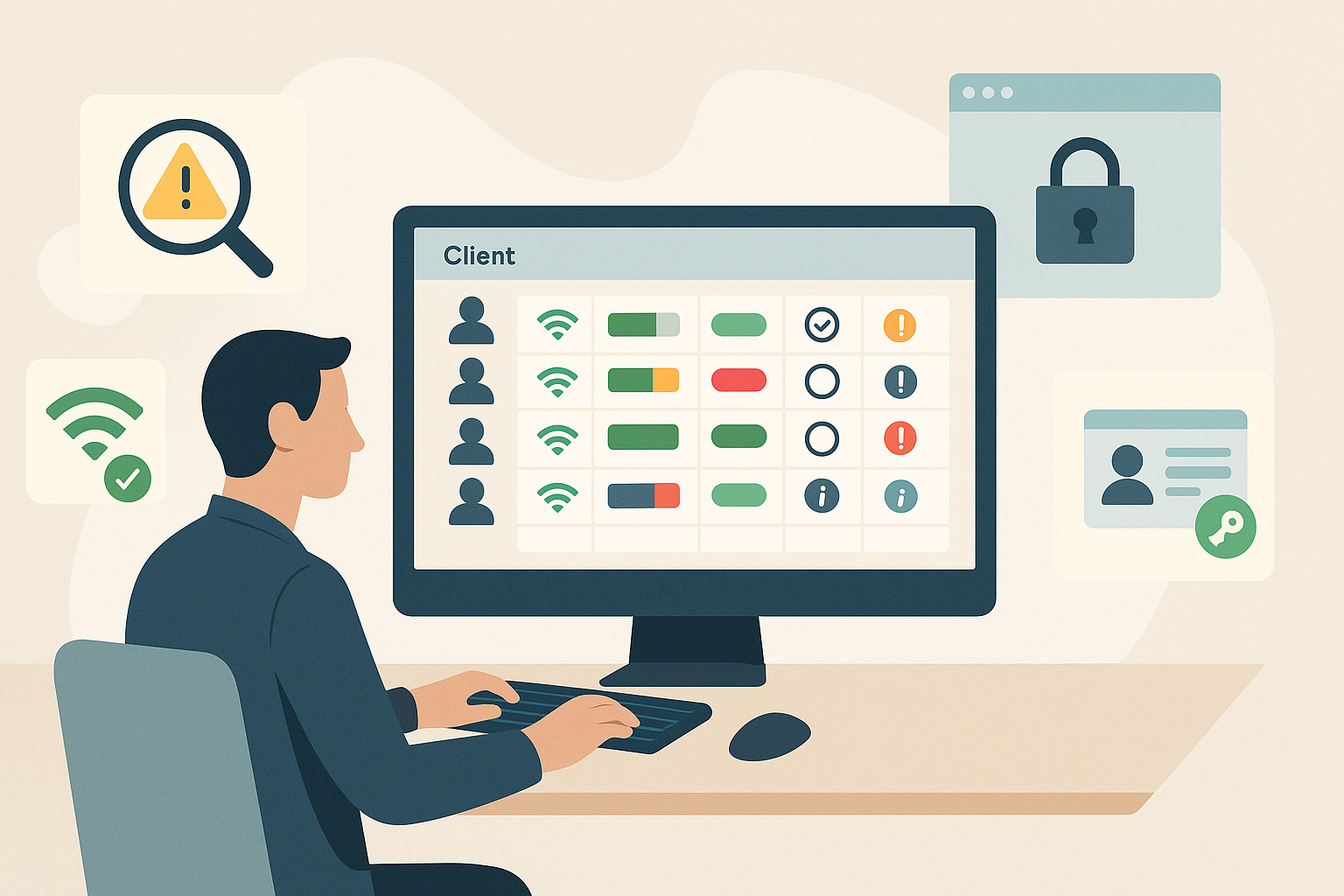
There are several layers of protection and visibility you set up on an exam before it runs: monitoring indicators, the automated SEB restriction, the App-Signature-Key check and SEB Client Groups. Together they make sure the Safe Exam Browser clients connecting to your exam are the real thing, that the Moodle quiz can only be reached through a properly configured Safe Exam Browser, and that supporters can spot problems quickly on the day. Exam Administrators handle this preparation work.
SEB Server: Setting Up an Exam
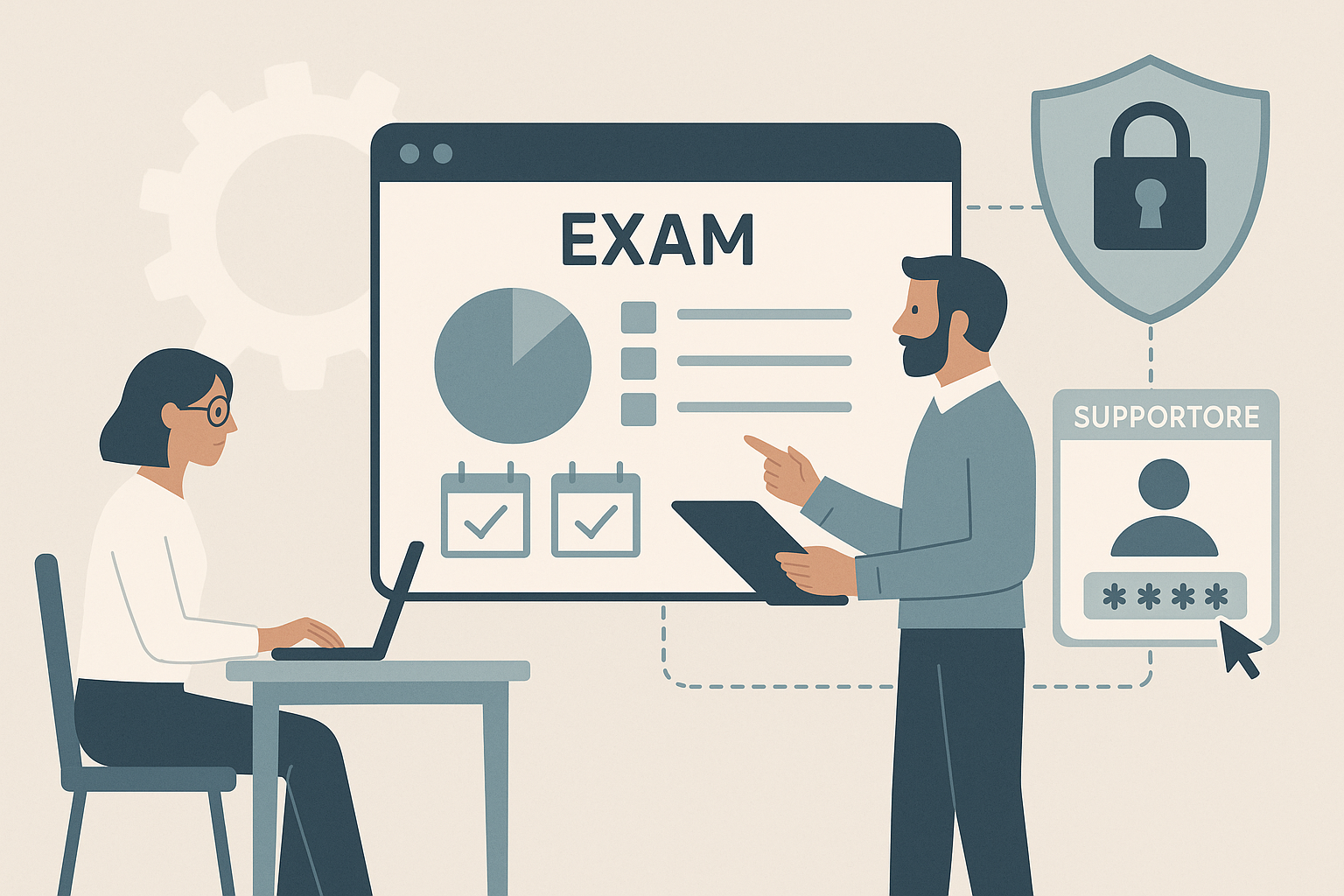
Once your institution is linked to Moodle and you have an Exam Configuration ready, you can import a Moodle quiz as an exam in SEB Server. This is where the central setup work pays off: in a few clicks, you attach the lockdown rules, choose your supporters and set up a quit password. Exam Administrators handle this work.
SEB Server: Connection and Exam Configurations (Lockdown)
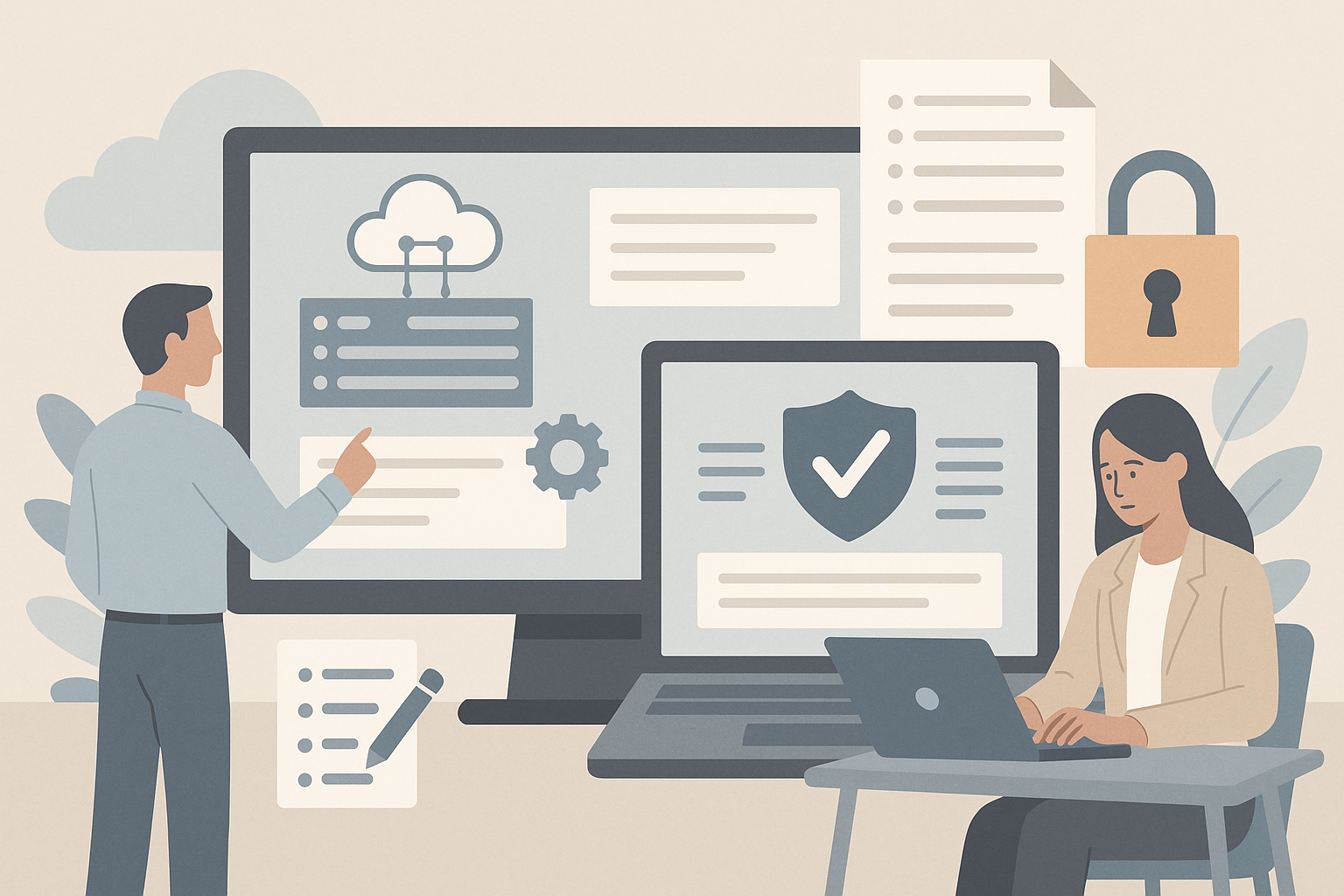
Two pieces of configuration sit between SEB Server and the Safe Exam Browser on a student's device. A Connection Configuration tells Safe Exam Browser how to reach your SEB Server. An Exam Configuration tells Safe Exam Browser exactly how to lock the device down for one particular exam. Exam Configuration Templates let you reuse a standard set of settings across many exams.
SEB Server: Connecting Moodle as Your Assessment Tool
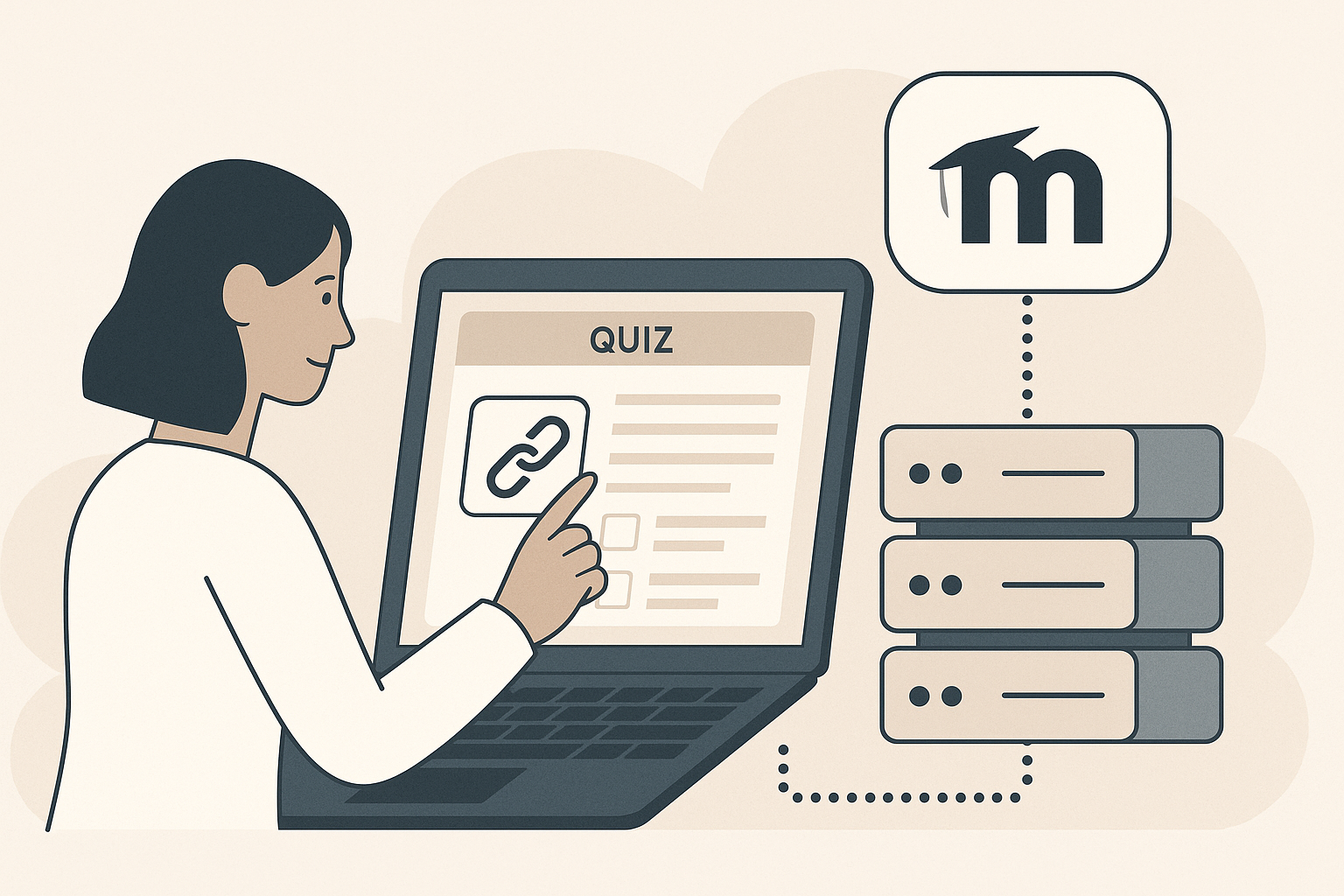
SEB Server does not host quizzes itself. It works alongside your Moodle site, where the actual quiz questions and student results live. Before you can import a quiz as an exam, you have to tell SEB Server how to reach your Moodle site and give it permission to look up courses on your behalf. That link is called an Assessment Tool Setup.
SEB Server: Institutions and Users
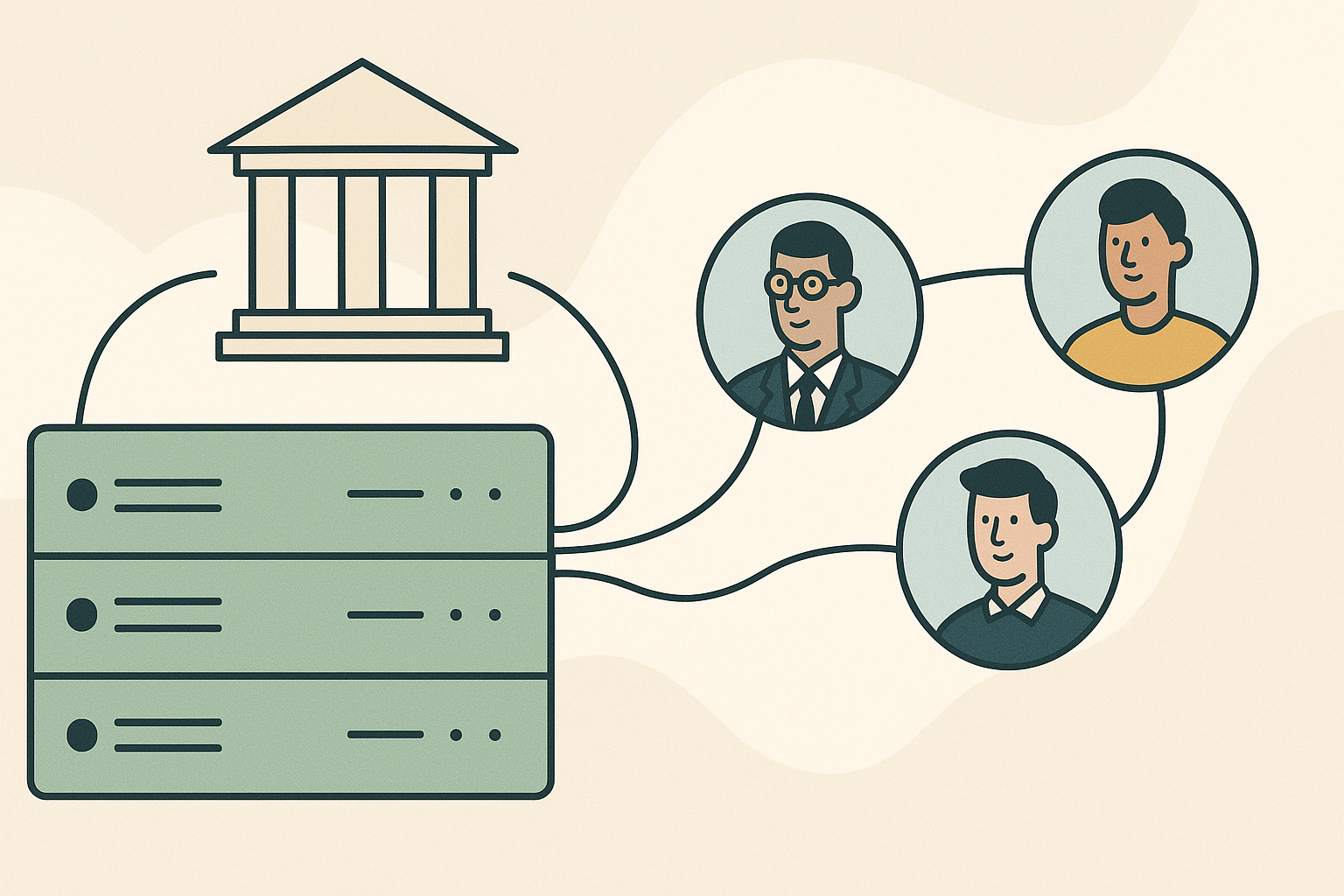
Before you can prepare an exam, your SEB Server needs an institution to put exams under, and the people who will run those exams need accounts with the right roles. SEB Server Administrators and Institutional Administrators handle this work when setting up a new SEB Server site or adding new staff to an existing one.
SEB Server: Introduction and Overview
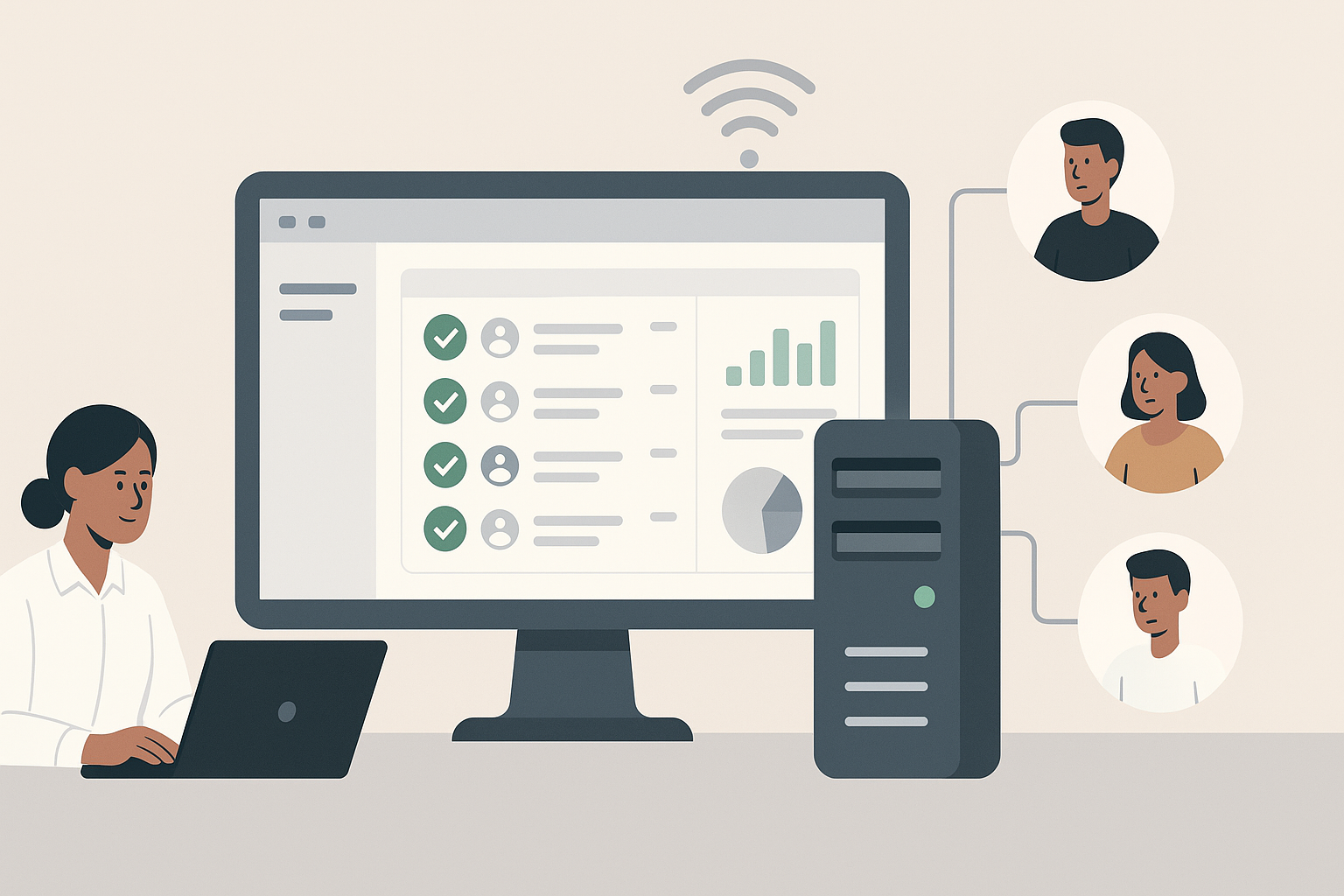
SEB Server is a web-based administration tool that helps your organisation set up, manage and monitor online exams that use the Safe Exam Browser (SEB). It gives staff a single place to prepare exams, lock down what students can do on their device during an exam, and keep an eye on every connected student in real time.