
How to Edit a Question in a Quiz Without Re-Importing
Learn how to edit a quiz question directly in Moodle 4.5 without needing to re-import the entire question bank. This guide is perfect for fixing typos or errors, but be cautious if students have already attempted the quiz.
Moodle version: 4.5 Estimated time: 4 minutes Difficulty: Beginner
Why you'd use this
You've spotted a typo, a wrong answer, or an unclear wording in one of your quiz questions and you need to fix it. You don't want to rebuild the whole quiz or re-import a question bank just to change a single question. Editing the question directly in the question bank updates it in place, so the fix takes effect without disturbing the rest of the quiz.
Before you start
Permissions required:
- Teacher or Editing Teacher role in the course containing the quiz, or Manager role with the capability
moodle/question:edit - You must be the owner of the question, or have permission to edit questions created by others in that question category
You'll need:
- The name of the quiz containing the question
- A clear idea of what you want to change (correct answer, wording, feedback, etc.)
- Awareness of whether students have already attempted the quiz see the warning under Step 5
Not sure if you have the right permissions? Open the quiz and look for the gear/settings menu with a Questions option — if you can see it and can click Edit (the pencil icon) next to a question, you have access. If not, ask your Moodle administrator or the course's lead teacher.
⚠️ Important — read before editing: If students have already attempted this quiz, editing the question can affect grading. See the warning at Step 5 before saving any changes.
Step-by-step
Step 1: Open the course and go to the quiz
From your Moodle dashboard or My courses, click the course that contains the quiz. On the course page, click the name of the quiz activity to open it.
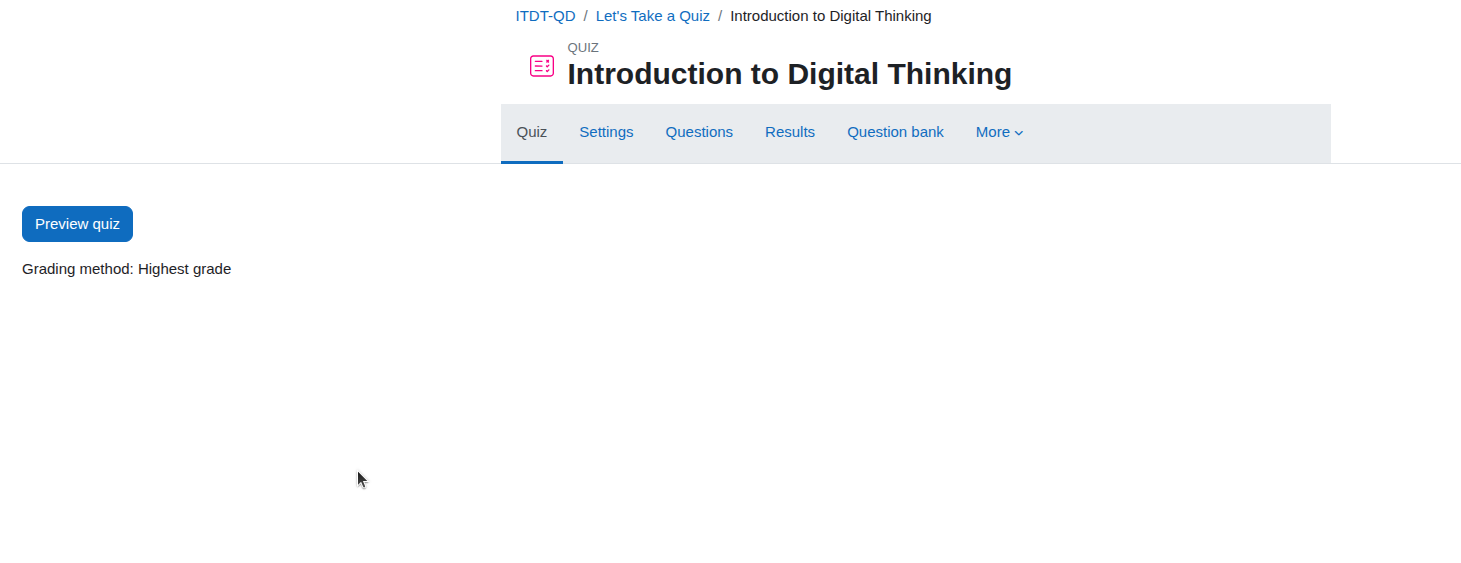
Step 2: Open the quiz's question list
On the quiz page, click the Questions tab in the secondary navigation bar near the top of the page (alongside tabs like Quiz, Settings, Results, and Question bank).

💡 Tip: If you don't see tabs, you may be on a smaller screen — look for a More dropdown that contains them, or use the Settings cog menu.
Step 3: Find the question you want to change
You'll see a list of all questions currently in the quiz, in the order they appear to students. Scroll to find the one you need to edit. Each question shows its question text (or the start of it) and a row of small action icons on the right.

Step 4: Click the edit (pencil) icon for that question
Next to the question, click the pencil icon (the tooltip reads Edit question). This opens the full question editing form the same form used when the question was originally created.

💡 Tip: Don't click the question text itself or the preview (magnifying glass) icon, those won't let you edit. Look specifically for the pencil.
Step 5: Make your changes in the question editing form
Update whatever needs changing, for example:
- The Question text field for wording fixes
- The Answers section to correct which option is marked correct, or to change the answer text
- The General feedback or per-answer Feedback fields
- The Default mark if the point value is wrong

⚠️ Warning : If students have already attempted this quiz: Changing the correct answer, the marks, or the answer options of a question that has live attempts can produce inconsistent grades. Moodle will not automatically re-grade past attempts. You should either: (a) only make cosmetic changes like fixing typos, or (b) plan to re-grade attempts afterwards using the Results > Grades page, where there is a Regrade all option. If in doubt, make a copy of the question first (see Common problems below).
Step 6: Save the changes
Scroll to the bottom of the form and click the Save changes button. Moodle returns you to the questions list, and the edited question is now live in the quiz.

Step 7: Preview the question to confirm it looks right
Back on the Questions list, click the preview (magnifying glass) icon next to the question you just edited. A preview window opens showing the question exactly as a student will see it. Close the preview when you're satisfied.

Step 8: (If needed) Regrade existing attempts
If you changed the correct answer, marks, or answer options, go to the Results tab of the quiz, then look for the Regrade all option (the exact label may appear as Regrade all attempts. Confirm when prompted. Moodle will recalculate grades for all existing attempts based on the corrected question.
Check it worked
Open the Questions tab of the quiz and find the question you edited. Click the preview icon the question should display with your changes (new wording, new correct answer, new feedback, etc.). If you regraded attempts, open Results > Grades and confirm the affected students' marks have updated.
Common problems
- The pencil icon is greyed out or missing, You probably don't have permission to edit that specific question. Questions created by other teachers in a shared category may be locked to you. Ask the question's creator or your Moodle administrator.
- My changes don't appear for students who already took the quiz, Past attempts store the question version as it was at attempt time. Use Regrade all under the Results tab to recalculate, or accept that historical attempts keep the old version.
- I want to change the question without affecting old attempts, Instead of editing, duplicate the question: in the Question bank, find the question, click the duplicate icon, edit the copy, then swap it into the quiz in place of the original. The original stays untouched for historical attempts.
- I edited the question but the quiz still shows the old version, You may have edited a different question with similar wording, or you edited a copy in another category. Confirm via the quiz's Questions tab (not the general Question bank) that the question shown in the quiz is the one you edited.
- "This question cannot be edited because it has been used" message, In Moodle 4.5, the question bank uses question versioning. Editing creates a new version rather than blocking you. If you see a hard block, your administrator may have restricted edits on used questions.
Looking to enhance your Moodle experience? EssingtonITS offers expert IT services to optimise your learning platforms. For tailored Moodle hosting and support, explore our dedicated e-learning services at myelms.co.uk. Let us help you achieve seamless and efficient e-learning solutions.
Moodle is a registered trademark of Moodle Pty Ltd. This channel is independently operated by EssingtonITS and is not affiliated with or endorsed by Moodle.
person people found this useful.




