
Permissions, Users and Groups in eLLM
The article explains how eLLM manages user access through a system of users, groups, and capabilities, ensuring the right people have appropriate access. It provides a guide for administrators on setting up and managing access permissions.
What this product is for
An organisation needs the right people to have the right access, and no one to have more than they should. eLLM achieves this with a clear model: each person is a user, users belong to groups, and groups carry capabilities and document access. Understanding these few ideas explains every access decision in the system.
Main features
- Single sign-on: users log in with their existing work credentials.
- Groups that determine both coarse access (such as reaching the admin console) and fine-grained capabilities.
- A small set of capabilities granted per group.
- Document access tags that decide which groups can see each document.
- Optional connection to your existing directory so users and groups are managed centrally.
How it works
Users
Every person who uses eLLM is a user with their own login. Sign-in is handled by your organisation's identity system, so people use the same username and password as for other internal tools. There are no separate eLLM passwords to manage, and no per-person settings stored on the server beyond what the identity system provides.
Groups
Users belong to one or more groups. Groups do two important jobs:
- Coarse access: membership of the admin group is what allows someone into the admin console. Everyone else is a normal user. A typical staff member might be in a staff group.
- Access scope: a user's groups decide which documents they can retrieve and cite, and which models and tools they may use.
Capabilities
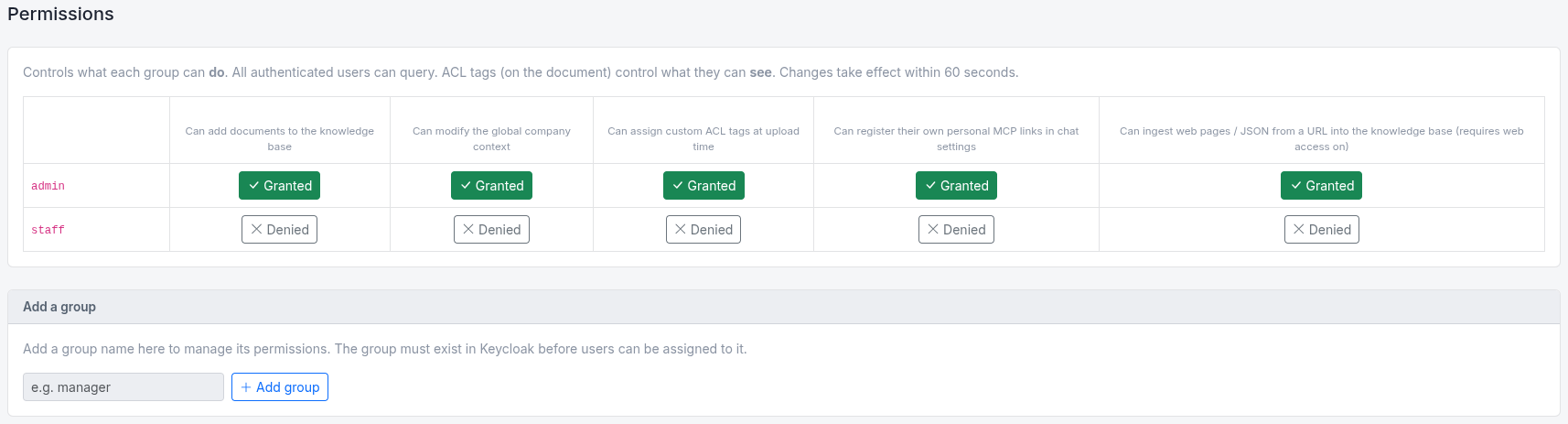
Within the main application, finer abilities are granted to groups as capabilities, on the admin console's Permissions page:
| Capability | What it Allows |
| Upload Documents | Add documents to the library |
| Set system context | Edit the company context that shapes how answers are written. |
| Manage access tags | Create, rename, and apply the tags that control document access. |
| Manage personal MCP | Connect personal tool services in user settings. |
A user gains a capability by being in a group that has it. Capability changes take effect the next time the affected user signs in.
Document access tags
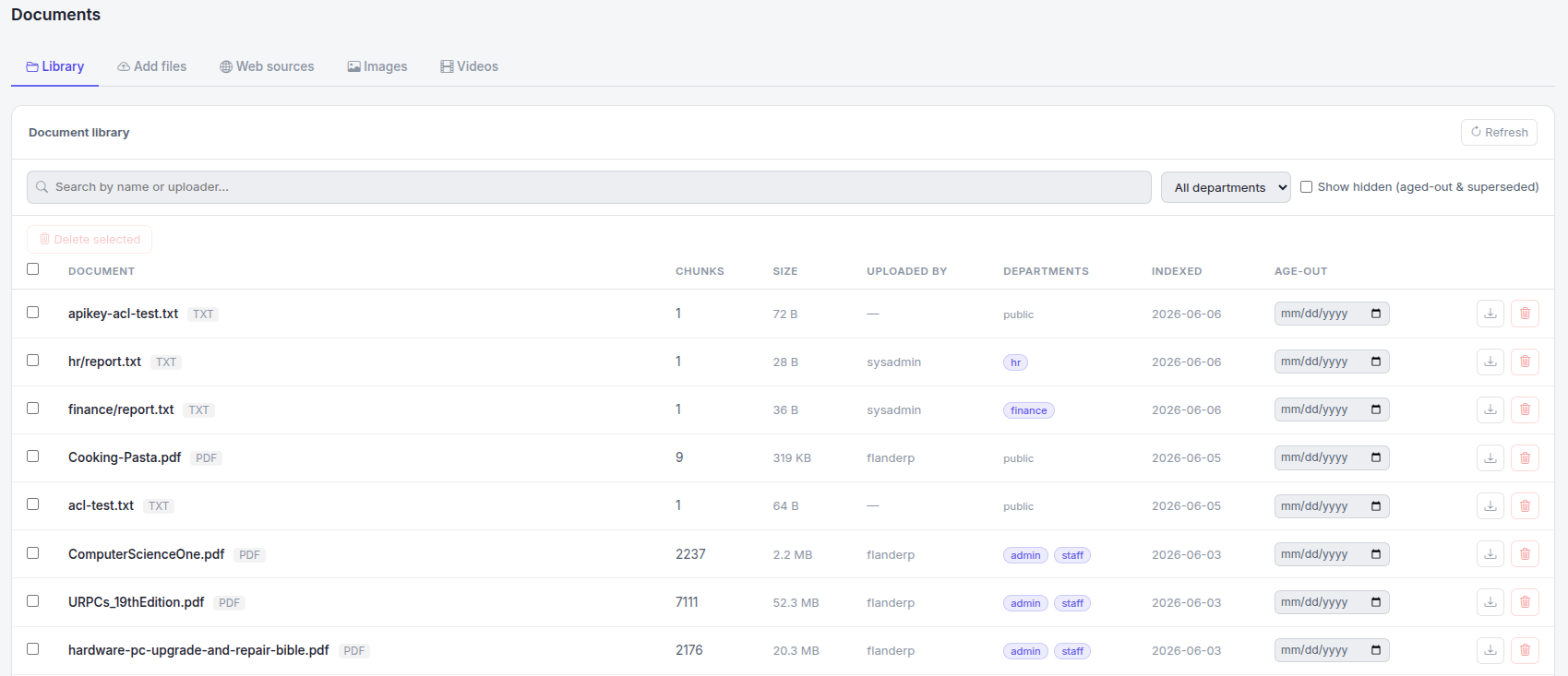
Documents carry access tags that decide which groups can retrieve and cite them. This is how eLLM makes sure people only ever see content they are entitled to:
- A document with no tag is private to the person who uploaded it.
- A document tagged for a group can be used by members of that group.
- Administrators can see all documents; other users see public documents plus those for their own groups.
This access filtering applies everywhere documents are used, so an answer never draws on a document the asker is not allowed to see.
External services and access
External software uses eLLM through an API key rather than a personal login. Each key is mapped to one or more groups and gets exactly the same document access those groups would, so a key can only reach what its groups can reach. See the API keys and External API articles.
Connecting your existing directory
eLLM can connect to your organisation's existing user directory so that users and their group memberships are managed centrally rather than maintained separately. When this is set up, people and their groups come from your directory, and ELLM's capability and access rules then apply to those groups. This keeps account management in one place. Setting this up is an administrator task in the identity system.
How to use it
Granting access to a group (administrators)
- Decide which group should gain an ability.
- On the Permissions page, turn on the relevant capability for that group.
- Ask affected users to sign out and back in for the change to apply.
Giving a user admin access
Add the user to the admin group in your identity system. Admin-group members can reach the admin console; others cannot. This is separate from the fine-grained capabilities above.
Controlling who sees a document
- When uploading, apply one or more access tags (requires the manage access tags capability).
- Members of a tagged group can then use that document; others cannot.
- Leave a document untagged to keep it private to the uploader.
Common tasks
- Let a team upload documents: grant the upload capability to their group.
- Restrict a document to one department: tag it for that department's group.
- Give someone admin access: add them to the admin group.
- Let an external tool in: create an API key scoped to the right groups.
- Manage everyone centrally: connect your existing directory.
Things to know
- Capabilities and document access attach to groups, not individuals. To change what one person can do, change their group membership or the group's settings.
- Capability changes apply at the user's next sign-in.
- Membership of the admin group is what grants admin console access; it is separate from the fine-grained capabilities.
- Document access filtering is always applied, so answers never include content the asker is not entitled to.
- An untagged document is private to whoever uploaded it.
- API keys follow the same group-based access as users.
Troubleshooting
- A user can't do something after I granted it: ask them to log out and back in, since changes apply at next sign-in.
- A user can't reach the admin console: they must be a member of the admin group.
- A user can't see a document: check the document's access tags and the user's group membership.
- I changed a capability but the wrong person was affected: remember capabilities attach to groups; confirm who is in the group.
- An external service has the wrong access: adjust the groups its API key is mapped to.
Frequently asked questions
How do users sign in?
With their existing work credentials through your organisation's single sign-on. There is no separate eLLM password.
Can I give a capability to a single person?
Not directly. Capabilities are granted to groups; put the person in a group that has the capability.
What is the difference between the admin group and a capability?
The admin group grants access to the admin console. Capabilities are finer abilities within the main app, such as uploading documents.
How is document access decided?
By access tags on each document matched against the user's groups. Untagged documents are private to the uploader.
Where are users and groups actually created?
In your organisation's identity system, which can also connect to your existing directory so accounts are managed centrally.
Summary
eLLM's access model rests on three ideas: users sign in with their work accounts, groups decide access, and capabilities and document tags refine what each group can do and see. Admin-group membership grants the admin console; the Permissions page grants fine-grained abilities; and access tags keep documents visible only to the right groups. Because everything attaches to groups, access stays clear, consistent, and easy to manage, for people and for connected external services alike.
Need assistance navigating the complexities of eLLM? EssingtonITS offers expert guidance and tailored IT solutions to help you succeed. Visit EssingtonITS.co.uk for comprehensive support.
person people found this useful.




