
How to Create a Course Category in Moodle
Learn how to organise your Moodle site by creating categories to group courses effectively. This guide walks you through the steps to set up categories, making it easier for learners to find courses based on department or subject area.
Moodle version: 4.5 Estimated time: 3 minutes Difficulty: Beginner
Why you'd use this
Course categories are the folders that organise your Moodle site's course list. Without categories, all courses appear in a single undifferentiated list. Creating categories lets you group courses by department, subject area, year group, or any structure that makes sense for your organisation making it easier for learners to find what they need.
Before you start
Permissions required:
- Site administrator role, or a Manager role with the capability moodle/category:manage
You'll need:
- A name for the new category
- A decision on where it sits at the top level of the site, or nested inside an existing category as a subcategory
- Optionally: a short description of the category (useful for larger sites where learners browse the course list)
Not sure if you have the right permissions? Go to Site administration in the primary navigation if you can see it, you likely have the access needed. If not, ask your Moodle administrator.
Step-by-step
Step 1: Open Site Administration
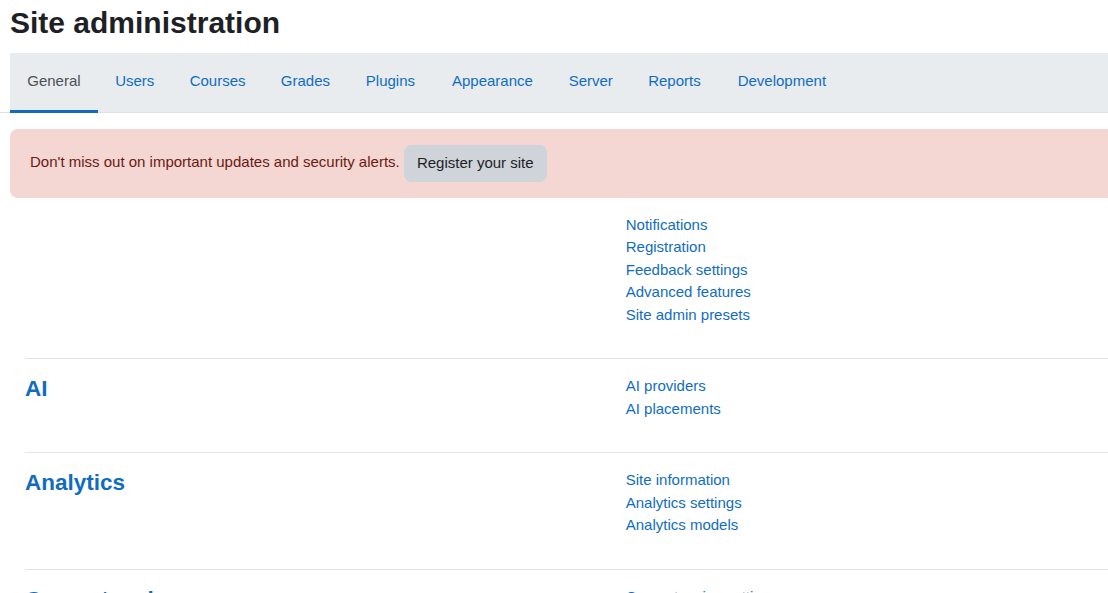
From any page in Moodle, click Site administration in the primary navigation at the top of the page, or in the left-hand drawer if your theme places it there.
Step 2: Navigate to Course Categories
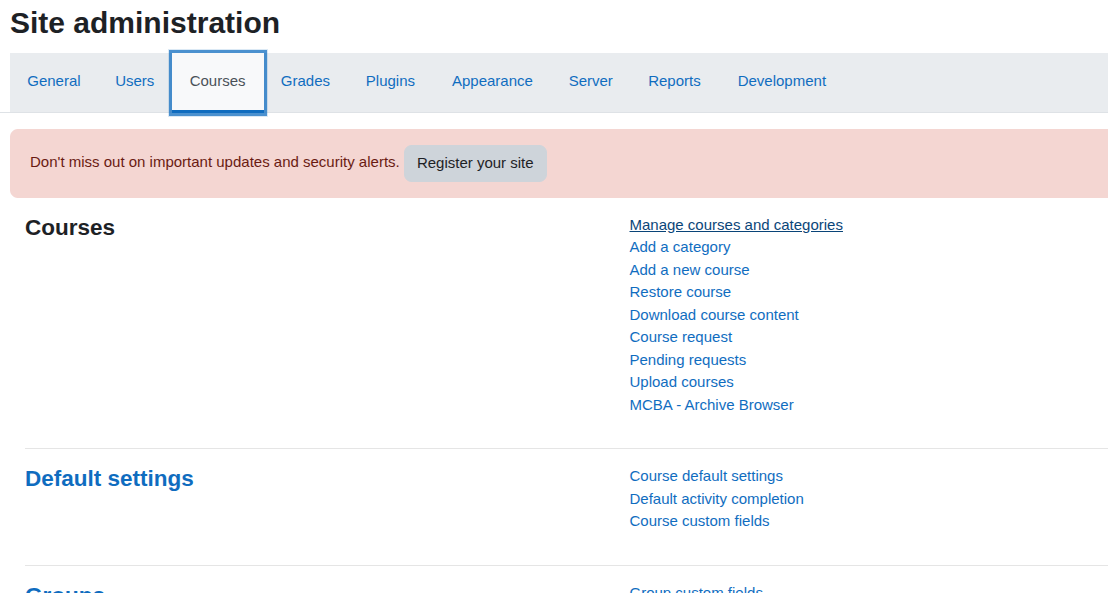
Click the Courses tab inside Site administration. From the options that appear beneath it, click Manage courses and categories.
Step 3: Review the existing category structure
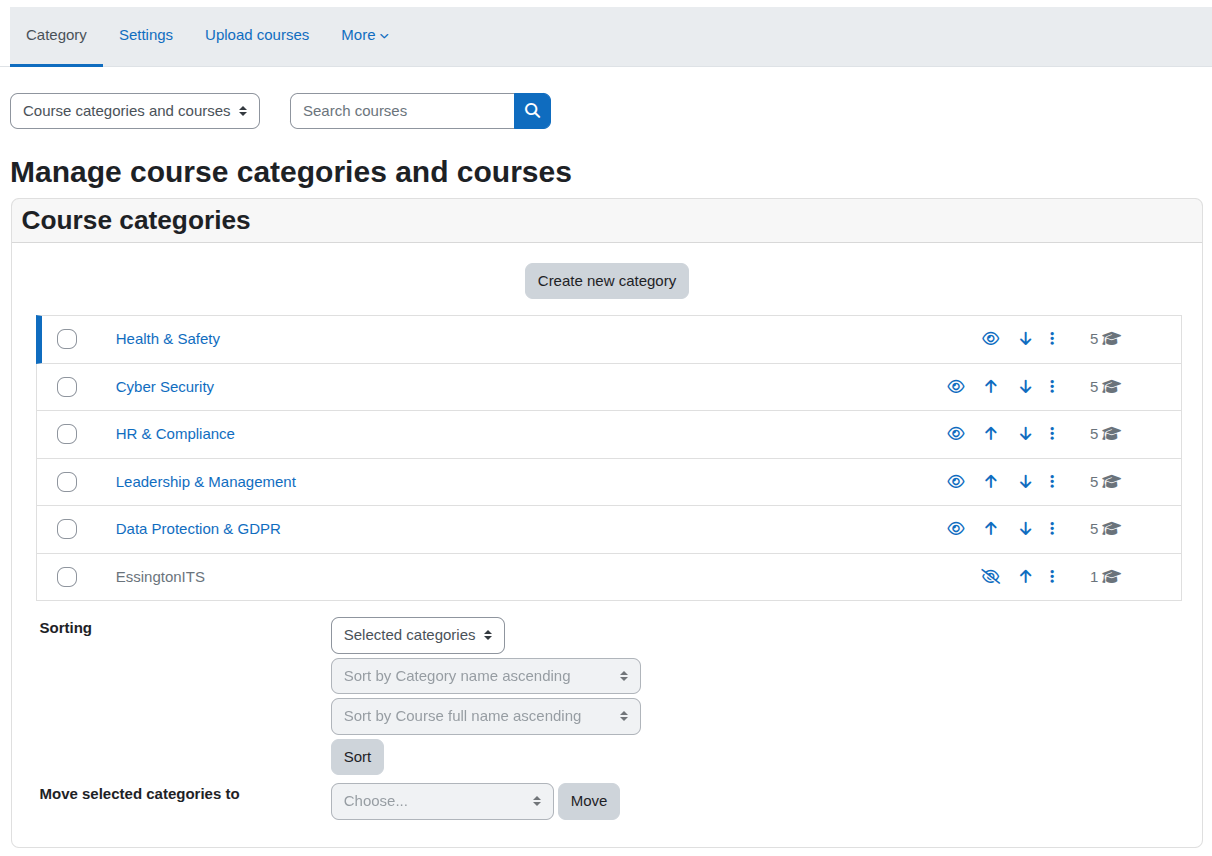
The Course and category management page shows your current category tree on the left, with courses on the right. Take a moment to confirm where you want the new category to sit before proceeding. If you want a top-level category, no selection is needed. If you want a subcategory, identify its parent category here.
Tip: Categories can be nested several levels deep in Moodle. A common approach is one top level per department or faculty, with subcategories for subject areas or course types beneath them.
Step 4: Select the parent category (subcategories only)
If you are creating a subcategory, click the name of the category you want it to sit inside it will become highlighted, and the right-hand panel will update to show its contents.
If you are creating a top-level category, skip this step and leave the focus on the top-level System view.
Step 5: Click "Create new category"
On the right-hand side of the Course and category management page, click the Create new category button. This opens the new category form.
Tip: The Create new category button appears in context if you've selected a parent category in Step 4, Moodle will pre-fill the Parent category field on the form accordingly.

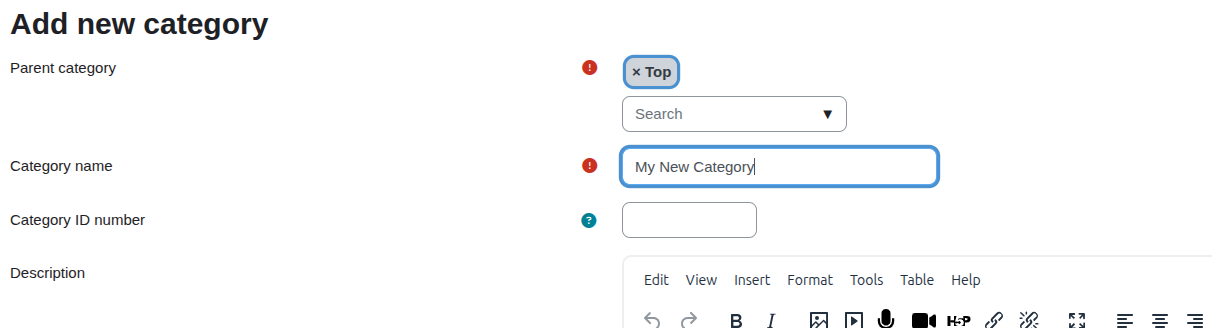
Step 6: Set the parent category on the form
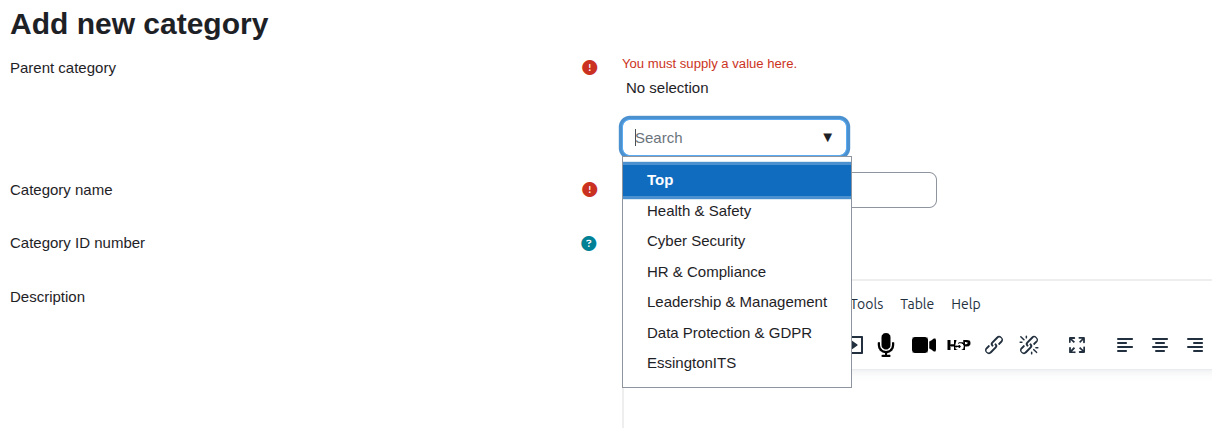
On the Create new category form, check the Parent category field:
- For a top-level category, it should show Top leave it as-is.
- For a subcategory, it should show the parent category you selected. If it doesn't, click the dropdown and select the correct parent.
Step 7: Enter the category name
In the Category name field, type the name of your new category exactly as you want it to appear to users on the site. Category names appear on the course list page and in breadcrumb navigation, so use clear, meaningful names.
Step 8: Enter a category ID number (optional)
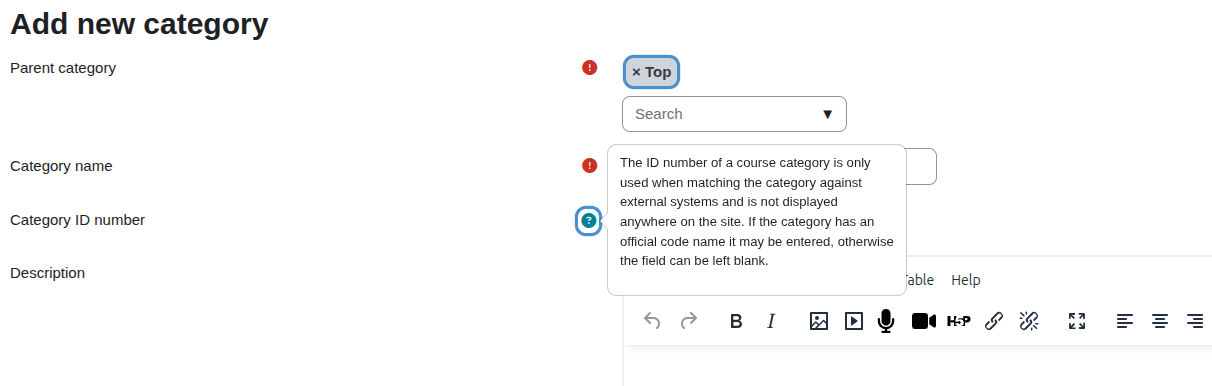
The Category ID number field is optional and not shown to learners. It is used for administrative reference or for matching with external systems such as an MIS or HR platform. If you don't need it, leave it blank.
Step 9: Add a description (optional)
The Description field accepts formatted text. If your site displays a public course catalogue and learners browse by category, a one- or two-sentence description helps them confirm they're in the right place. If your site is internal and navigation is straightforward, you can leave this blank.

Step 10: Save the category
Click the Create category button at the bottom of the form. Moodle saves the category and returns you to the Course and category management page.

Check it worked
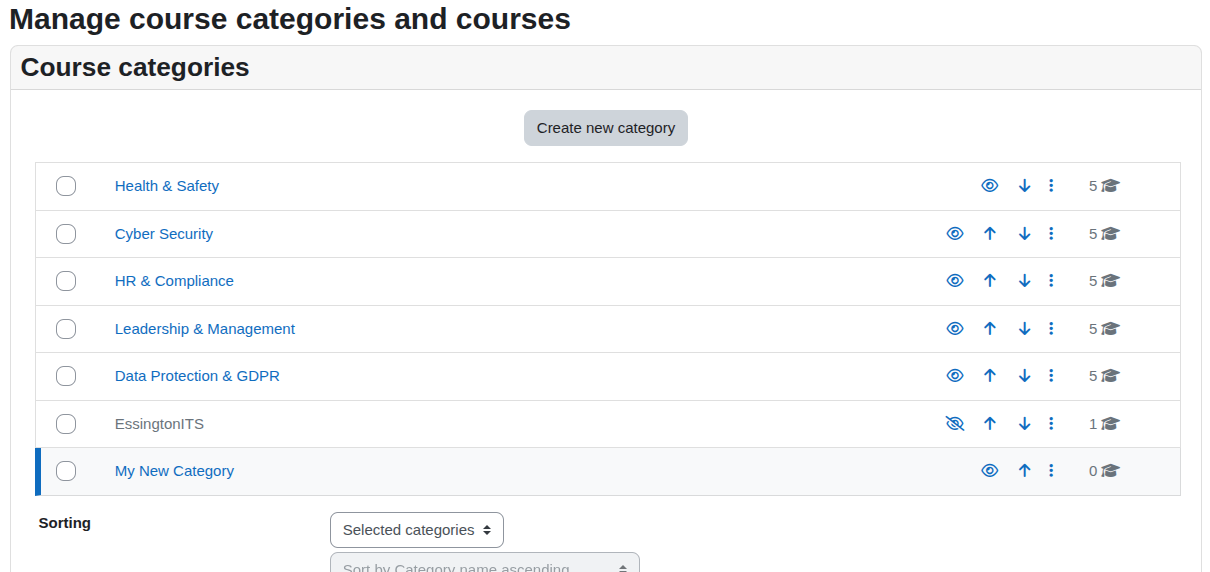
After saving, you should be returned to the Course and category management page, where your new category should now appear in the category tree on the left. Click its name to confirm it is in the correct position either at the top level or nested inside the intended parent.
To see how it looks to users, go to the site's course list by clicking Home or My courses and then browsing to the course catalogue. Your new category should be visible there, currently showing as empty.
Common problems
- The "Create new category" button isn't visible: You may not have the required permissions, or you may be viewing an individual course rather than the category management page. Make sure you have navigated to Site administration > Courses > Manage courses and categories and that your role includes moodle/category:manage.
- The new category appears in the wrong place: It was likely created under the wrong parent. You can move it: on the Course and category management page, find the category, click the Edit link beside it (or the cog icon), and change the Parent category field.
- The category isn't visible to learners: A new category with no courses in it may be hidden depending on your site's settings. Check that the category is not set to Hidden by clicking its name on the management page and reviewing its visibility setting. Also note that some Moodle themes only show categories that contain at least one visible course.
- I can't find the category in the list after saving: If your site has many categories, it may not be visible in the default view. Use the search or scroll the tree. The category is almost certainly there Moodle does not silently discard saved categories.
Looking to enhance your Moodle experience? EssingtonITS offers expert IT services to optimise your learning platforms. For tailored Moodle hosting and support, explore our dedicated e-learning services at myelms.co.uk. Let us help you achieve seamless and efficient e-learning solutions.
Moodle is a registered trademark of Moodle Pty Ltd. This channel is independently operated by EssingtonITS and is not affiliated with or endorsed by Moodle.
person people found this useful.




