
Knowledge base

How to Understand the Verification Gates
This guide explains the verification process used by eLLM Code, detailing each step from running tests to browser checks, and how to interpret the results. It also covers troubleshooting tips and settings adjustments for effective use.

How to Use the Standalone Planning Commands
Learn how to use standalone planning commands to create specific planning artefacts without initiating a full build. This guide covers generating requirements, architecture plans, and task breakdowns, with tips on permissions and troubleshooting.

How to Resume a Project and Catch Up
Learn how to efficiently resume and catch up on interrupted projects using a task list stored in the project's memory folder. This guide provides simple steps to continue work seamlessly without needing permissions.

How to Generate a Specification with the Guided Intake Form
Learn how to use the Guided Intake Form to create a detailed software specification, ensuring all necessary decisions are made upfront. This beginner-friendly guide outlines the steps and options available for generating a structured brief.

How to Plan and Build a Feature with Plan Mode
Learn how to use Plan Mode to organise and build a software feature, from planning requirements to verifying the final build. Choose your level of autonomy and follow step-by-step guidance to ensure a smooth development process.

How to Stop, Pause and Continue a Run
Learn how to effectively manage a running request or Plan Mode build using eLLM Code's Stop, Pause, and Continue features. Understand when and why the assistant pauses, and how to guide it to ensure efficient task completion.

How to Review Changes and Run a Security Review
Learn how to effectively review code changes and conduct a security review before pushing branches or opening merge requests. This guide helps identify mistakes and security risks, ensuring a safer and cleaner codebase.

How to Use Quick Commands from the Editor
Learn how to use quick commands in the editor to streamline tasks like explaining files, finding bugs, and generating tests or documentation, all without needing to write prompts. Ideal for beginners looking to enhance productivity.

How to Run Commands from the Chat
Learn to run shell commands directly from chat to streamline testing and building processes. Commands can be auto-run, backgrounded, and interrupted, with outputs and fixes proposed by an assistant.

How to Make Code Changes with Reviewable Diffs
Learn how to make code changes using reviewable diffs, allowing you to approve, reject, or apply edits easily. The process ensures changes are clear and reversible, with automation options for trusted projects.
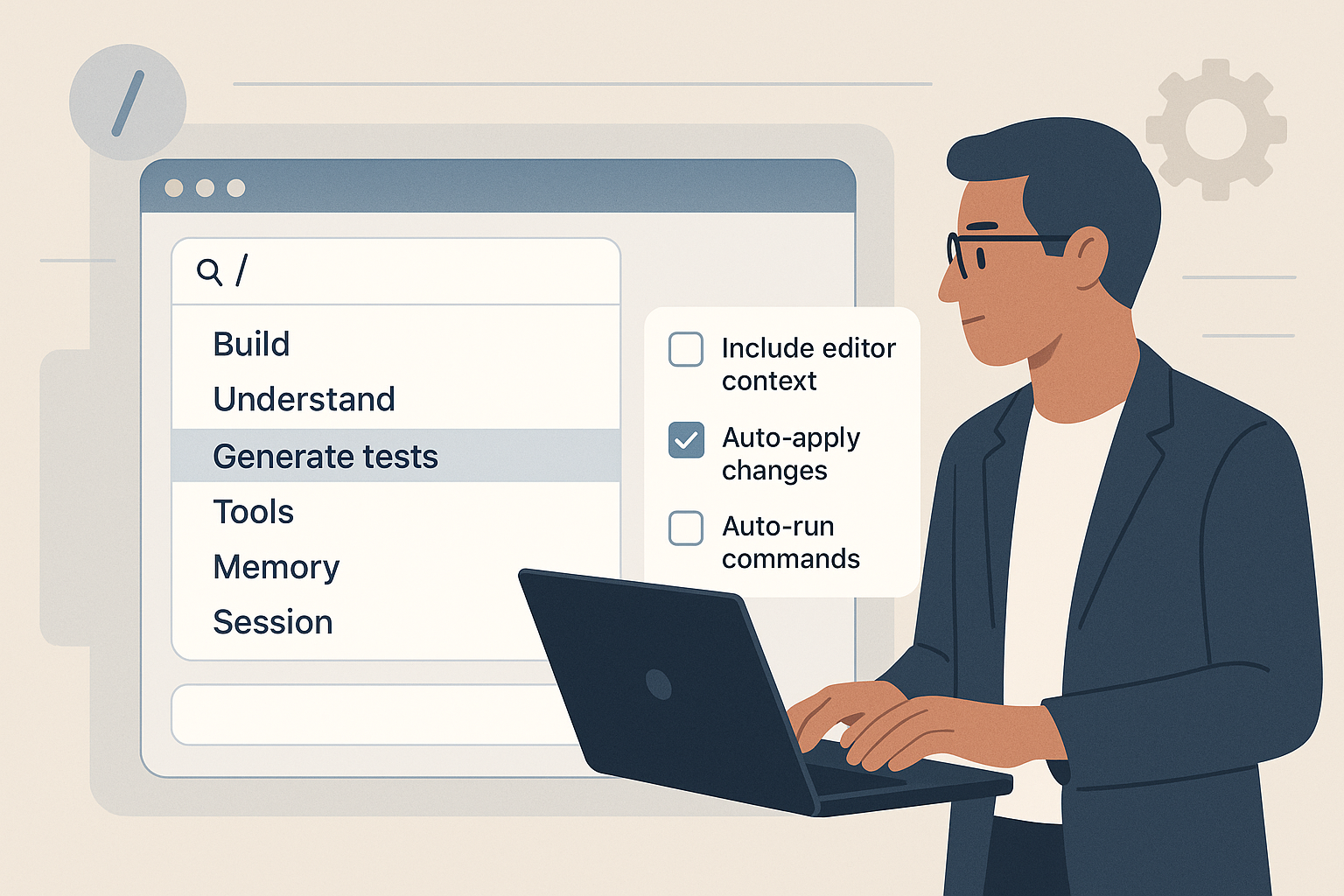
How to Use the Command Menu and Composer Toggles
Learn to use the command menu and composer toggles to streamline your workflow by accessing various functions from a single menu. Adjust settings to control how much the assistant interacts with your project, with options to auto-apply changes and run commands.

How to Ask Questions About Your Codebase
Learn how to effectively ask questions about your codebase using eLLM Code in VS Code. This guide covers how to query your project without pasting code, using file references and maintaining context for follow-up questions.